The Portal Pages are pages that can appear in the Genesis Parent and Student Portal for Schools, Counselors, Sports Teams, User Flags or Courses.
These pages allow your staff to get out word to your parents and students quickly and efficiently.
For course pages, please refer to the Course Page article.
TABLE OF CONTENTS
Types of Pages
Type | Description |
School Page | The School Page is a page for students attending the school. The school can add multiple staff members as editors to this page, so that anyone designated as an editor can create content. This page is edited on the Web Desk>Portal Pages screen. |
Counselor Page | The Counselor Pages are displayed for all students who have that staff member listed as their counselor. Any user who has the counselor selected to represent them can edit the page. Counselor Pages are edited on the Web Desk>Portal Pages screen. |
Sports Page | Sports Pages are displayed for all students who have that sport on the student’s Athletics screen. Multiple staff members can be added as editors for the page. This page is edited on the Web Desk>Portal Pages screen |
User Flag Page | User Flag Pages are displayed for all students who have the specified user flag checked on the student’s User Flags screen. User Flags can be used to create a set of specific students who will be able to see the user flag's Portal Page (e.g. students in a particular club). Multiple staff members can be added as editors for the page. This page is edited on the Web Desk>Portal Pages screen. |
Course Page | Course Pages are displayed for all students who are active in the course. All teachers who are listed as a teacher for the course can edit the content through the Gradebook. Course pages provide additional options such as automatic post generation, where the staff member can setup the page to post specific content on a designated day and time. Course Pages can be set to automatically create daily or weekly posts. Refer to the Course Page article for more information. |
Setting up Portal Pages
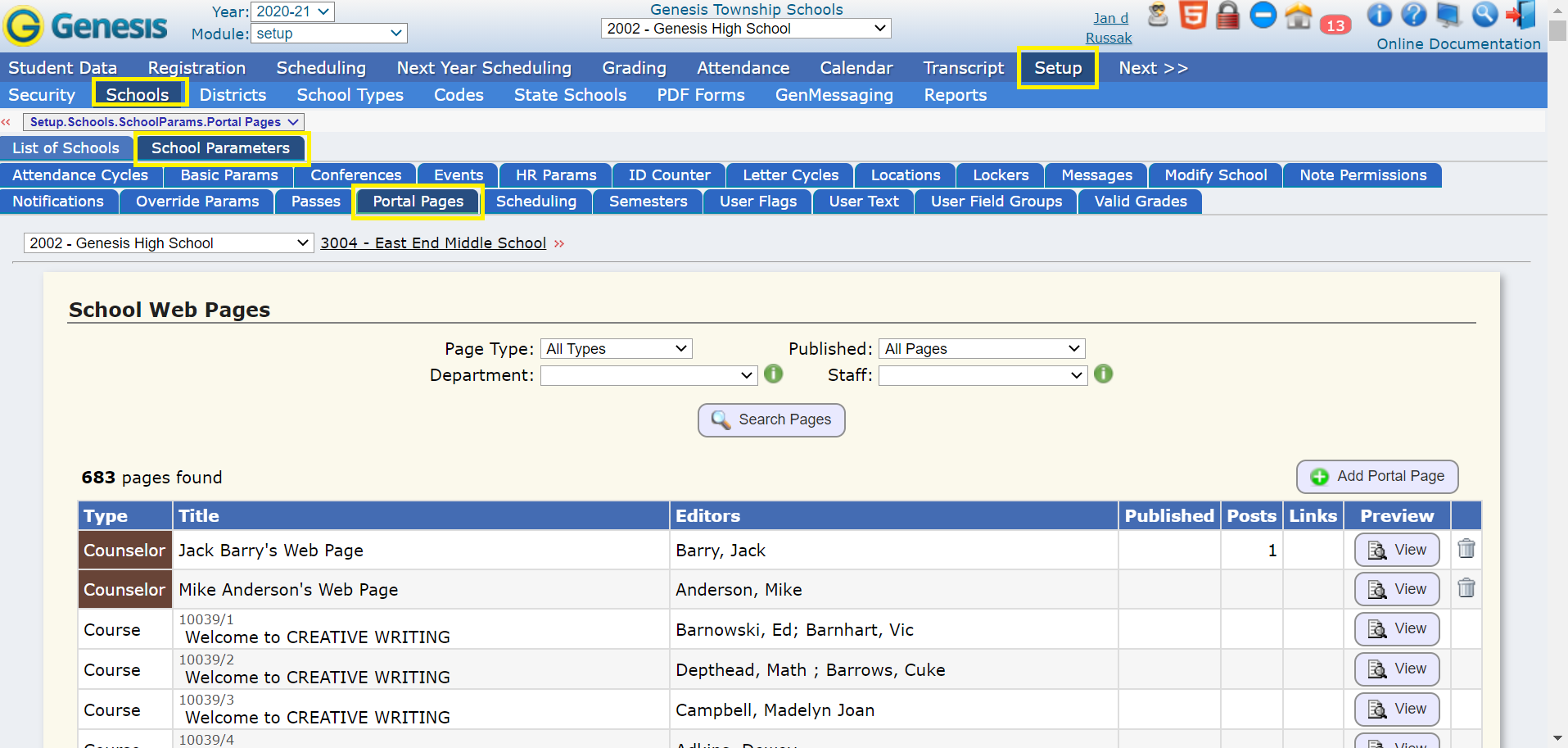
Setup can be done on the Setup>Schools>School Parameters>Portal Pages screen. This screen will display to you all portal pages that exist in your school. You can search by page type, staff members, or department. To add a new Portal Page, click on the “Add Portal Page” button. This opens a window that will walk you through the process of creating the page.
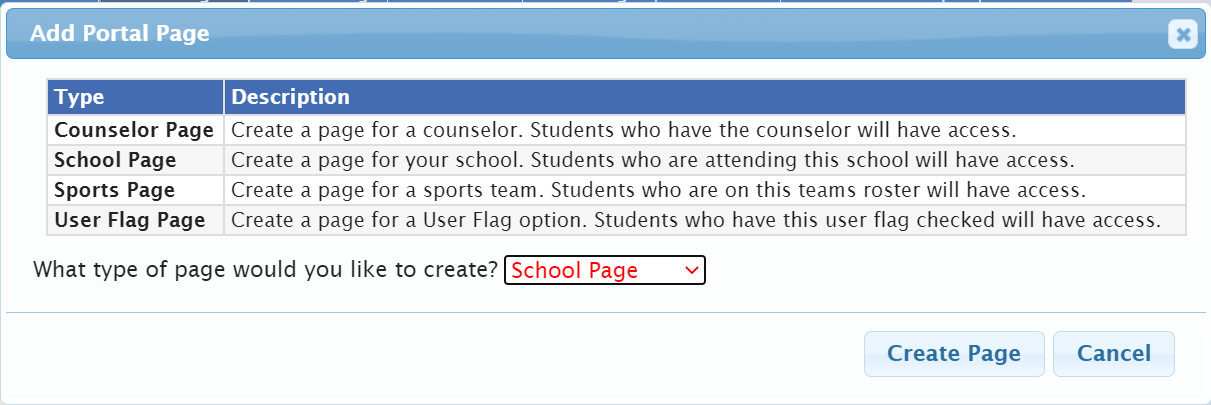
The first question is “What type of page would you like to create?”. When you select the type of page, this will open new options for you. For instance, if you select a User Flag Page, a drop down will appear with all the user flags in the school. Select the flag that you would like to create the page for and hit the “Create Page” button at the bottom.
Once you create the page, the screen will come back with all pages of the type that you just created. If this is a Counselor Page, you are all set. This page is now created and can be edited by users who have that counselor marked as representing them. For you other page types, you still have one last step.
Find the page you just created in the list. Under the “Editors” column, you will see an “Update Editors” button. Click this button to open a window containing drop downs of the staff members in your school. The purpose of this window is to allow you to select the staff members who will be able to add and edit content for this page. Select the staff members that you want to edit this page, and then hit “Update Editors”. Users who have the selected staff members representing them will now be able to edit the page from their Web Desk.
Portal Page Lists and Management
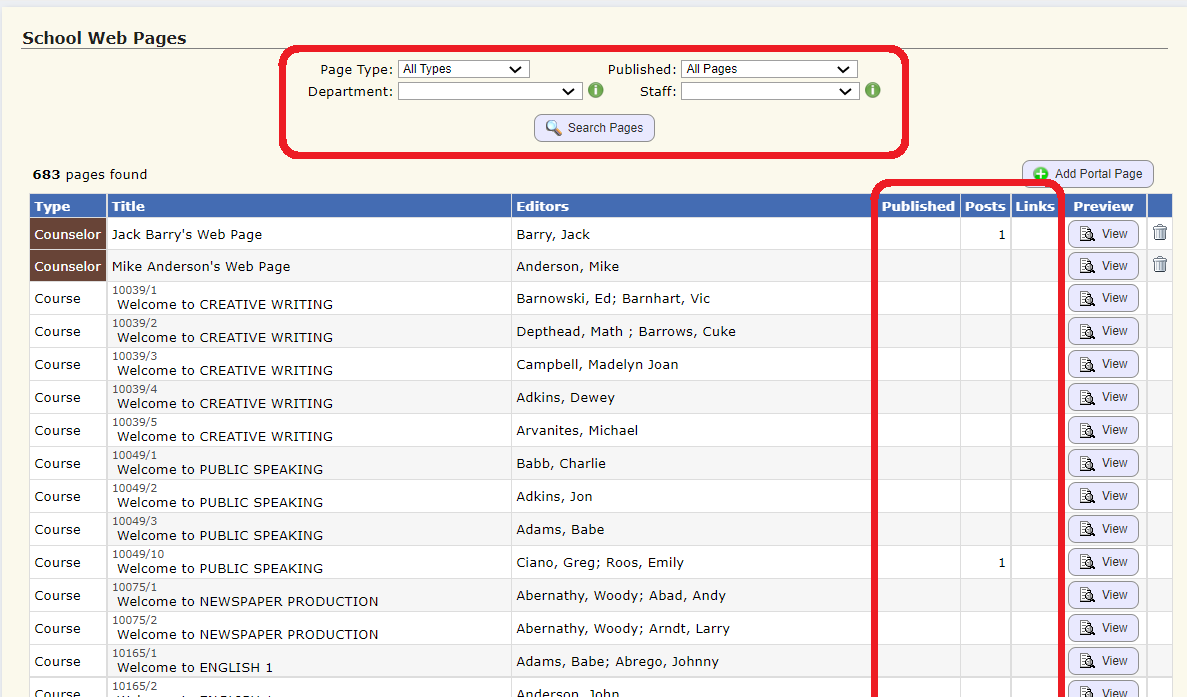
The Setup>Schools>School Parameters>Portal Pages screen is a combination setup & monitoring/status screen.
The screen allows you to see the status of all existing Portal Pages and Course Pages and allows you to create/delete and assign editors for Portal pages:
Creating Portal Pages
School, Counselor, Sports and User Flag Portal Pages are created on this Setup>Schools>School Parameters>Portal Pages screen. Course Pages are generated automatically from the school's Master Class Schedule. One Course Page is created for every course section: a Course Page will be created for each entry in the CourseSection table, and all teachers assigned to the CourseSection via entries in the CourseSubsection table will have access to it.
All School, User Flag, Counselor and Sports Portal Pages must be manually created on the Setup>Schools>School Parameters>Portal Pages screen and editors for the School, User Flags and Sports Portal Pages can be assigned here. Counselor Portal Pages can be edited by the Counselor via their WebDesk>Portal Pages screen.
This brings up the "Add a Portal Page":
Create a Portal Page
To create a Portal Page, click the  button on the Setup>Schools>School Parameters>Portal Pages screen.
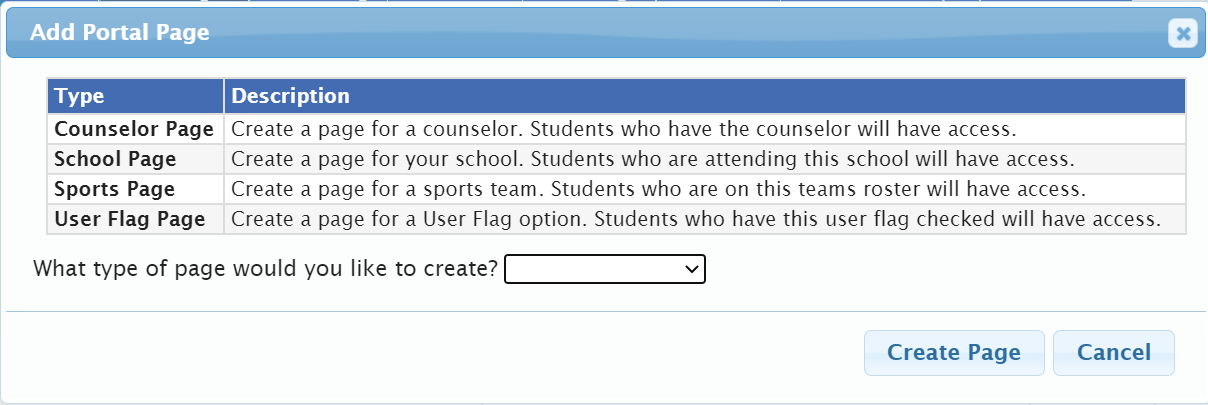
Select which of the four types of Portal Pages you wish to create and click  page.
page.
Create a School Page
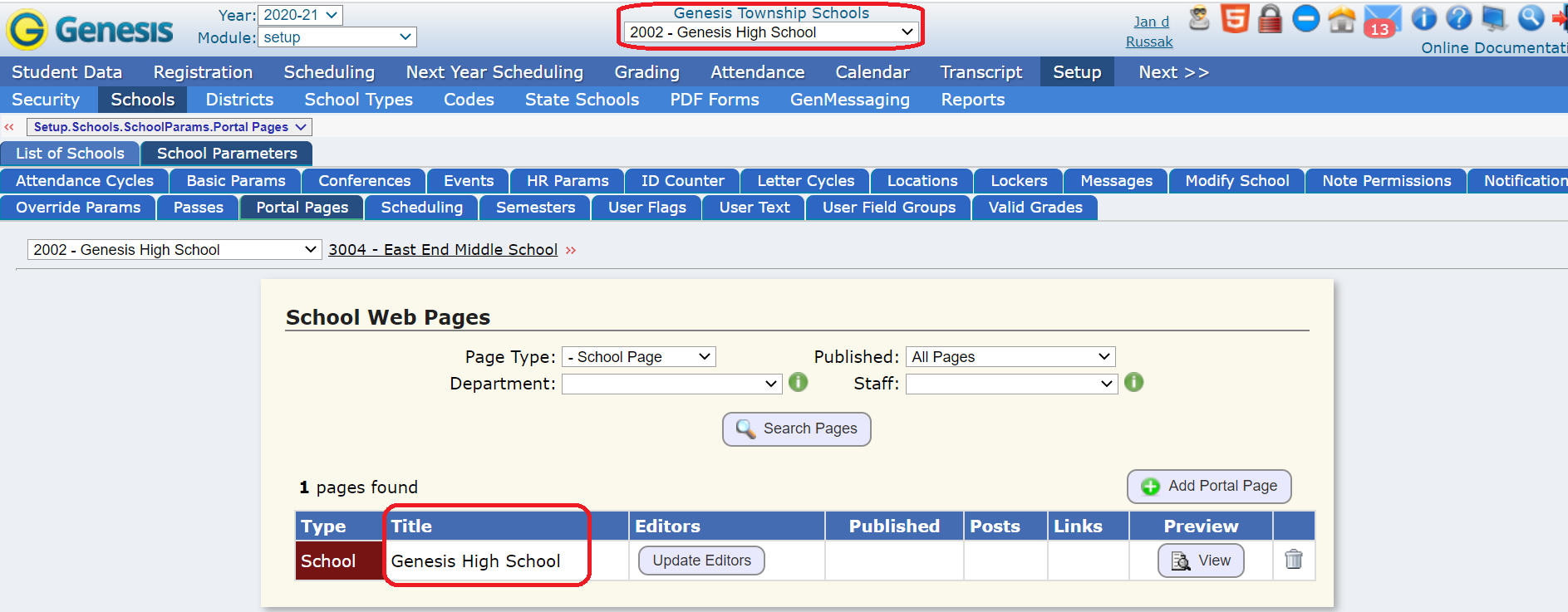
You can create a "School Page" for the school the screen is currently set to in the screen header.
When you do the  for a "School Page", a Portal Page is immediately created for the school selected in the screen header:
If the school already has an existing Portal Page an error is displayed;
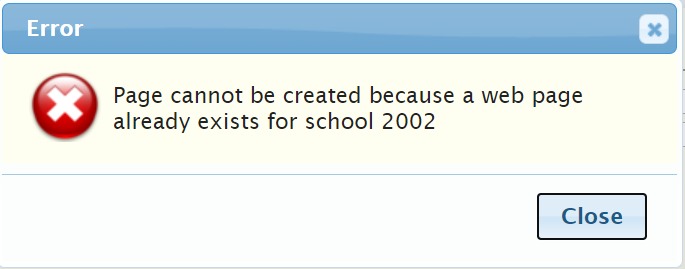
All this means is that a School can only have a single "School" Portal Page.
To create Portal Pages for additional schools, you must switch the School displayed in the screen header - and then create the Portal Page.
Setting the Editors
Once you create a School Portal Page, you must set the staff members who will be allowed to edit the school's page:

To do this, click the "Update Editors" button. When you do this, the "Select Editors" dialog is displayed:
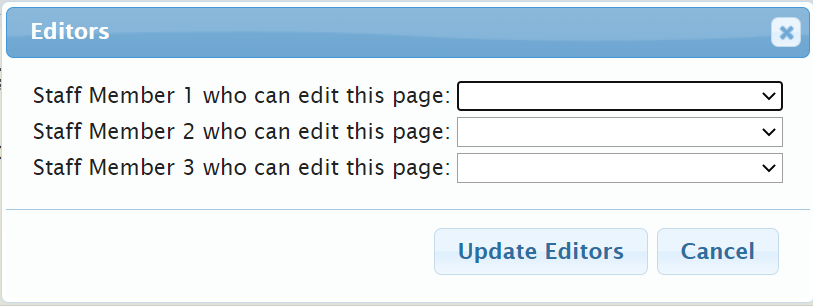
You can select up to 3 editors. They will all have access to the page via their Webdesk>Portal Pages screen.
Create a Counselor Page
To create a Portal Page for a Counselor, select "Counselor Page" on the Add Portal Page dialog:
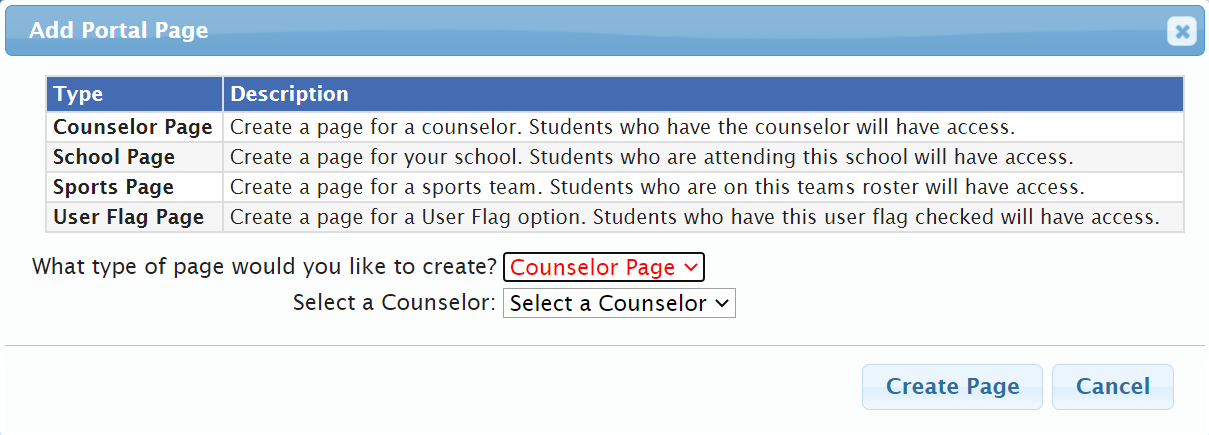
The "Select a Counselor" drop down will have all staff members marked as "Counselor" and assigned to the School currently selected in the screen header. Counselors assigned to other schools are not included in the list.
Before clicking  , you must select a specific counselor:
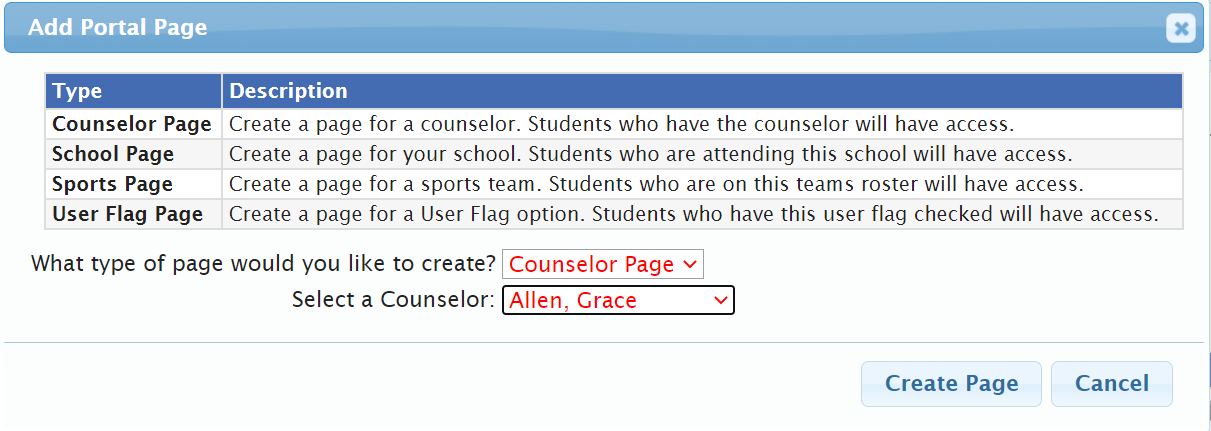
Once a counselor is selected, click  to create the Portal Page.The list of existing Counselor Pages for the school selected in the screen header will be displayed immediately:
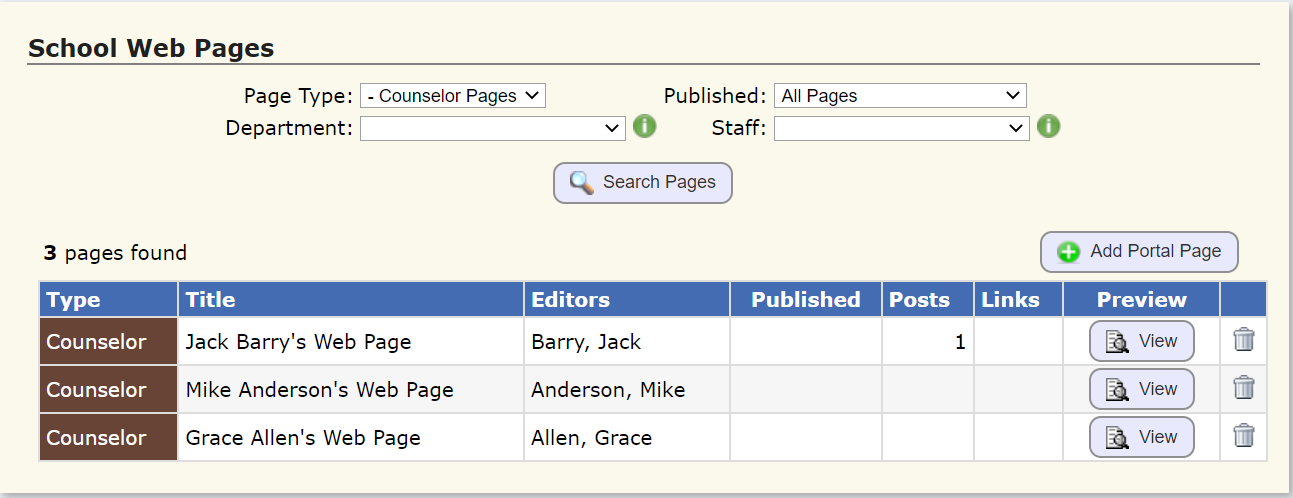
Counselors edit their own Portal Page. To let anyone else edit it, the person must be linked to the Counselor's staff Object (via their Login definition).
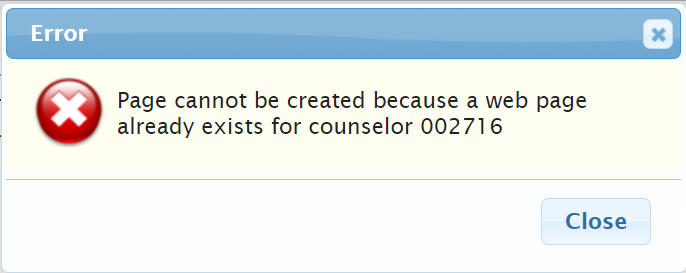
If you try to create a Portal Page for a Counselor who already has one, the following message is displayed:
Create a Sports Page
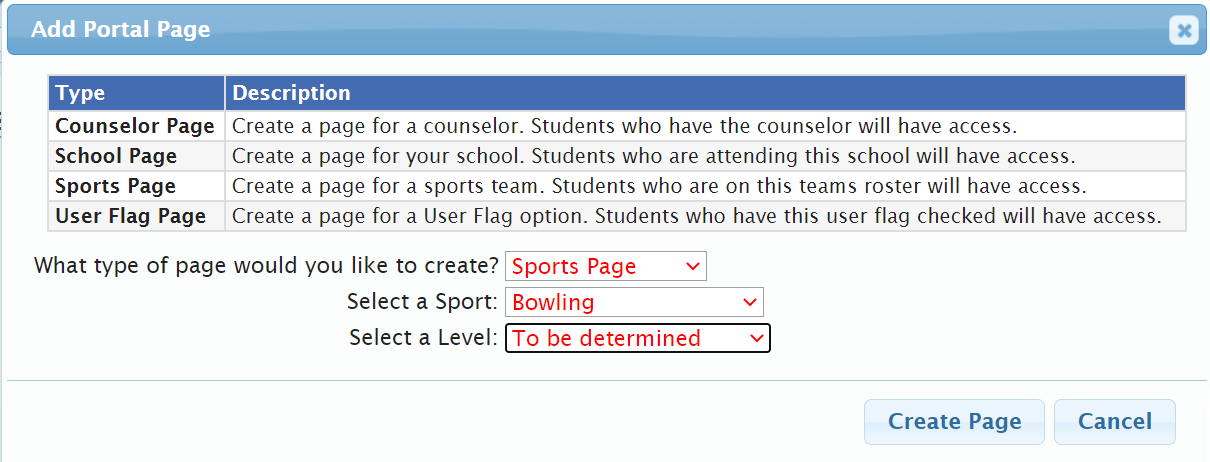
To create a Sports page, select "Sports Page" in the Add Portal Page dialog. This will bring up two additional questions: Select a Sport and Select a Level:
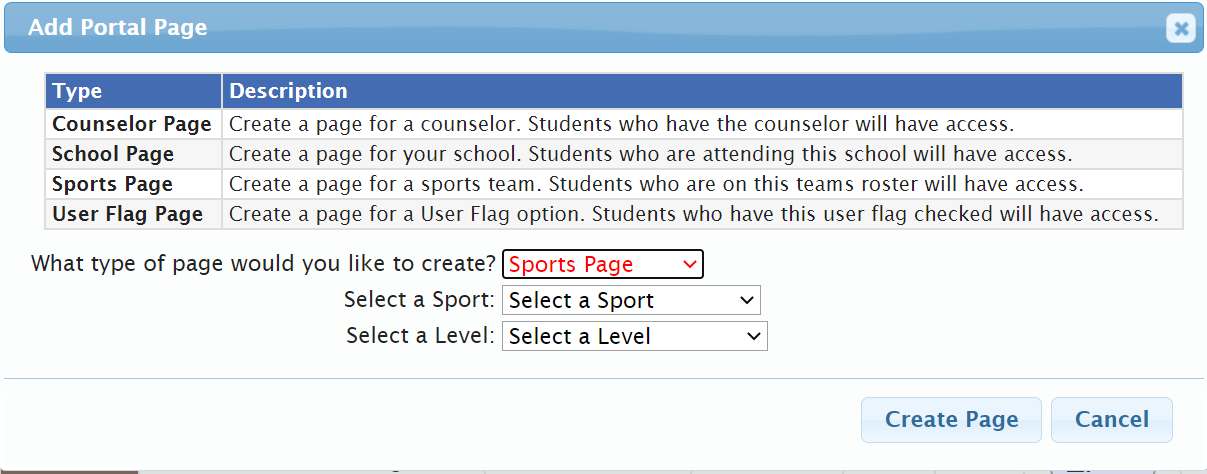
Both a Sport and a Level must be selected before you click  :
:
When you click  the Sports/Level Portal Page is immediately created and all existing Sports Portal Pages are displayed in the list:
Sports Portal Pages are always specific to a team, not simply a sport, so you must select a level. E.g. Varsity.
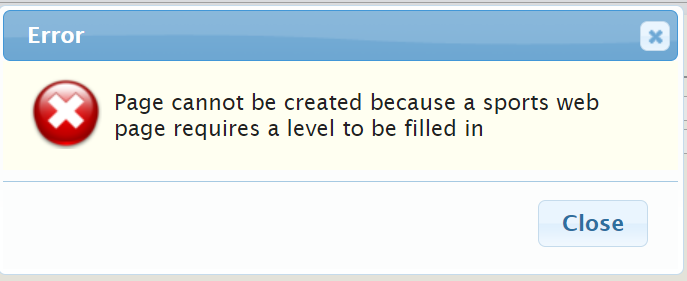
If you try to create a Sport Portal Page without specifying the "level", the following error will occur:
The Sports are configured in the Athletics module.
The Level are pulled from the Sport Participation Levels (SPORTS_LEVELS) Codes table, found on the Setup>Codes screen. A Portal Page can be created for any of the settings in the Sports Participation Levels Codes table, not simply the actual teams (e.g. Did Not Participate).
Setting the Editors
Sports Portal Pages have no predefined editors. Once you create a Sports Portal Page, you must set the staff members who will be allowed to edit the page.

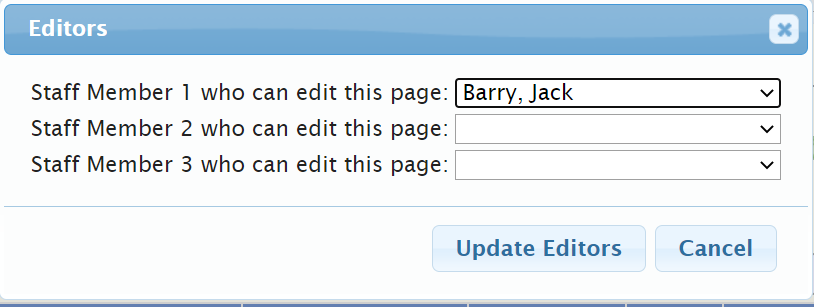
If you click "Update Editors" the Editors dialog is displayed and you can set or alter the list of up to three staff members who will be able to edit the team's Portal Page:
Create a User Flag Page
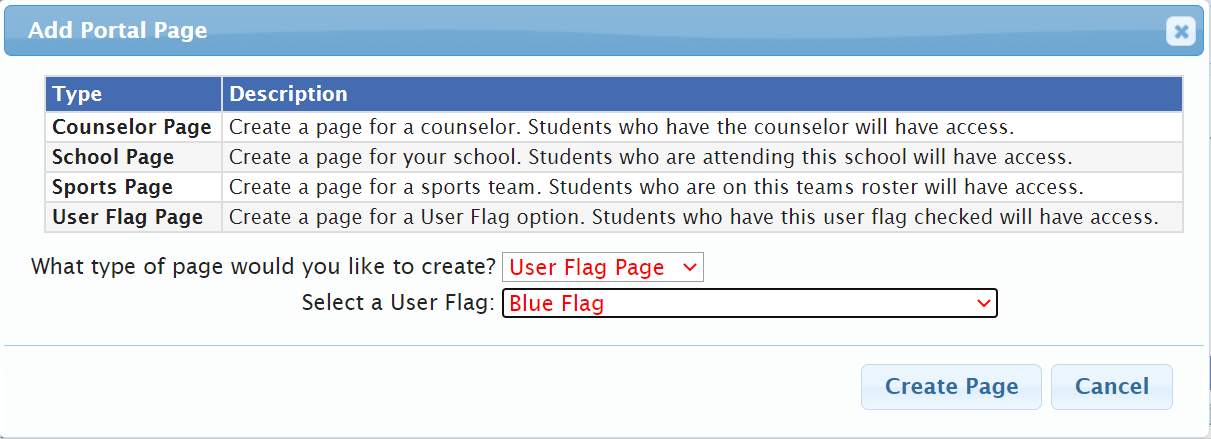
You will need to select the specific User Flag prior to clicking  . Once you select a User Flag and click
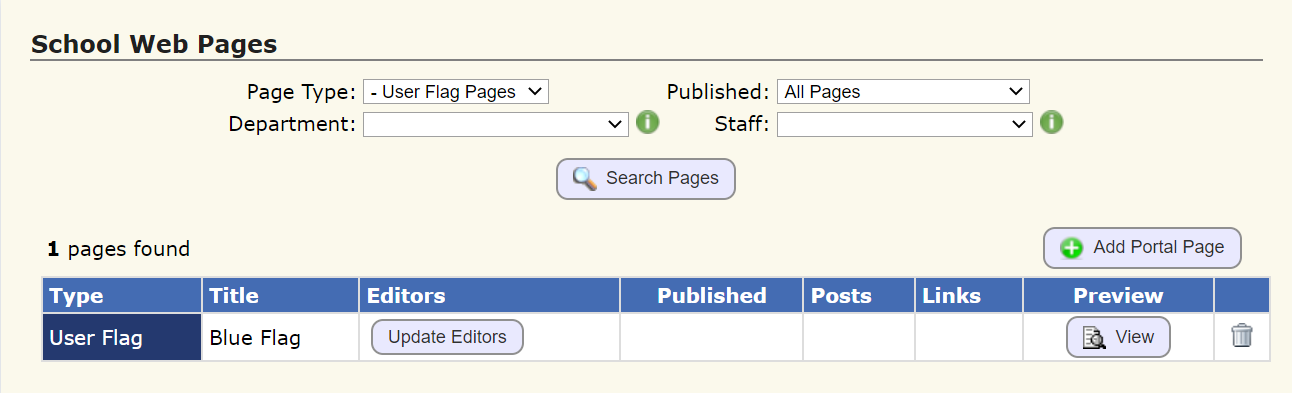
  , the set of all User Flag Portal Pages is displayed in the list:
Was this article helpful?
That’s Great!
Thank you for your feedback
Sorry! We couldn't be helpful
Thank you for your feedback
Feedback sent
We appreciate your effort and will try to fix the article