TABLE OF CONTENTS
- The Search Parameters
- Adding a New Logon
- Deleting Logons
- Modifying Existing Logons
- Enabling and Disabling Selected Accounts
- Sending Email Templates
- What Happens When a Parent Updates Their E-mail Address and Parent Portal Account?
This screen allows you to view, add, delete, and edit all the parent and student portal accounts that exist in your system.
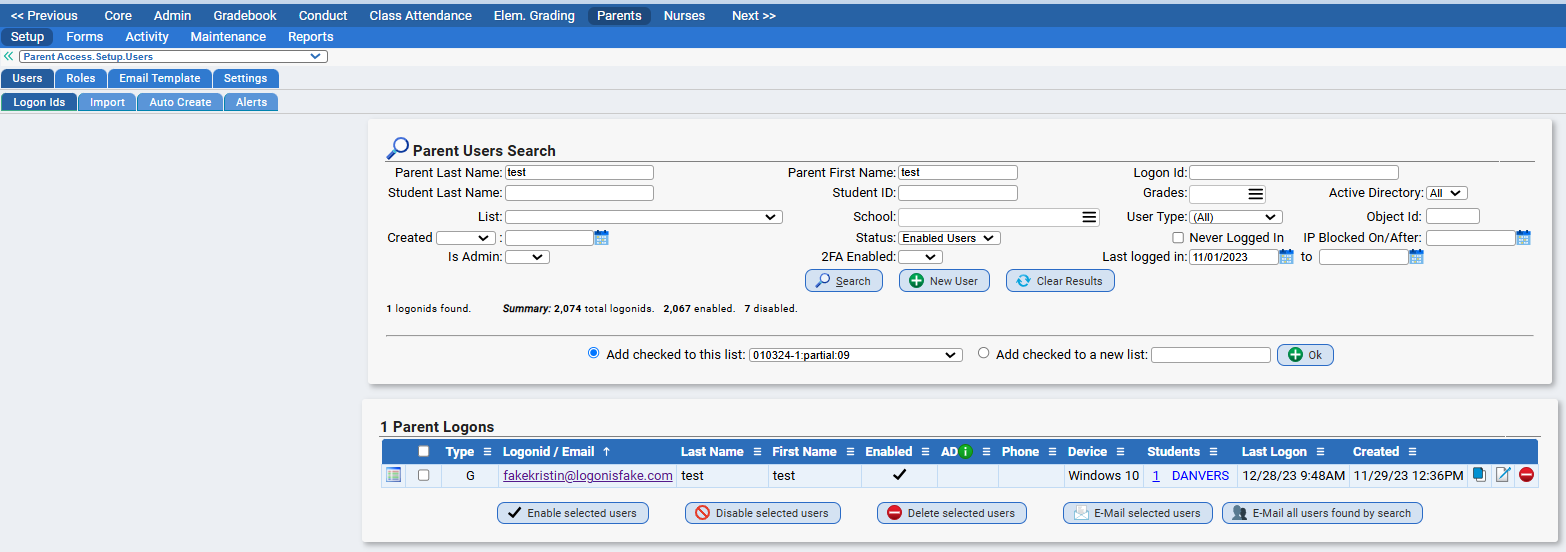
The Search Parameters
- Parent Last Name – Last name of the user (i.e. of the person whose login this is)
- Parent First Name – First name of the user (i.e. of the person whose login this is)
- Student Last Name – Last name of a student attached to this login and whose information is accessible through it (May pull up multiple logons as the same student can be linked to multiple)
- Student Id – The Local ID of a student (May pull up multiple logons as the same student can be linked to multiple)
- Logonid – The actual logonid you are trying to locate (Typically, this is an email address)
- Created After – Allows you to pull up logons created on or after the date entered
- Grade – Allows you to search by student Grade Level
- School – Allows you to search by Schools in the district
- User Status – Allows you to search by the enabled status (ie enabled, disabled, and All Users)
- List – A student list (Finds logons linked to any student on the list)
- Type of Logon - Allows you to search by the type of logon associated to the accounts (ie student or guardian)
- Never Logged In - Allows you to search for accounts that have never been logged into before
- Active Directory - Allows you to search for logons that are using the Active Directory system to manage their password
TIP: Trying to find your newly created parent portal accounts? Use the "Created After" field to search. Select a date prior your mass import, and you will be able to get all of those accounts all at once.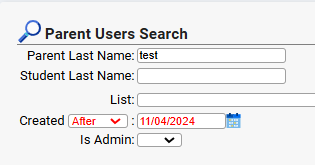
Adding a New Logon
Click the ' ' button and a popup box will appear
- Fill out the required fields and click the 'Add User' button to continue onto the Modify Parent Account screen to finish the setup of the new logon

Deleting Logons
A Logon can be deleted by clicking the red icon to the right of the Logon
- You can also delete multiple logons at once by using the check boxes to the left of each account and clicking the '
 ' button.
Modifying Existing Logons
To modify/edit an existing Logon click the modify icon to the right of the Logon and you will be taken to the Modify Parent Account screen.
- This screen allows you to set all the settings and attach students to an individual Logon

Enabling and Disabling Selected Accounts
You can Enable or Disable multiple logons at once by using the check boxes to the left of each account and clicking either the ' ' or the '
 ' button
- Disabling accounts will not delete them
Sending Email Templates
You can send Email Templates to multiple Logons by using the check boxes to the left of each account and clicking the ' ' button
- A pop up box will appear that will allow you to select which Email Template you would like to send

What Happens When a Parent Updates Their E-mail Address and Parent Portal Account?
Background
This section outlines the process of updating the e-mail address (and parent account) from a parent's perspective. For districts who allow parents to update contact information via the Contacts tab in the Genesis Parent Portal. Parents must be given access to update their e-mail addresses directly.

Click Here for more information on setting up Contact Management in the Parent Portal.
The Process
First, the parent must log onto the portal, and visit the Contacts screen:
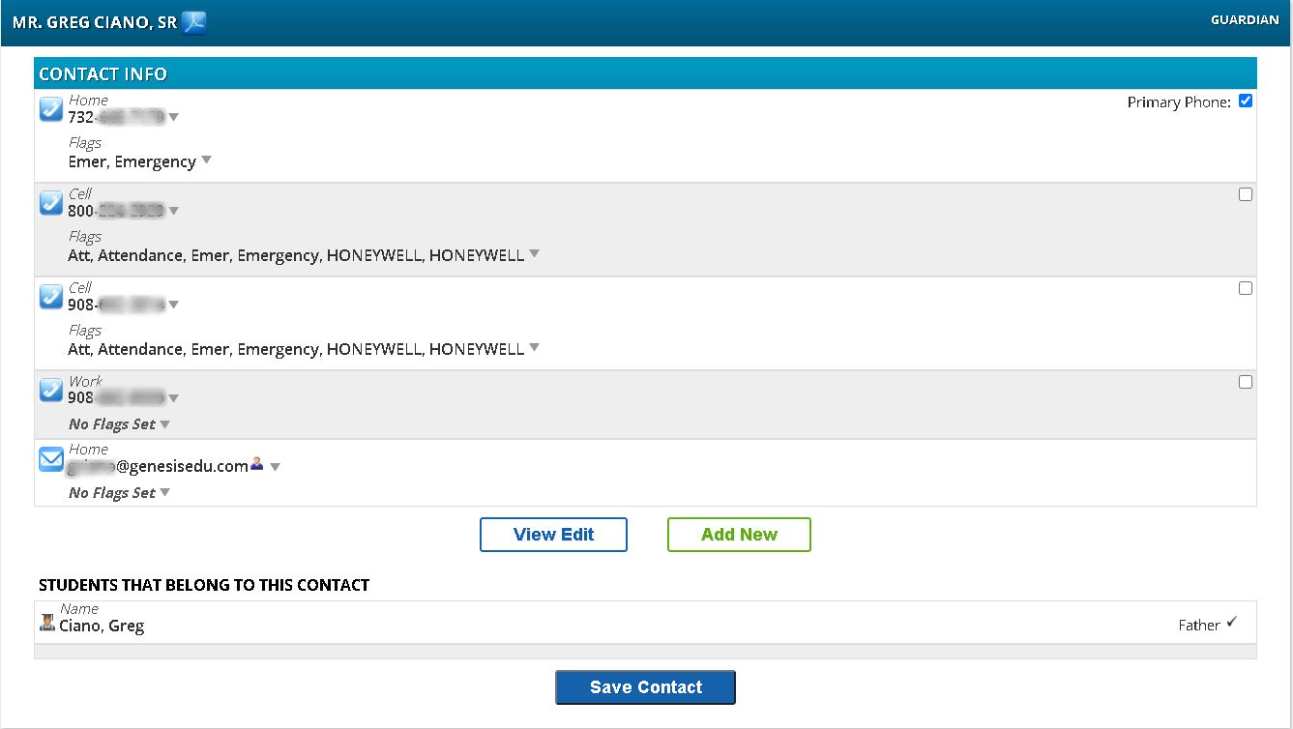
Note that any e-mail addresses listed will have the parent account icon displayed to the right, if the e-mail address matches that of a parent account:

Parents will select the View Edit button to make changes. Once they update the e-mail address associated with a parent account, the following message appears after clicking Save Contact:
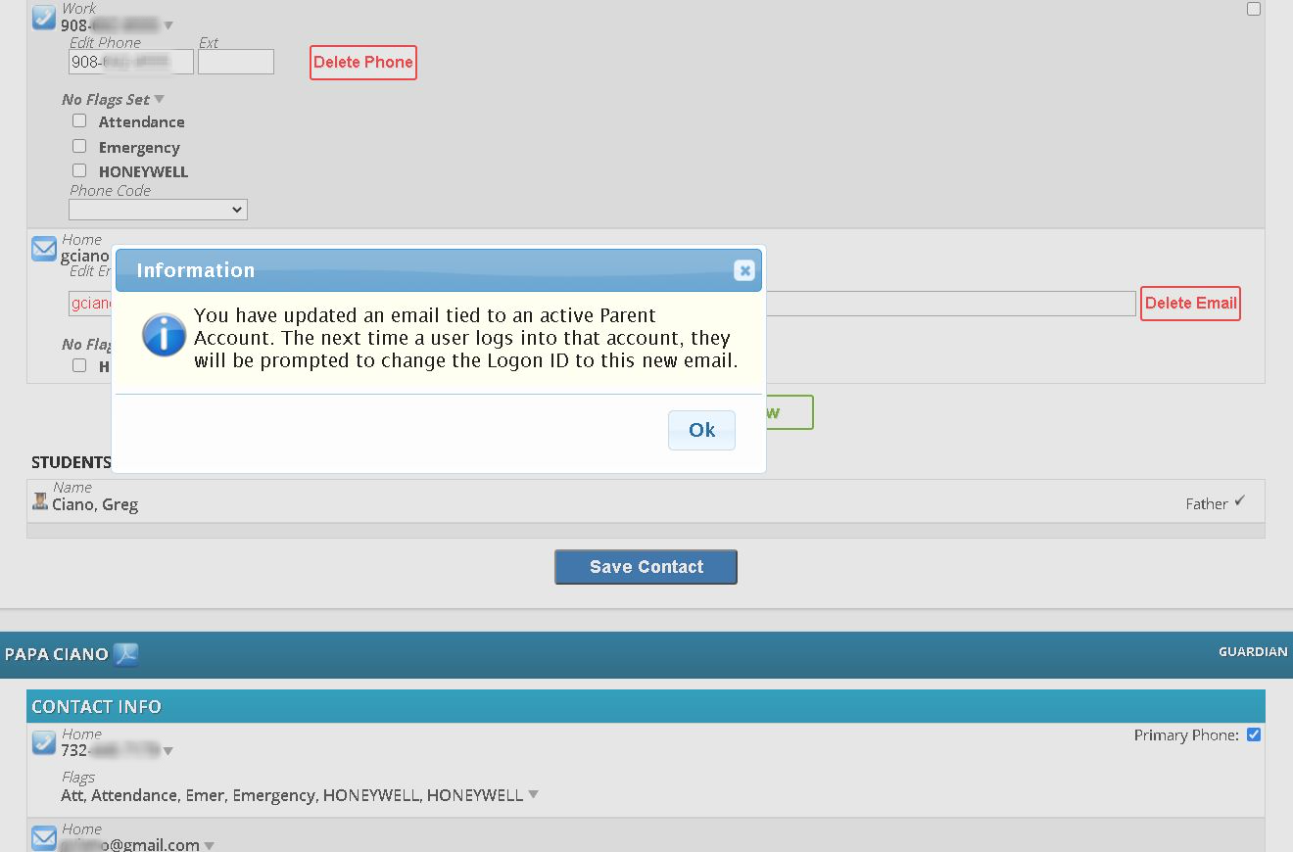
This is referring to any parent account that may have been updated. The following is what the parent sees immediately after logging back into their account.
If the parent changed the account they are currently signed in as, the message will appear right away:
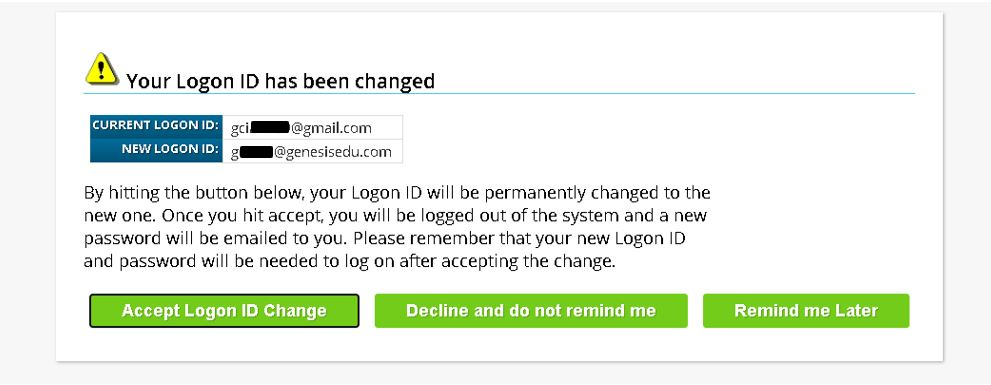
Parents must click Accept Logon ID Change to continue. They will receive a series of confirmation messages:
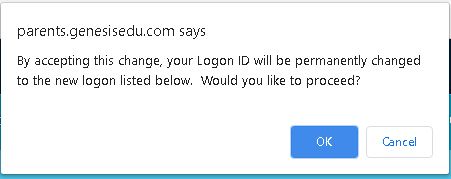
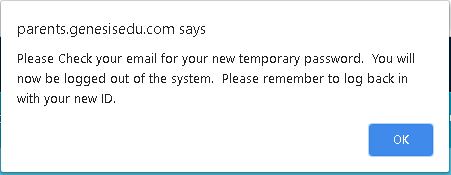
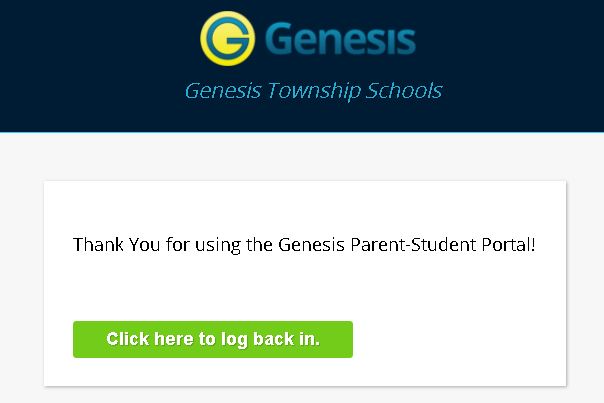
At this point, the parent is logged out, and the account has now been updated to the new e-mail address. The parent must wait a few moments before receiving an e-mail with their new password. It will be sent to the new e-mail address specified by the parent. The district must have a password reset e-mail template established for this to work. If the parent set themselves to the wrong e-mail address, they must contact the school to have an administrator make the correction. Click Here for more information on configuring parent e-mail templates.
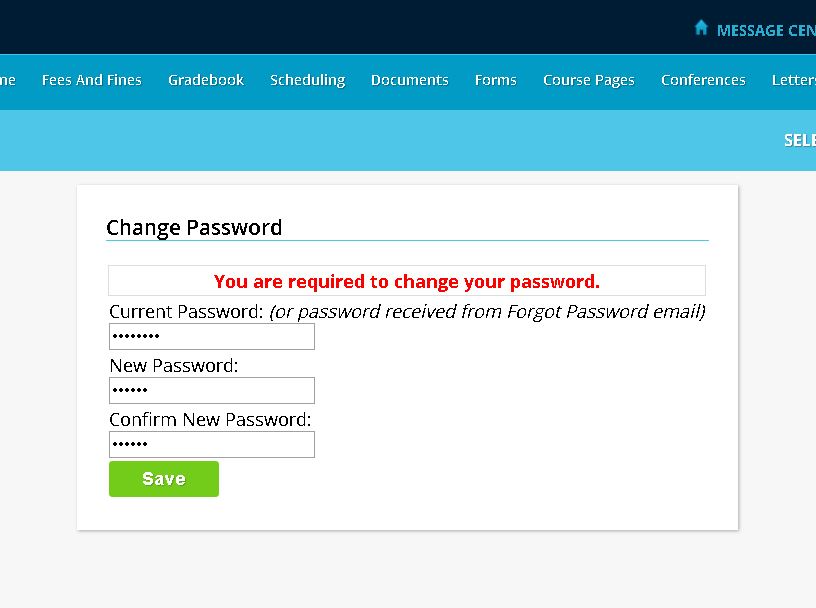
The parent must log into the parent portal again using the new e-mail address and temporary password. They will be prompted to change their password immediately, as any new parent normally would:
FAQ
What if I update a parent's e-mail address within Genesis? Will the parent be prompted to login using their new e-mail address?
Yes! After changing an e-mail address within the student's record (not as the parent) the parent can log into the account as usual (with previous e-mail and password). So long as the e-mail address was originally attached to a parent account, they will see the same "Your login has been Changed" message as above, and they will follow the same prompts to log back in using the new e-mail address.
Why can't the parent keep the same password when their account is updated?
Passwords are not actually stored within Genesis, they are 'hashed' for added security. This means that the passwords are scrambled, so we simply cannot "see" the actual password from anywhere in Genesis, and this is the same reason passwords cannot be pulled to an e-mail or a report. In addition, the scrambled password includes the username of the account, so any updates to the account name would require the password to be changed anyway. For more information on password security in Genesis, please Read Here.
Was this article helpful?
That’s Great!
Thank you for your feedback
Sorry! We couldn't be helpful
Thank you for your feedback
Feedback sent
We appreciate your effort and will try to fix the article