CONTENTS
Overview of the FAFSA Import tool
How to use the FAFSA Import tool
- Prepare for Import
- Upload a New Import File
- Review the Imported File
- Process the File and Import Students
- Reviewing the Imported FAFSA Data
- See Also
Overview of the FAFSA Import tool
Genesis added a tool to allow import of a FAFSA completion file the district may receive from the HESSA data sharing agreement. CSV and Excel files can be used for the import. The FAFSA Import tool can be found on the NJ > Tools > FAFSA Import tab, and here is the securable location to assign access: NJ.tools.fafsaImport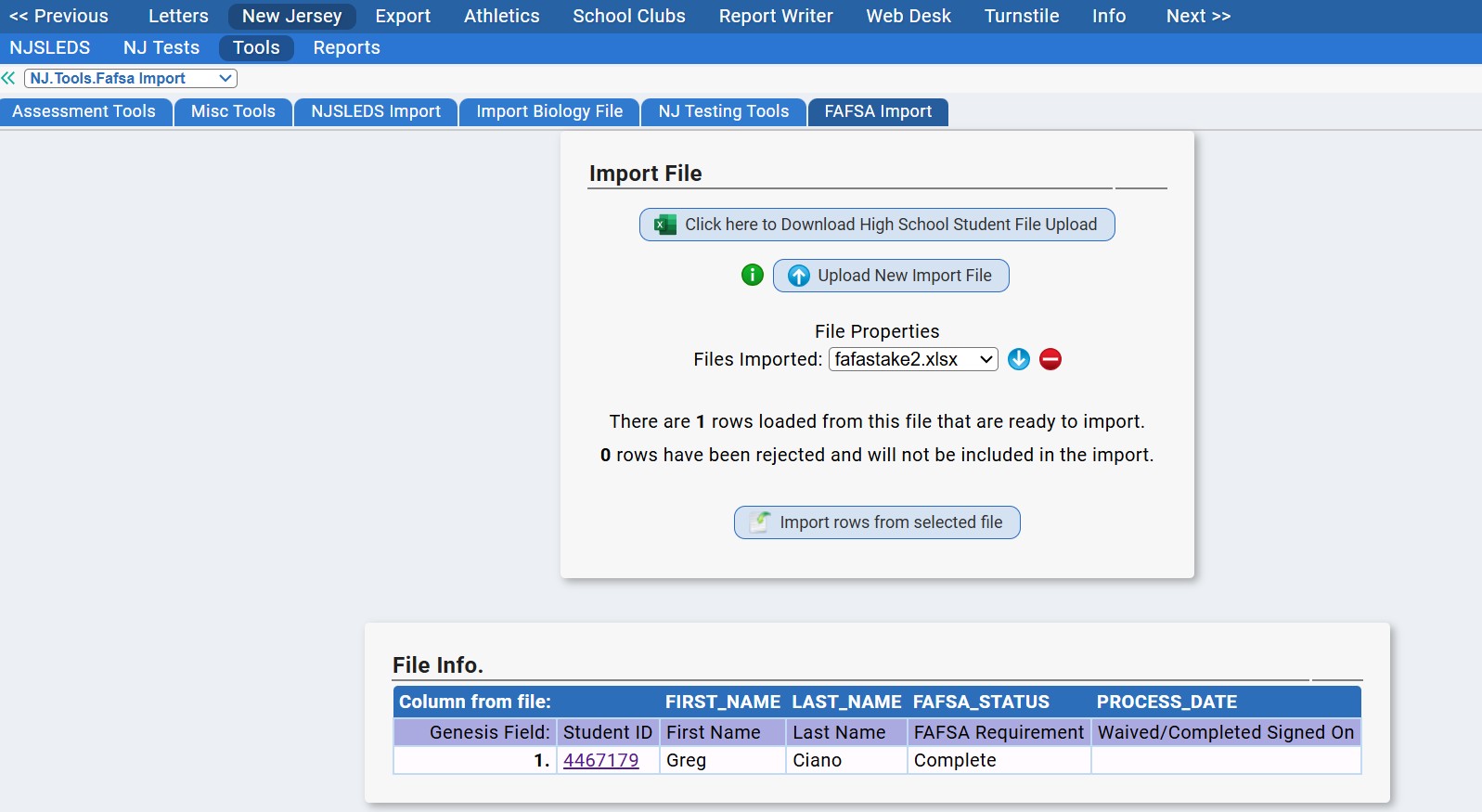
Example import file layout:

What does this import do?
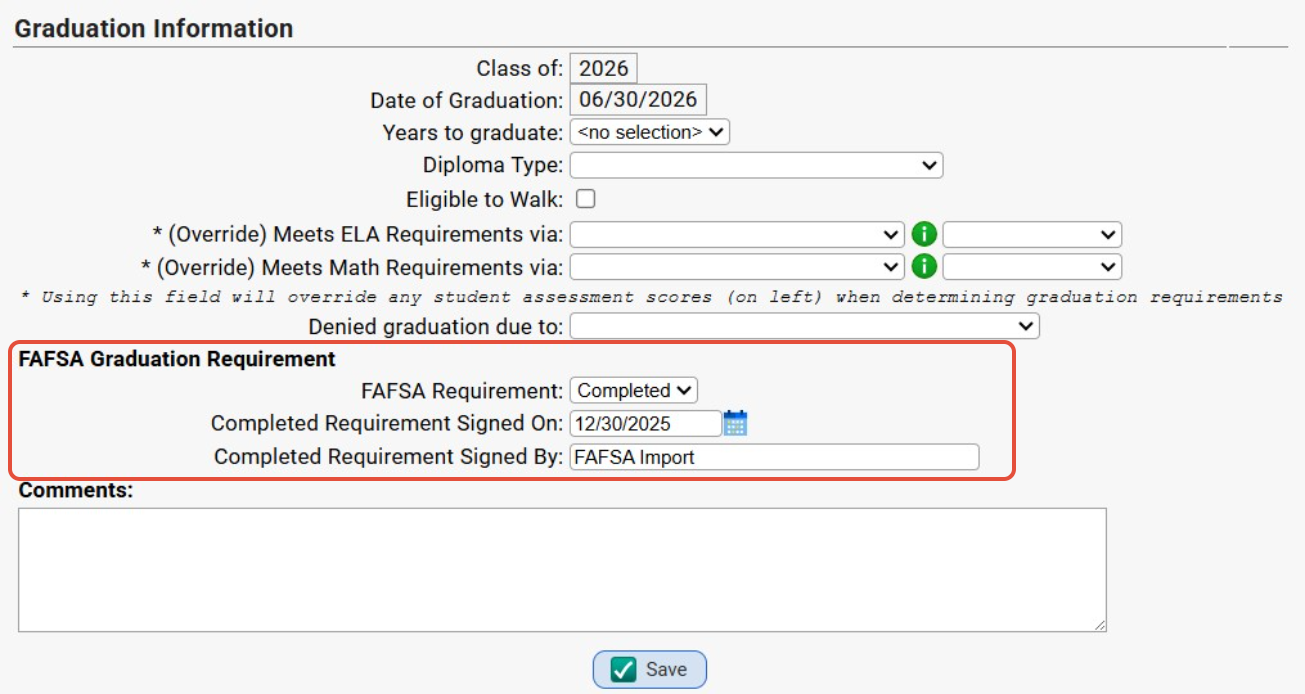
The FAFSA Import tool is used to upload FAFSA completion information onto the student's Graduation tab. Three fields (shown below) were added to track FAFSA completion status for NJ state reporting purposes. The import can populate all of these fields: the FAFSA Requirement, Completed/Signed On date, and Signed By fields.
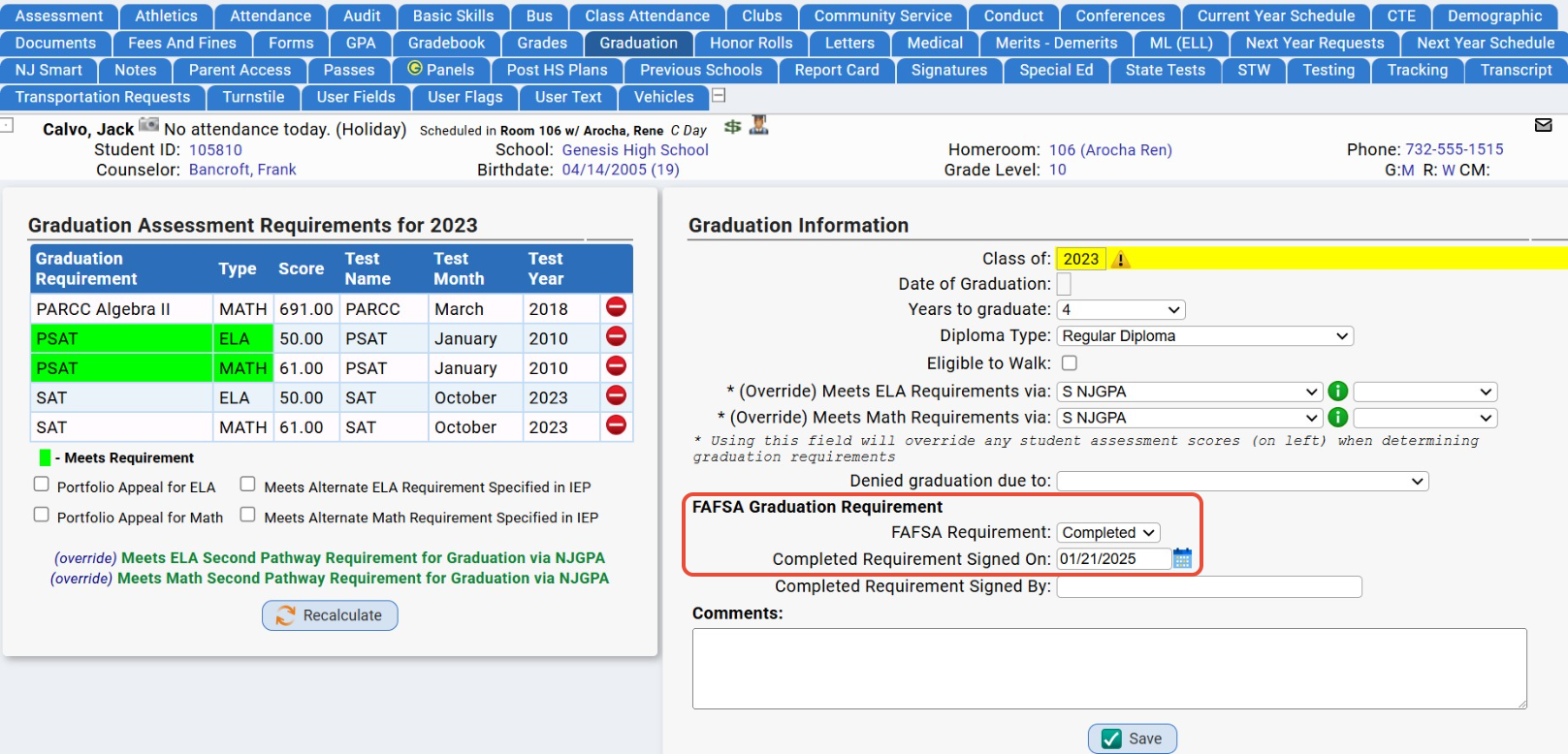
NOTE: The 3 FAFSA Graduation Requirement fields can also be populated based on parent FORM answers. If you wish to collect this data directly from parents, click here to see a list of example Forms for download, and view a sample parent FAFSA Form: https://support-sis.genesisedu.com/en/support/solutions/articles/151000101145-parent-form-examples-for-download
Click Here for more information on how the FAFSA Graduation fields are used in NJSLEDS reporting.
How to use the FAFSA Import tool
Prepare for Import
Refer to the example file above to ensure you have the correct FAFSA file from NJFAMS (Financial Aid Monitoring System). If you have not yet obtained a FAFSA completion file, the FAFSA Import screen has an export available, which can be sent into FAMS to obtain the list of completed FAFSA students.
Start by using the button Click here to Download High School Student File Upload. In the next window, select whether this file should contain ALL 12th grade students in any in-district school, or only 12th grade students from your current selected high school: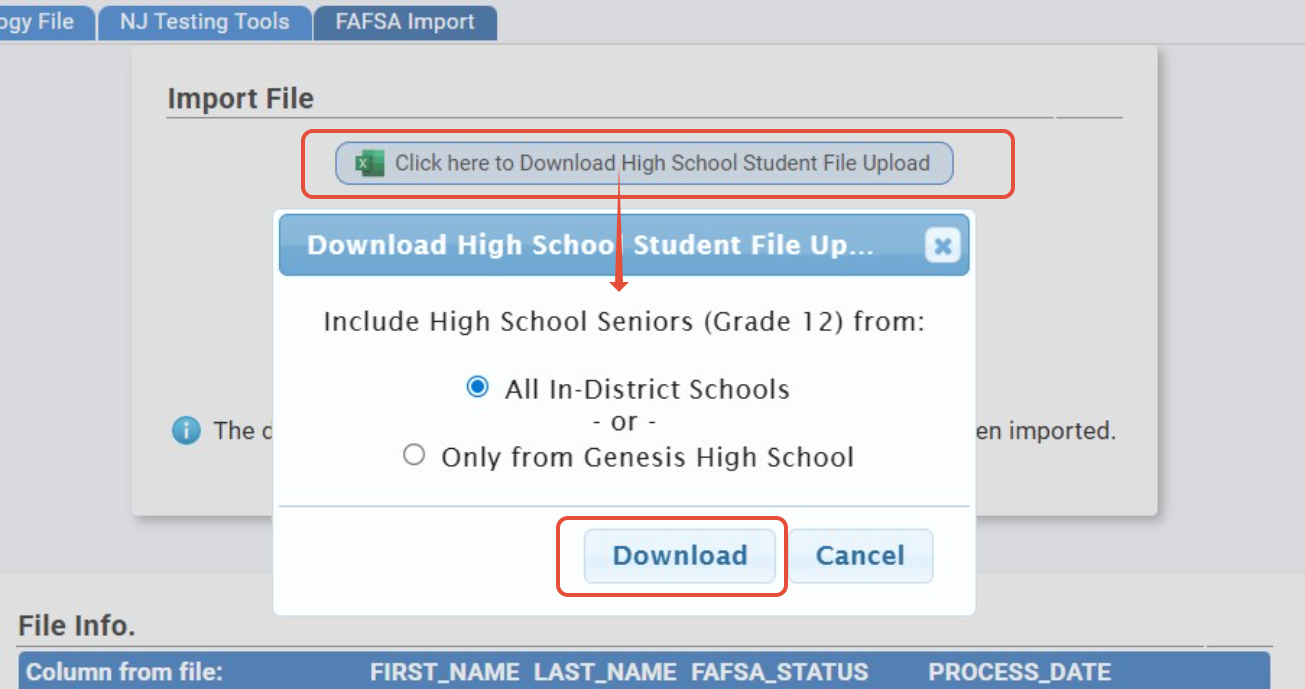 Click Download after making your selection, then save the file to your computer. NJFAMS will have directions on importing this file and retrieving the list of FAFSA completion statuses.
Click Here to read the DOE's memo about FAFSA and the HESAA data sharing agreement: https://www.nj.gov/education/broadcasts/2025/sep/10/GraduationRequirementReminderCompletingFinancialAidApplicationsPL2023c295.pdf
Upload a New Import File
Now that you have a FAFSA completion file, start by loading the file onto the FAFSA Import screen. No data will be saved to Genesis student records until the process is fully complete.
Begin by clicking Upload New Import File at the top.
In the next window, click Browse or Choose File, and select the import file from your computer.
Make sure Add a new results file is selected, if you are uploading a brand new file.
Click Upload File when finished.
Once a FAFSA file is in place, Genesis will analyze the information, display the file's information below, and present you with status indicators on the screen.
There is no limit to the number of FAFSA files that can be imported. Each file is loaded separately and must be imported individually.
Review the Imported File
After the file has been processed, the Files Imported menu should now display the original filename of your FAFSA file. This menu will continue to grow as more FAFSA files are uploaded into Genesis. Below that, the screen will indicate the number of students that were located and how many students were not found in Genesis: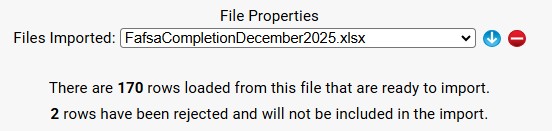
The file's data will then be listed below this area, including the students and their FAFSA information.
- All students who were located in Genesis will display with their Local ID number.
- Any students who were 'Not Found' will not have an ID and will be highlighted in RED.
- Students with existing FAFSA data that will be overwritten will be highlighted in YELLOW.
Review the data on this screen for accuracy before running the import tool. Students from the file are matched with Genesis students based on First Name, Last Name, and DOB.
The information under FAFSA_STATUS column will populate the Genesis field FAFSA Requirement. Only students with Complete in this column will be imported, all other statuses in the import file are ignored.
Make sure there is information showing in the PROCESS_DATE column as well. This information is used to populate the Genesis field Completed Requirement Signed On (date).
If everything appears with no issue, you are ready to import the FAFSA data to students.
If the file has an issue and needs to be deleted, this button will delete the latest file imported:
Process the File and Import Students
When you are ready to confirm this data and push to student records, this data will be added to the student Graduation screen, and populate the three FAFSA fields:
| Student FAFSA Graduation Fields in Genesis | Column in File | Notes |
| FAFSA Requirement | FAFSA_STATUS | Set to Completed if the FAFSA_STATUS column contains Complete. This is ultimately what is needed for NJSLEDS reporting. |
| Completed Requirement Signed On | PROCESS_DATE | Date taken from the PROCESS_DATE column to indicate when the FAFSA was completed by the parent. This field is optional when importing. |
| Completed Requirement Signed By | N/A | Normally the Parent or Counselor's name, but the import will automatically set this field to "FAFSA Import" |
- To begin loading the data, click the button Import rows from selected file.
- Click Ok when the confirmation pop-up appears.
- A confirmation box will indicate how many records were updated.
What occurs when the import tool is run? Genesis will not overwrite student fields if a status of Complete was already set on their Graduation tab. This could mean that the parent previously completed a FAFSA, so the information that is already in Genesis will be saved.
The FAFSA Completion Status of WAIVED does not get set by the FAFSA Import. The Waived status may be set by a parent filling out a waiver form in the Parent Portal.
However, if a student who is set to WAIVED is found in the FAFSA Import file with Complete, then the import will update the student's status to Completed, and the Signed On Date is updated to the date found in the import file.
Reviewing the Imported FAFSA Data
To spot-check your work, the imported FAFSA information can be viewed directly from a student's Graduation screen. The fields can also be updated manually from this page as necessary:
To review the district's FAFSA indicator fields for accuracy and NJSLEDS compliance, you can also download and view a copy of the latest Student Management Submission file, to ensure all 12th grade students have the FAFSA Completion Indicator field completed.
To review the FAFSA data for all students, Genesis recommends running the #9155 Graduation Assessment & FAFSA Report which checks for students' eligibility to graduate according to meeting Graduation Pathways and having the FAFSA requirement completed ('Completed' or 'Waived' status).

Click Here for more information on the Genesis FAFSA Report.
See Also
Was this article helpful?
That’s Great!
Thank you for your feedback
Sorry! We couldn't be helpful
Thank you for your feedback
Feedback sent
We appreciate your effort and will try to fix the article