Note: this FAQ is for schools using the regular Grading module. Not Elem Grading |
TABLE OF CONTENTS
General Grading
Q: Why are some of the Grading screens locked?
A: From our release notes on 8/15/24:
Grading Setup Restrictions
• New restrictions are now in place to prevent changes to the grading system without guidance from Genesis.
Please submit a Freshdesk ticket to Genesis Support to request changes to specific fields or screens.
The request will be reviewed to ensure the correct modifications are made without unexpected results or negative impact to the school’s grading configurations.
The restrictions are controlled per school and have been applied to all schools within the district. Customers will continue to have read-only permissions to the screens listed below. Genesis Support will continue to have access to update settings and may unlock the grading system for customers to make updates.
Grading Setup tabs now being restricted:
• Valid Grades, Alpha Grades, Numeric Grades, Grade Distribution, Numeric QP Conversion, Pass/Fail Setup, Grading Schemes, Collections, Calculations and Skills
Setup screens in Grading Module not included in these restrictions:
• Grading > Grading Process, Grading > Report Cards, Grading > Honor Rolls, Grading > GPA/Rank, Grading > Setup > Comments, Grading > Setup > Valid Grades > Min/Max, Grading > Setup > Att. Credit Loss
Note: Gradebook screens are not locked.
Q: Can Genesis automatically determine a P or F S1 grade for a course?
A: Yes! Genesis can determine a P or F based on the following:
If a student has nothing but P's and/or F's for a course.
AND
the P grade is setup as a non-letter grade
then Genesis will calculate a P or F based on the formula of if there are at least as many P's as F's, the student gets a P. If not, an F.
Because the P is a non-letter, the FG would not have ATTEMPTED Credits. It would get Earned Credits . So this grade will be ignored by GPA.
Q: How does Genesis auto calculate a FG if not all the grades needed for the FG are included?
This can happen if say, a Final Grade for a Full Year course was set to calculate as
MP1 20%
MP2 20%
ME 10%
MP3 20%
MP4 20%
FE 10%
and a specific section on the course is not going to collect a Mid Term grade.
In this case Genesis scales up all the other collected grades to derive the FG.
Here’s an example. Dave receives an 80 for each of the Marking periods and 75 for the Final Exam.
(80 * .20) + (80 * .20) + (80 * .20) + (80 * .20) + (75 * .10)
This leaves us with a 71.5 but it is missing 10% of the grades for the proper FG calculation so we scale it up based on only 90% of the grade being accounted for.
(71.5 * 100 / 90) Which creates a Final Grade of 79
Q: What if I don't want Genesis to scale the FG as explained in Question 2? What if a want to double the FE instead?
You will want to create a NEW collection type and combine the ME and FE using the "Combine grades from other collections:". In this case you would set the Formula for calculations to ME:50,FE:50.
Then simply insert this new collection into your FG calculations in place of the ME and FE. Now if a course only takes a ME and not a FE, the ME would be counted twice.
Q: How would I use Custom Grades?
Custom Grades are used to give students grades that deviate from the preset scales.
Q: Is there a way I can mass assign grading collections to my sections? / Teachers are getting a Your teacher account does not have any sections that are grading this marking period. message when trying to Post Grades. How do I fix this?
Yes. This is a post rollover task to be completed by the district.
There is a wizard you can run via Grading>Setup>Setup Guide for each of your schools. It'll autofill in this information for you. It is the "automatically assign collections to all subsections" wizard.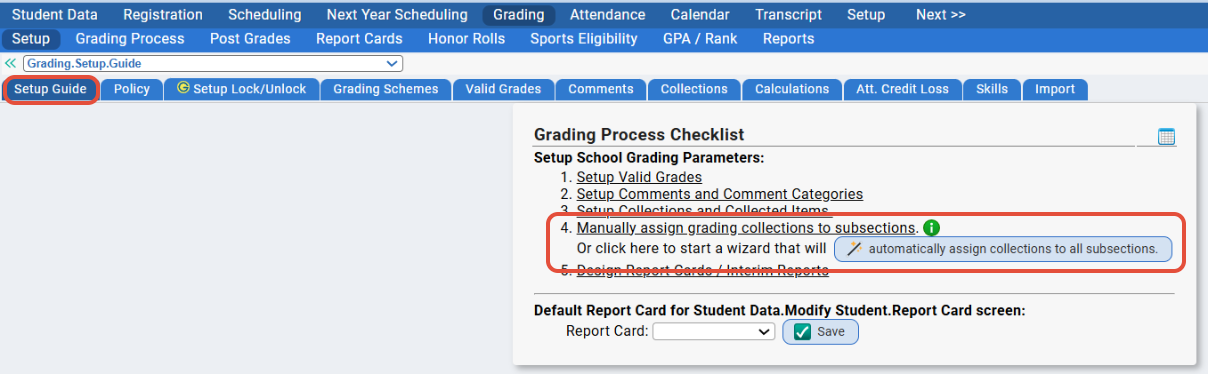 Run it for each school, and this will be resolved (aside from some manual tweaking.)
Alternately, you can go to Scheduling>Sections and do this en masse.
Change the "VIEW" dropdown to "GRADING." And click SEARCH.
You will see ALL of your sections, and for each Marking Period column, you can check them off to be graded and hit "update" at the bottom of the screen. This is what the wizard is actually filling in.
Q: How do I open grading for teachers?
You open grading on the Grading>Grading Process screen.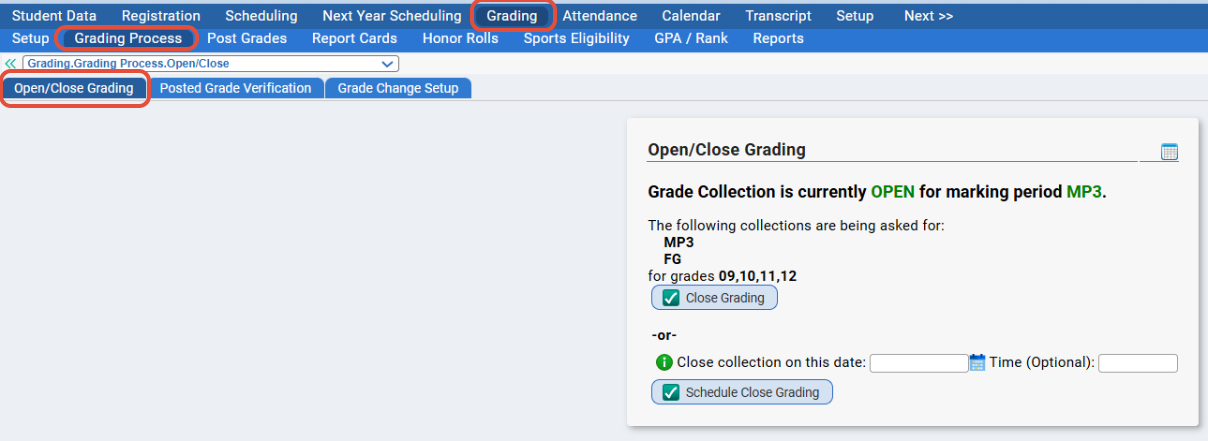
Opening Grading
The Grading>Grading Process>Open/Close Grading tab allows you to select which grade collections are currently open and available for teachers to post grades for. Make sure to select the correct MP to open AND the correct MP in the "Collections" area so that you are opening it correctly.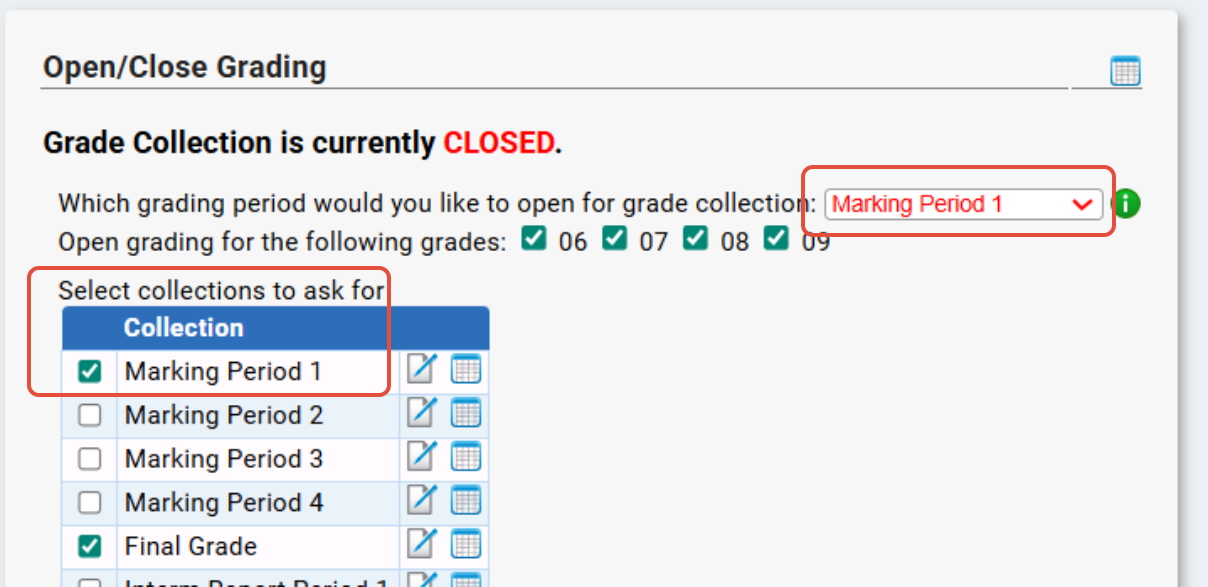
Click "Open Grading" to complete this process.
Closing Grading
If it is currently open for a specific marking period/collection, and you need to make a change or just close it out, you will need to click the "Close Grading" button.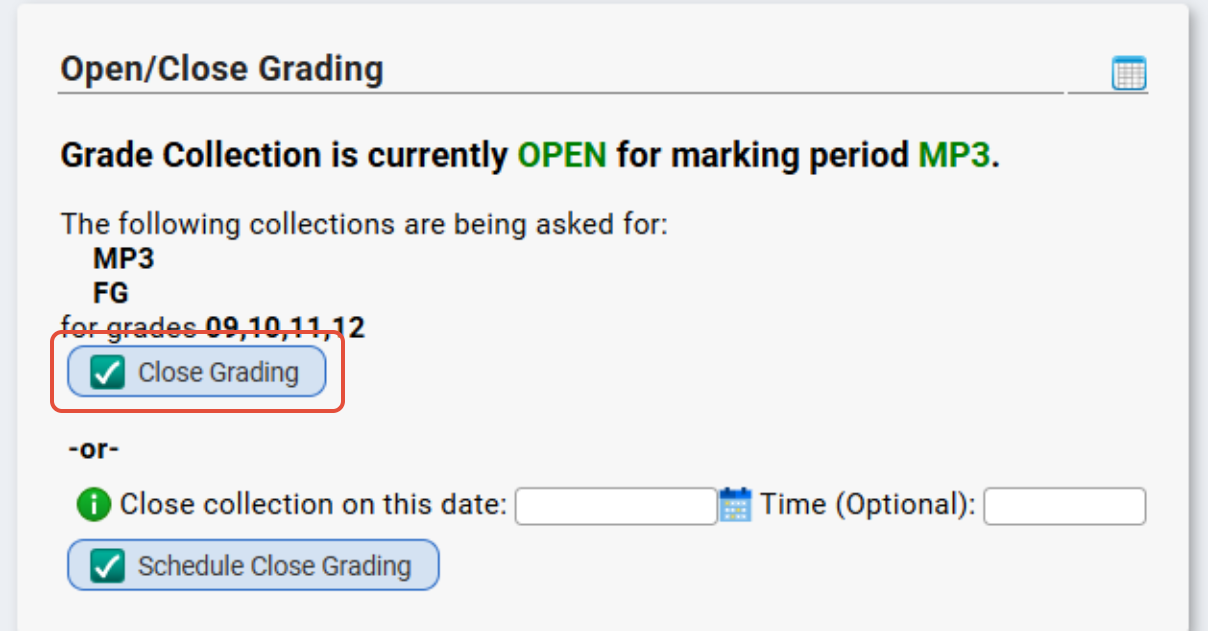
You will then see a screen reading "Grade Collection is currently CLOSED."
If you just needed to close grading, that's all you need to do!
Making a Change
If you need to make a change to the collection open for grading or being asked for, you need to select the marking period in the "Which marking or interim period would you like to open for grade collection" dropdown.
And then you check off applicable collections in the "Select collections to ask for" area.
The  icon next to each collection will bring you directly to the Grading>Setup>Collections>Modify Collection screen when clicked.
Once you have the correct settings, click "Open Grading" to allow teachers to post grades.
Q: I use Skill grades. Why isn't this grade pulling to the report card for students.
- Core Subject report cards require the courses to have the "Core Subject" and "Skill Group" filled in. This is found on the Curriculum file itself - via Scheduling>Curriculum>Modify Curriculum. Review the course on that screen to ensure this info is filled in.

- Core Subject report cards can have only one Core Subject. So, for example, if a student is missing some courses on the report card - make sure "Math" is not selected for 2 courses. If "Math" is selected for MATH and then also ART, as an example, both courses would be blank on the student's report card. Review each course the student has to ensure this info is filled in, via Scheduling>Curriculum>Modify Curriculum.
- Check the RC template and definition to make sure the Core Subjects are added and in the proper order. If Core Subject is listed on BOTH definition and template, the template's Core Subjects trump definitions.
- Review the MACROS on the Report card itself, via Grading>Report Cards>Templates>Fields. The Macros need to match the SKILL CODES found via Grading>Setup>Skills. Review both screens to make sure there are no typos or incorrect codes.


Q: We use an ALPHA grading system at this school. The FG calculation is not making sense to us. How did it get pulled?
Be sure you are referring to the quality points when looking at the final grades. This is found next to your grades via Grading>Setup>Valid Grades.
From and Thru Quality Points
This field is only used in Alpha Grading schools (Schools that only use Alpha Grades; no numeric grades at all).
It is used for Automatic Final Grade Calculations.
In an Alpha Grade school; the quality points for each grade is summed and divided by the number of grades (average).
The final grade is determined then by looking at all grades the have the "Is Letter Grade" flag checked; and where the quality point fits in this range.
Course | Section | Collection | From Q | Thru Q | Q | Alpha | Pass | Earned Credits | Attempted Credits |
101-English | 1 | MP1 | 2.5 | 3.5 | 3 | B | Y | 1.25 | 1.25 |
101-English | 1 | MP2 | 2.5 | 3.5 | 3 | B | Y | 1.25 | 1.25 |
101-English | 1 | MP3 | 2.5 | 3.5 | 3 | B | Y | 1.25 | 1.25 |
101-English | 1 | MP4 | 3.6 | 4.5 | 4 | A | Y | 1.25 | 1.25 |
(3+3+3+4) /4 = 3.25 which according to the 'From Q' and 'Thru Q' ranges, would equal a final grade of B.
Q: Can I post an Interim grade administratively as I do with Marking Period grades?
Yes - you should be able to do this via Student Data>Modify Student>Grades>Grades by selecting the Interim period in the "Marking Period" dropdown.
Q: How do I run GPAs for students? And how do I run their RANKS?
The process to do this would be:
- Go to Grading>GPA/Rank>GPA Calc. Select the GPA code that you need in the "GPA(s) to re-calculate" dropdown and click "Calculate."
- Then, go to Grading>GPA/Rank>Ranking. Select the same GPA code you need in the "Rank(s) to run" dropdown and click "Calculate."
- Then, if needed, you can run report 40501 Class Rank / GPA Report via Grading>Reports. Make sure to select the same GPA code you need as you run the report.
Q: We have a scenario where a student has made up various assignments/exams/grades etc and now their grades have changed and they could possibly qualify for an honor roll. How do I recalculate the honor roll for the student?
A: You would recalculate the Honor Roll(s) via Grading>Honor Rolls. This would be for all students. There is not a current option to run an honor roll for just one student.
Q: Places to check/review if your district has automatic final grade calculation set up and grades are not being automatically calculated.
- Go to Grading>Setup>Calculations. Make sure the appropriate marking period/semester codes are checked off. For example, if it's a Full Year course, make sure "Calculate Full Year Course Final Grades" is checked off.

- Go to Grading>Setup>Calculations and scroll down to the FORMULAS. Make sure each relevant collection has the the correct percentages entered. Each column in the matrix must add up to 100% - it must completely specify how to calculate the final grade for that type of course. The 100% can come from any combination of cells in the column.

- Go to Scheduling>Sections>Modify Section. Make sure the appropriate Grading collections are checked off for the section. For example, if it is just an S1 course, make sure only MP1 and MP2 are checked off to be collected. If MP3 and MP4 are checked off, the system will be waiting until grades are entered for THOSE two marking periods before automatically calculating an FG. If some are missing, check them off and save. If some are not needed, uncheck them and save.

- Recalculate grades via Grading>GPA/Rank>Maintenance (or individually) if you've made a change listed above. Grades won't get recalculated automatically. You will need to re-post grades for the changes to take effect and for the FG to be calculated if you have updated a calculation, for example.

Q: What if we decide to post an "Exempt" grade for the Final Exam? What happens to the extra percentage when calculating a Final Grade?
Example: A school has final grades being calculated as follows, for a Full Year course. Each marking period is worth 20% and both exams are worth 10% each:
MP1: 20% | MP2: 20% | MP3: 20% | MP4: 20% | ME: 10% | FE: 10% |
Answer: If we post an "X" to a student's Final Exam grade, the final exam no longer factors into the Final Grade. However, the leftover 10% will be distributed among the other grading collections. The best way to display how exactly this is done, is to present the grades earned as 100 for everything except one collection, which we will mark with 0 as the grade earned.
Normal Calculations:
 Final Grade is 80 - MP grade is worth 20%
 Final Grade is 90 - Exam grade is worth 10%
Posting Exempt Grade:
 Final Grade becomes 78 - MP grade is now worth roughly 22.25%
 Final Grade becomes 89 - Exam grade now worth roughly 11%
Based on the above, we can see each grade collection's weight is inflated when posting an 'exempt' grade. However, the marking period's weight is inflated more so than the exam's percentage. The same would apply when posting a "Pass" grade for a marking period or exam, in place of a numeric grade.
Report Cards
Q: Why are reports cards not generating for this student?
Places to check:
- Verify the student has grades posted via Student Data>Modify Student>Grades.
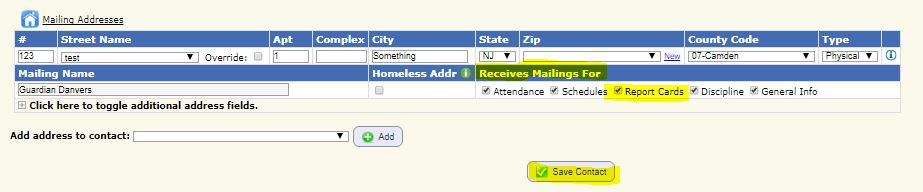
- Verify that the CONTACTS have "Receives Mailings For..." and (at least) "Report Cards" checked off. This is found via Student Data>Modify Student>Demographics>Contacts>Modify Contacts.
Q: If a student takes some courses in a school other than the school I am printing report cards for, will those grades from the other school appear?
Grades from other schools will or will not appear based on the settings of the Report Card Definition. To configure this, go the the GRADING -> REPORT CARDS -> REPORT CARDS tab and edit the report card definition. You will see an option called "Show Grades from all Schools". If checked and a student has grades from a school other than this Report Card Definition's school, those grades will appear on the report card.
If you are printing grades from multiple schools on report cards, you may wish to generate report cards using the "Print report cards only for students that are in this school:" option on the report card generation screen. This will prevent a student has has grades in School A and School B from receiving a report card from BOTH schools.
Q: Can I print my Report Cards out by a Specific Period?
Yes. You may print Report Cards by choosing either the Homeroom, Student Name or Period on a given School Day sort.
Period on a given School Day works as follows. Genesis takes the From Period and School Day entered into the Report Card Generation screen and determines the the Start Time for that from period on that given School Day. Genesis then determines what Class each student will be at that Start Time and sorts the Report Cards by that Class. Classes will be sorted by Teacher Name.
Note: If a school has multiple Print Periods with the same From Period Genesis will sort by the first Print Period it comes across.
Q: The teacher name on the report card is not the one that I would want? Is there a way to update the teacher name on the report card for the whole class?
Of course! In order to change the teacher name for a course on a report card, you can switch the "On report card:" field for the course on the Scheduling -> Sections screen. Once you have chosen the teacher name, you have one more step. Since the teacher name on the report card comes from the student's grade history record, you now have to update all of the grades in the class with the new teacher. This can be accomplished by going to the Grading -> GPA / Rank -> Maintenance screen and recalculating the grades. After that, the grades for the students will all be updated with the new teacher name.
Q: A kid was in one course but dropped out/switched classes. Grades were posted for a marking period already - how can I get the course off their report card?
If a grade is posted on the Student Data>Modify Student>Grades tab, it will pull to the report card. If you do not want it to pull, delete the grade from the Student Data>Modify Student>Grades tab.
Q: We would like to print our elementary report cards on double sided paper but overflow pages can cause a new report card to start on the back side of the previous students report card. Is there a way around this?
Yes. Simply check off the DUPLEX PRINTING option when printing the report cards and Genesis will create 'blank' pages when necessary to avoid two students report cards from printing on the same sheet of paper.
Q: I have a different report card template for each grade level in my school. Is it possible to show the grade appropriate report card for the student when looking them up in Student Data or in Parents Module?
Absolutely. Each report card definition (Grading -> Setup -> Report Cards -> Report Cards) allows you to have an override template for each grade level. Simply select the template you need for the grade level and then the screens will honor that template selection. This allows you to have just one "MP1 Report Card" definition which ties your student's by grade level to the appropriate report card template.
Q: This <grade / skill> is not appearing on Students' report card. Why would that happen?
Places to check:
- Does the student have a grade/skill posted? Verify via Student Data>Modify Student>Grades>Overall and/or Student Data>Modify Student>Grades>Skills and Narrative Comments
- Check the MACRO for this course code / skill via Grading>Report Cards>Templates>Fields. If anything is misspelled, it will never pull to the report card.
Q: There's a spelling error on my report card form/PDF. Can I make a change and re-upload the form without causing any other issues?
Yes. As long as you don't shift anything else around, you can just save the source document (a Word Doc) to your computer, make the change, save it as a PDF and upload the new PDF.
Macros (which are the different fields on your RC form, such as the teacher name and the subject grade etc) are based on X/Y coordinates.
So, if you end up shifting anything around on the PDF template itself, this can cause issues. It can cause things to suddenly appear out of place, off center etc. So, just be very careful with this - especially if you need to make a change mid-year.
That being said - if you just notice an error on your form, or you need to add something to it that won't affect anything else, the directions are below.
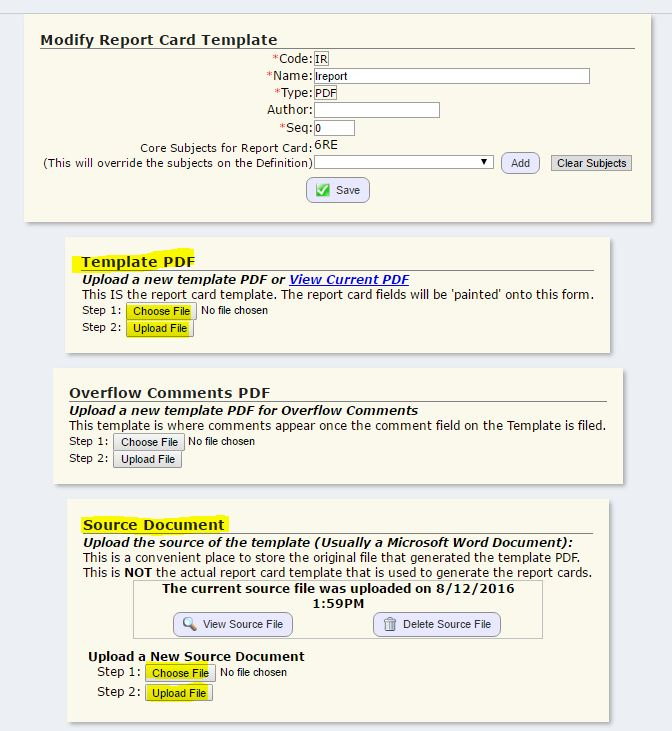
- Go to the Grading>Report Cards>Templates screen. There should be a Microsoft word doc saved in that "Src" column. Click on that icon to download it to your computer:

- Open the word doc on your computer and make the appropriate change. (This is all on your end, outside of Genesis.)
- Re-save the word doc. (It might be best to save a new copy, so you can still access your original word doc as well.)
- Then, save the document as a PDF.
- Go to Grading>Report Cards>Templates and click the MODIFY icon:

- On this screen, you can upload your new PDF in the "Template PDF" area. Click "Choose File", locate the new PDF on your computer, and click "Upload File."
- On that same screen, you can re-upload your source document (the word doc) in the "Source Document" area. Click "Choose File", locate the new word doc, and click "Upload File."
Q: I use Skill grades. Why isn't this grade pulling to the report card for students.
- Core Subject report cards require the courses to have the "Core Subject" and "Skill Group" filled in. This is found on the Curriculum file itself - via Scheduling>Curriculum>Modify Curriculum. Review the course on that screen to ensure this info is filled in.

- Core Subject report cards can have only one Core Subject. So, for example, if a student is missing some courses on the report card - make sure "Math" is not selected for 2 courses. If "Math" is selected for MATH and then also ART, as an example, both courses would be blank on the student's report card. Review each course the student has to ensure this info is filled in, via Scheduling>Curriculum>Modify Curriculum.
- Check the RC template and definition to make sure the Core Subjects are added and in the proper order. If Core Subject is listed on BOTH definition and template, the template's Core Subjects trump definitions.
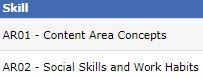
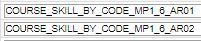
- Review the MACROS on the Report card itself, via Grading>Report Cards>Templates>Fields. The Macros need to match the SKILL CODES found via Grading>Setup>Skills. Review both screens to make sure there are no typos or incorrect codes.
Q: Report cards are ready to post - why aren't they appearing on the Parent Portal?
Places to check:
- (For both regular grading and Elem Grading) Make sure the form is set to display for each school via Parent Access>Setup>Settings>School Settings>Report Cards.
- (For Elem Grading) Make sure the correct Marking Period is selected in the "Current Marking Period For Printing" area via ElemGrading>Setup>Open/Close for each grade level.
- (For regular grading) Go to Grading>Report Cards>Report Cards. Make sure the "single" definitions are also set to display in the parent portal.
- (For regular grading) If you want ALL available report cards to display, make sure "Show All 201X-1X Report Cards" is checked off on the Parent Access>Setup>Settings>School Settings>Report Cards screen.
- (For Elem Grading) Make sure the GRADE LEVELS are checked off as "Elementary" via Setup>Schools>Modify School>Valid Grades.
- (For regular grading) Make sure the Grade Levels are NOT checked off as "Elementary" via Setup>Schools>Modify School>Valid Grades.
Q: When adding narrative comments in another language, pasted from Google Translate, they convert to upside-down question marks and other characters when viewing the report card.
The Genesis database stores data in the ISO-8859 character set, (https://en.wikipedia.org/wiki/ISO/IEC_8859-1) and certain languages are not supported. Because of this, certain special characters are not able to be entered and saved properly.
Transcripts
Q: How do I print out Transcripts en masse?
You do this via Transcripts>Print. Make selections in the various parameters and click "Run Transcripts."
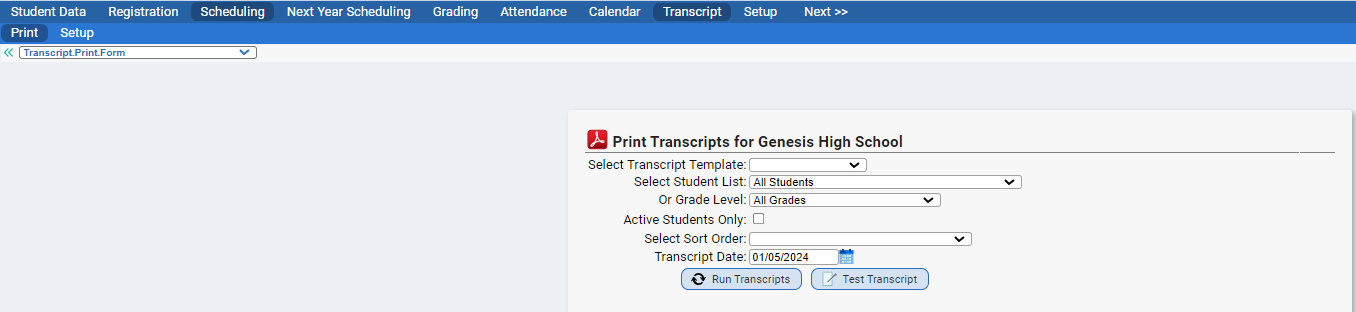
You can do this with a student list, or by grade level.
Q: Why do grades not appear next to some of the courses on a student's transcript?
If the course does not have the Graded Course flag set in the curriculum file; the grade will not print out. This flag can be located on the (Next Year) Scheduling>Curriculum>Modify Course screen.
Q: I have loaded my transcript form but I still get a There are no Adobe PDF Forms Setup message. Why does this happen?
On the Transcript>Setup>Setup, there is an option called, "Show activities page?". If this is checked, Genesis will expect an Activities page to be loaded. This message will appear if one is not loaded. To fix this, uncheck the box, or load an Activities page.
Q: I am trying to print my MP1 grades for the courses on my transcript but none of the actual courses are appearing on the transcript. What could be wrong?
On the Transcript>Setup>Setup, there is an option called, "Show courses without a Final Grade". Make sure this is set to Yes.
Q: I have a macro that is not working. What are a couple of problems to look for?
One big problem is that it is simply spelled wrong. A good thing to do is to copy the macro text from this wiki and then paste it into the text box for your transcript. This will often fix the problem. Another potential goof is that their is a value in the ForGpa. This could even be a space. Just make sure that there is nothing in there and then the macro should start working.
Q: Where do I update the DATE OF GRADUATION field for students so it will appear on the Transcript?
You may update this field for current 12th graders en masse via Administration>Assignments>Graduation Dates. Fill in the date up top, click "Update Students" and then click "Save" at the bottom of the screen.
You may also update en masse, using STUDENT LISTS, via Student Data>Mass Change. Select your student list, select "Graduation Date" as the Data Field, and then enter the Date in the "Select a Date" field, and click "Apply Changes."
You can also update this field for individual students from the Student Data>Modify Student>Demographics>Required screen by updating the "Date of Graduation" field and clicking "Save."
Q: Can I copy a transcript to a different school?
Yes. Navigate to the Transcript>Setup screen of the school to copy the transcript from. Click to modify the Transcript template. Locate the “Copy This School's |NAME| Template Into Another School:” function at the bottom. Select the school you wish to copy the currently selected school’s transcript template to. Click Copy. This causes the “Verify Copy” dialog box to appear. Click OK to continue and copy the template. The transcript is copied to the selected school. Click Cancel to abandon the copy operation.
Honor Rolls
Q: We have a scenario where a student has made up various assignments/exams/grades etc and now their grades have changed and they could possibly qualify for an honor roll. How do I recalculate the honor roll for the student?
A: You would recalculate the Honor Roll(s) via Grading>Honor Rolls. This would be for all students. There is not a current option to run an honor roll for just one student.
Was this article helpful?
That’s Great!
Thank you for your feedback
Sorry! We couldn't be helpful
Thank you for your feedback
Feedback sent
We appreciate your effort and will try to fix the article