There is a webinar on adding a new user here!
You add new logon IDs to the SIS via Setup>Security>Users.
The Genesis "User" (created/modified in Setup>Security>User) is what you use to log in to Genesis with. It will grant access to specific areas in Genesis, depending on how it is configured.
This is the same ID you see in the audit trail, each time a transaction is recorded.
On this screen, there is an "Add User" button.

If you click that, you will get a pop up and you will need to enter: Logon ID (required), Password (required), Last Name, First Name, and if applicable, "Copy Security From."

The Logon ID is what the user will use to log into the SIS.
If you know a user in the system already that has the same rights and access you want to give the new user, you may select their name in the "Copy Security From" dropdown. If not, leave it blank.
Once the logon ID ("User") is created, you attach the relevant "Roles" to the Logon ID to allow the user access to specific screens within Genesis. This is up to the district to determine.
You can review/modify your existing roles via Setup>Security>Roles.
You add roles to the new Logon ID via Setup>Security>Users>Modify User in the "Roles" area:

After you have created a new logon ID, you will need to set or generate a password.
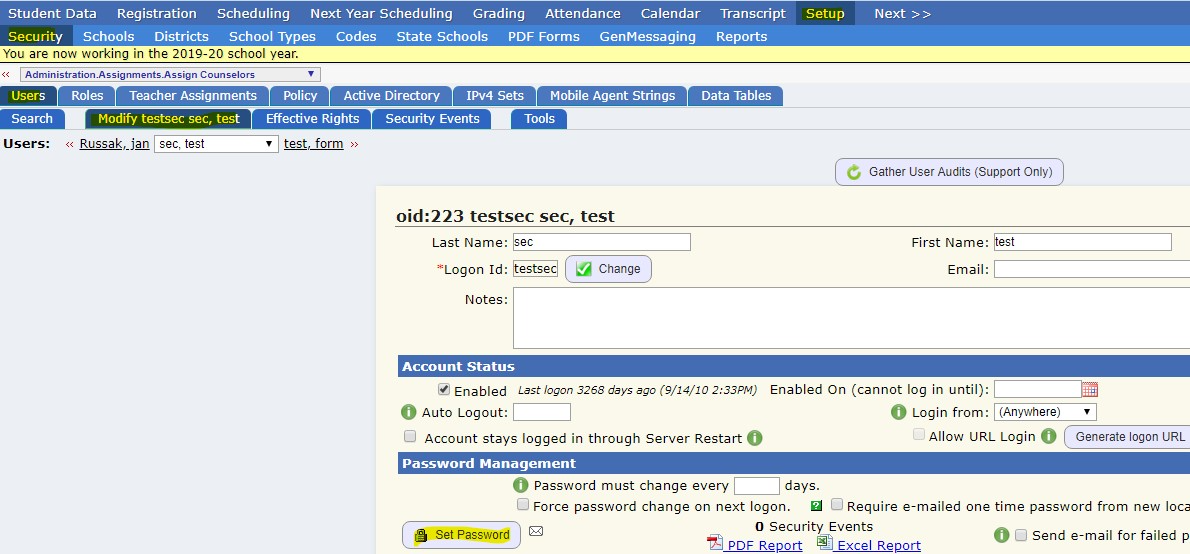
You can set a new password using the "Set Password" button found on the Setup>Security>Users>Modify User tab:
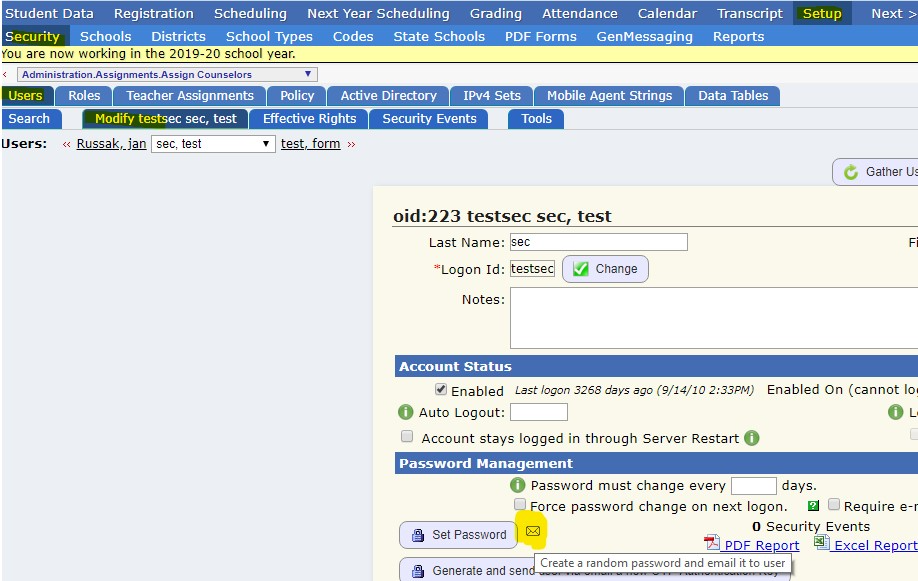
You can click the envelope icon next to "Set Password" to create and email the user a randomized password:
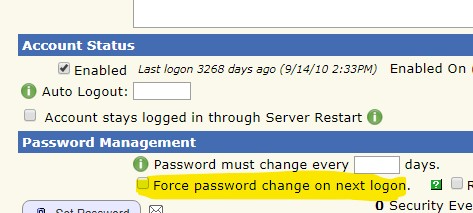
You can also check off "Force password change on next logon" and click "Save User" to force them to set a new password for their own logon ID after using the random password given.
There is also a "Set the "Force Password Change on next logon" option for all Genesis SIS users." tool via Setup>Security>Policy, if needed. NOTE: this would affect ALL Genesis users.
Was this article helpful?
That’s Great!
Thank you for your feedback
Sorry! We couldn't be helpful
Thank you for your feedback
Feedback sent
We appreciate your effort and will try to fix the article