TABLE OF CONTENTS
OOD Attendance
We recommend you manually enter attendance totals for you out of district students. You can track specific days absent, etc., but it is likely to be more efficient to simply enter totals for your out of district students. Once entered, these totals are automatically included in the appropriate state reports.
This article describes where and how to enter - or upload - attendance totals for out of district students.
The NJ SLEDS Attendance Screen
Out of District Student attendance totals are entered on the New Jersey > NJSLEDS > NJSLEDS Attendance > Attendance screen.
All OOD student automatically appear on this screen. Genesis includes all of the attendance fields from the SLEDS student management report. Attendance totals can either be entered manually or mass uploaded from a spreadsheet.
Manually Entering OOD Attendance Totals
To manually enter attendance totals for out of district students, do the following:
- Go to the New Jersey > NJSLEDS > NJSLEDS Attendance > Attendance screen.
- Select your out of district school in the "For School" drop down. This brings up the full list of out of district students in the selected school:
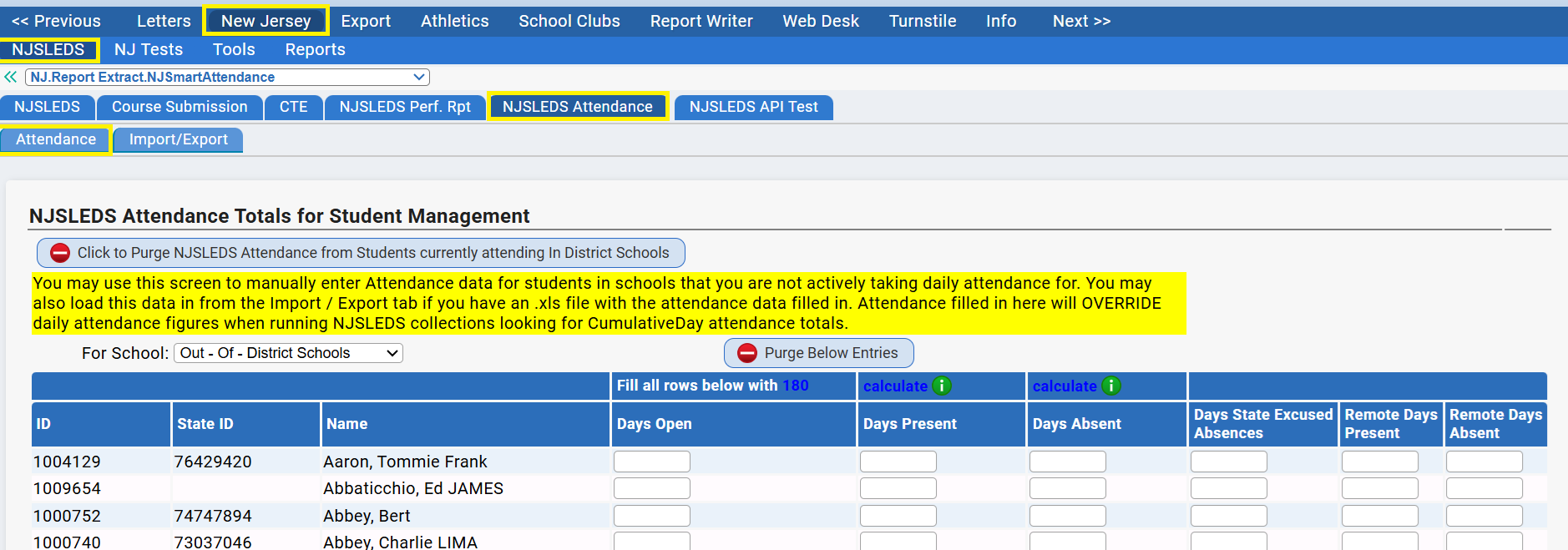
- Manually enter the attendance totals for students:
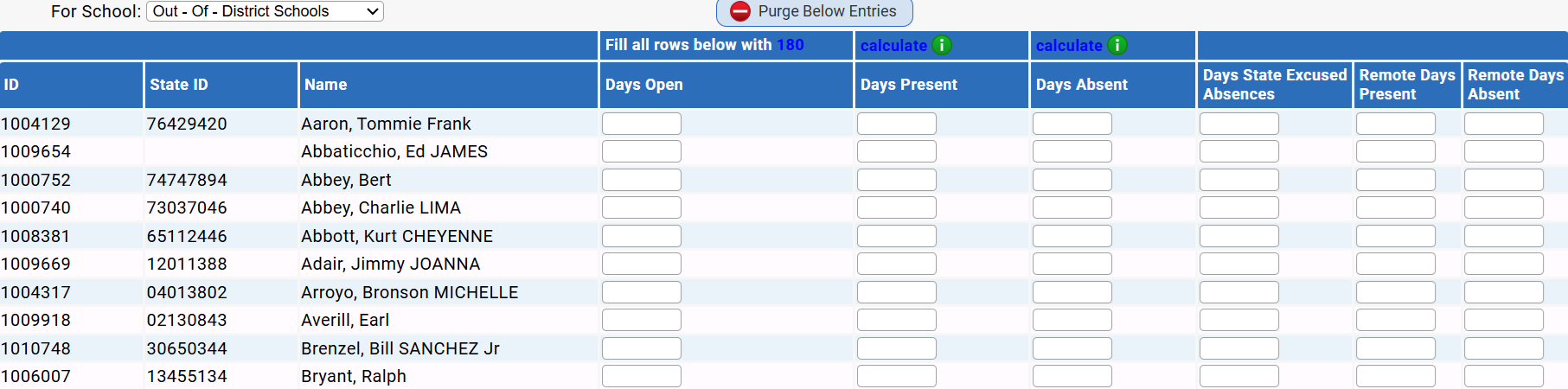
- Scroll to the bottom and save the totals you have entered.
- Repeat this as many times as needed - and for as many OOD schools you have set up.
Mass Importing OOD Attendance Totals
If you have a properly formatted spreadsheet (see below), you can mass import the attendance totals. To do this:
- Go to the New Jersey > NJSLEDS > NJSLEDS Attendance > Import/Export screen.
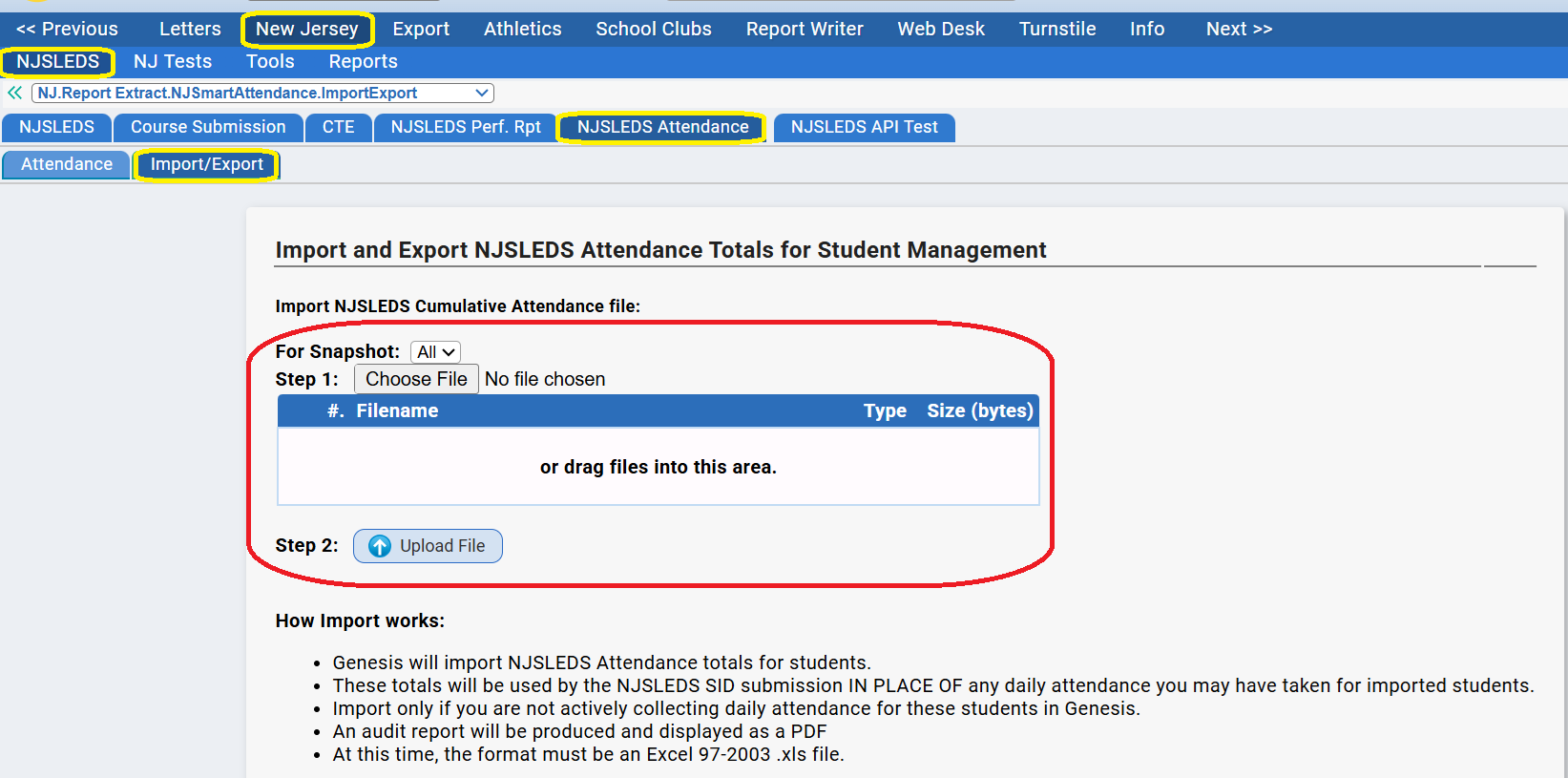
- Use the file chooser to select the Excel file containing the attendance totals.
- Click "Upload File" to import the totals.
The Excel File
The excel file to be import must adhere to a specific file format. Column headers are not needed - the data colums must appear in the specified order.
Columns:
The spreadsheet must use the columns in the following way:
COLUMN:
Column A - Student State ID (cannot use the local student ID). Cannot be blank
Column B - Student Last Name (can be blank)
Column C - Student First Name (can be blank)
Column D - Days Open
Column E - Number Of Days Present
Column F - Number Of Days Absent
Column G - Number Of State Excused Absences
Column H - Remote Days Present
Column I - Remote Days Absent
Was this article helpful?
That’s Great!
Thank you for your feedback
Sorry! We couldn't be helpful
Thank you for your feedback
Feedback sent
We appreciate your effort and will try to fix the article