*The Genesis Metrics module is currently in development and running in BETA for select districts.*
The Metrics module allows you to customize all of your Metrics widgets formatting.
- All Metrics widgets have the same options:
- Filters for school Year + school code to populate widgets with the appropriate information
- Show Widgets in the top right to hide/display widgets you would like to see and change the sequence they appear on the dashboard.
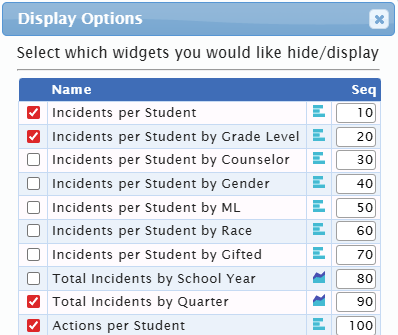
- Each Widget has the following Options:
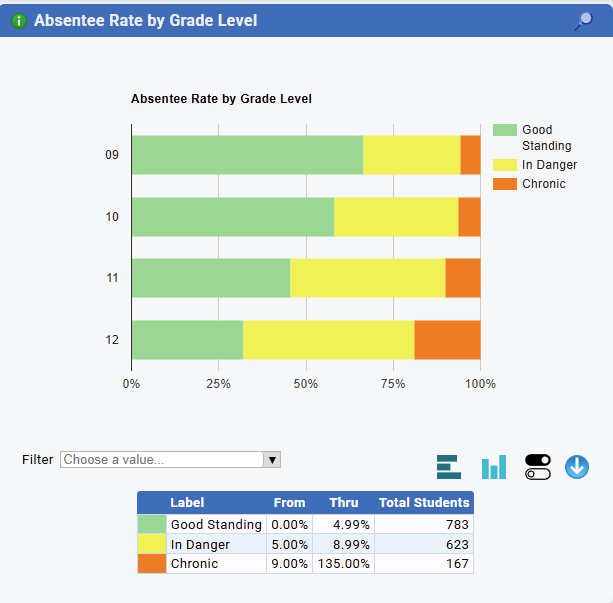
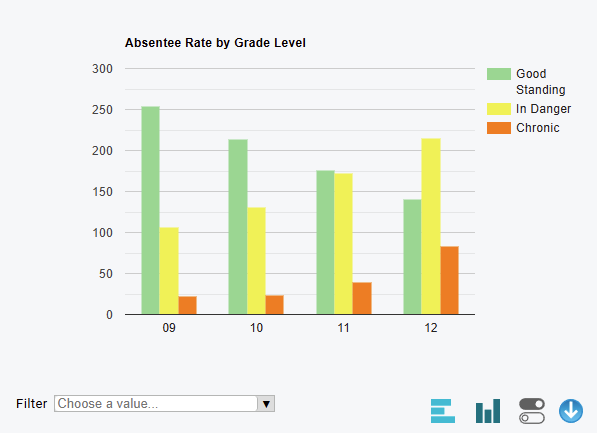
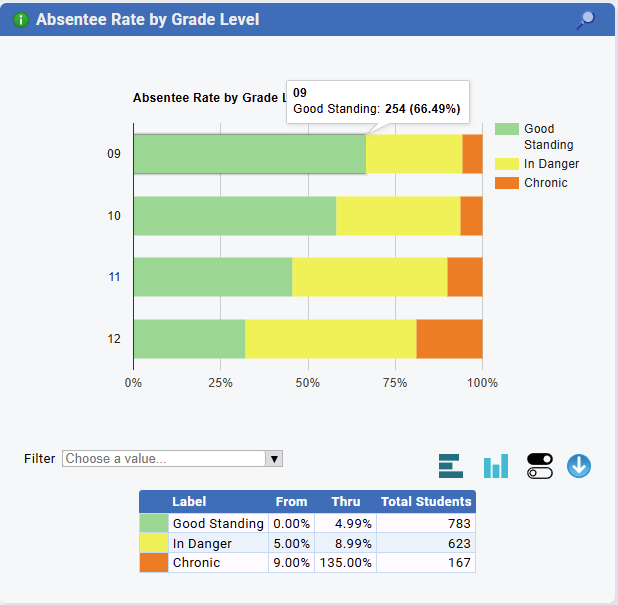
- The chart orientation can be changed (Bar/Column charts only), additionally for grouped charts the bars can be broken up:
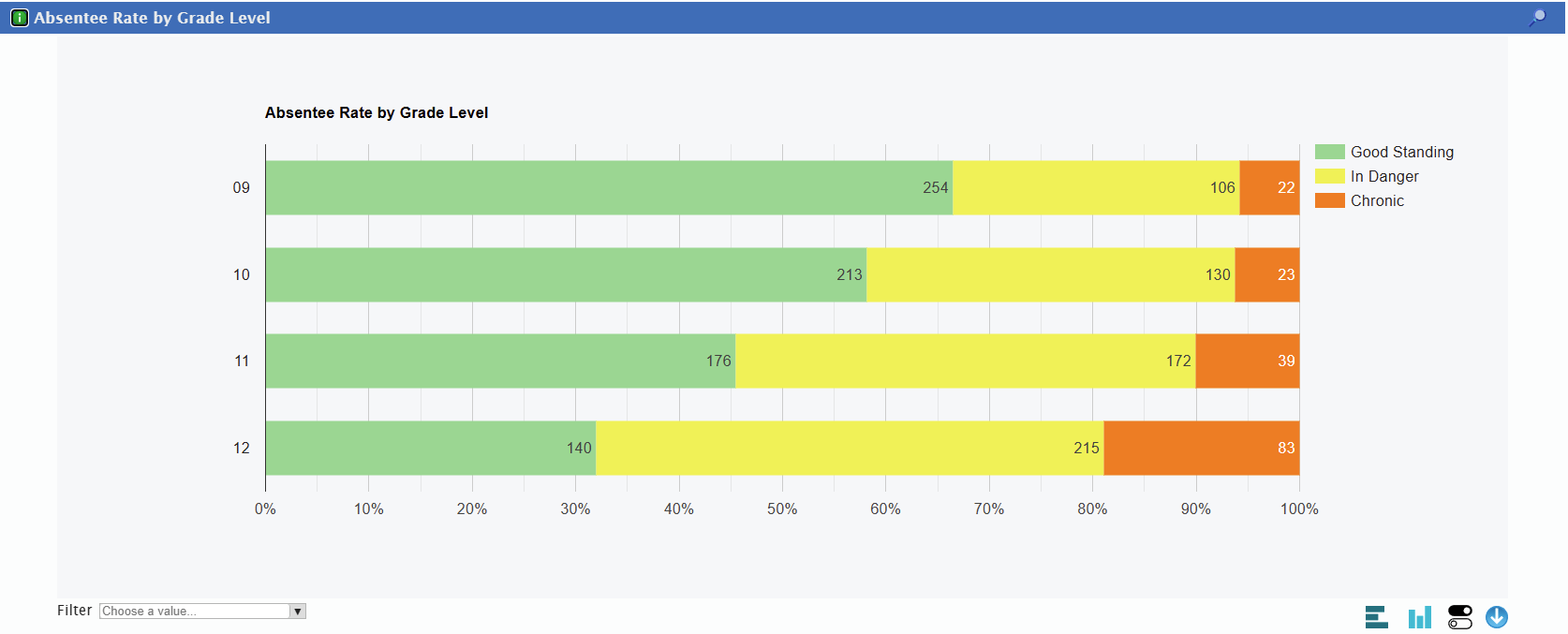
- Charts can be downloaded in two ways, one is by the download icon in the bottom right. Additionally there is a print preview, magnifying glass in the top right, that will display the chart in a wider form with the bars labeled on the char. The same grouping/column options can be applied here as well, the downloaded image will have the larger size included.
- The filter option allows you to display only the items you want to see, in the case of the chart above you can select Good Standing, In Danger, or Chronic to show
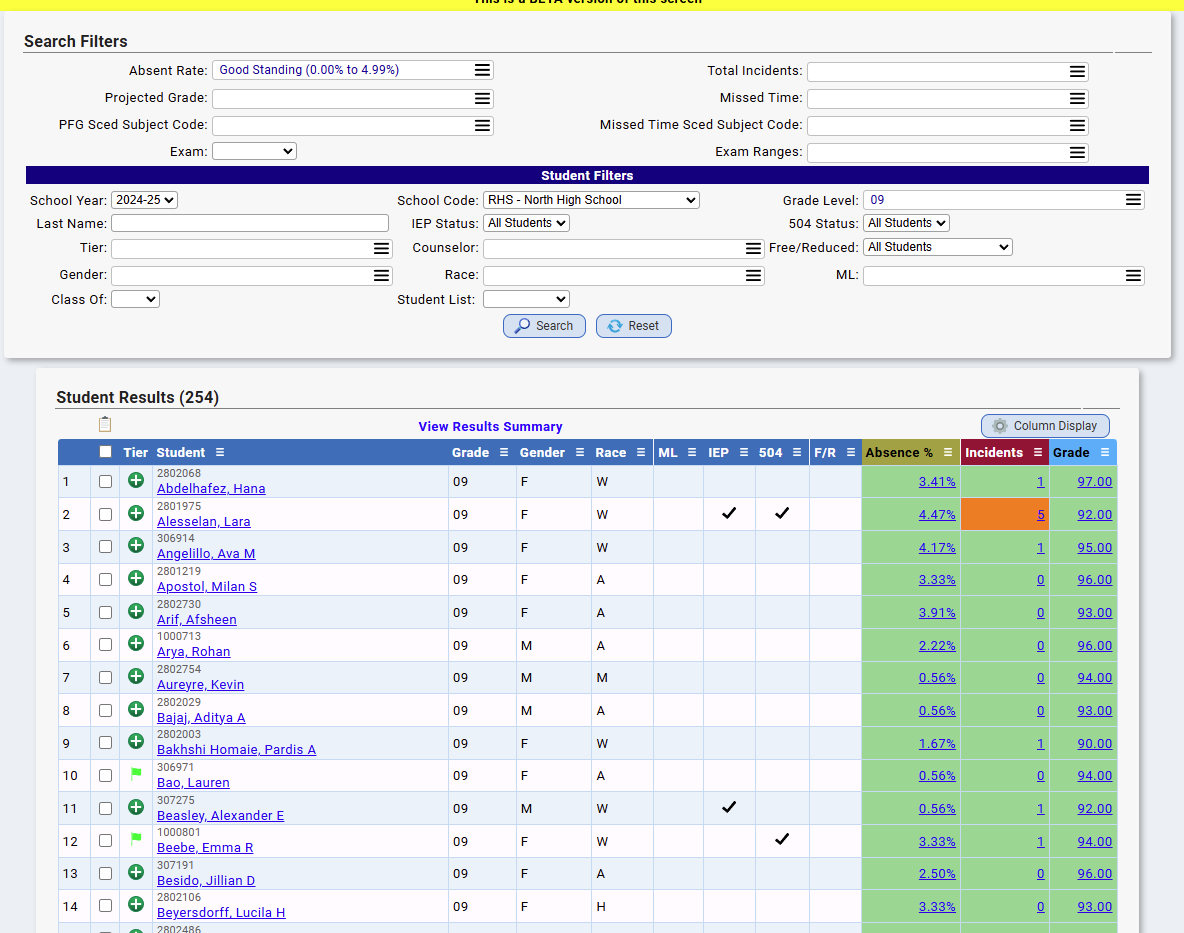
- Each bar/section of the chart is clickable. For example, clicking on good standing on absentee rate for grade 09 will bring you to the following page on the Student Detail Page where you can see the students in the chart
- The chart orientation can be changed (Bar/Column charts only), additionally for grouped charts the bars can be broken up:
Was this article helpful?
That’s Great!
Thank you for your feedback
Sorry! We couldn't be helpful
Thank you for your feedback
Feedback sent
We appreciate your effort and will try to fix the article