TABLE OF CONTENTS
- Curriculum Course Documents
- Adding Curriculum Course Documents to a Course
- Removing Curriculum Documents
Curriculum Course Documents
A "curriculum course document" is a PDF file that can be exposed on the Parent module's Curriculum Catalog screen describing what is covered in a course.
Adding Curriculum Course Documents to a Course
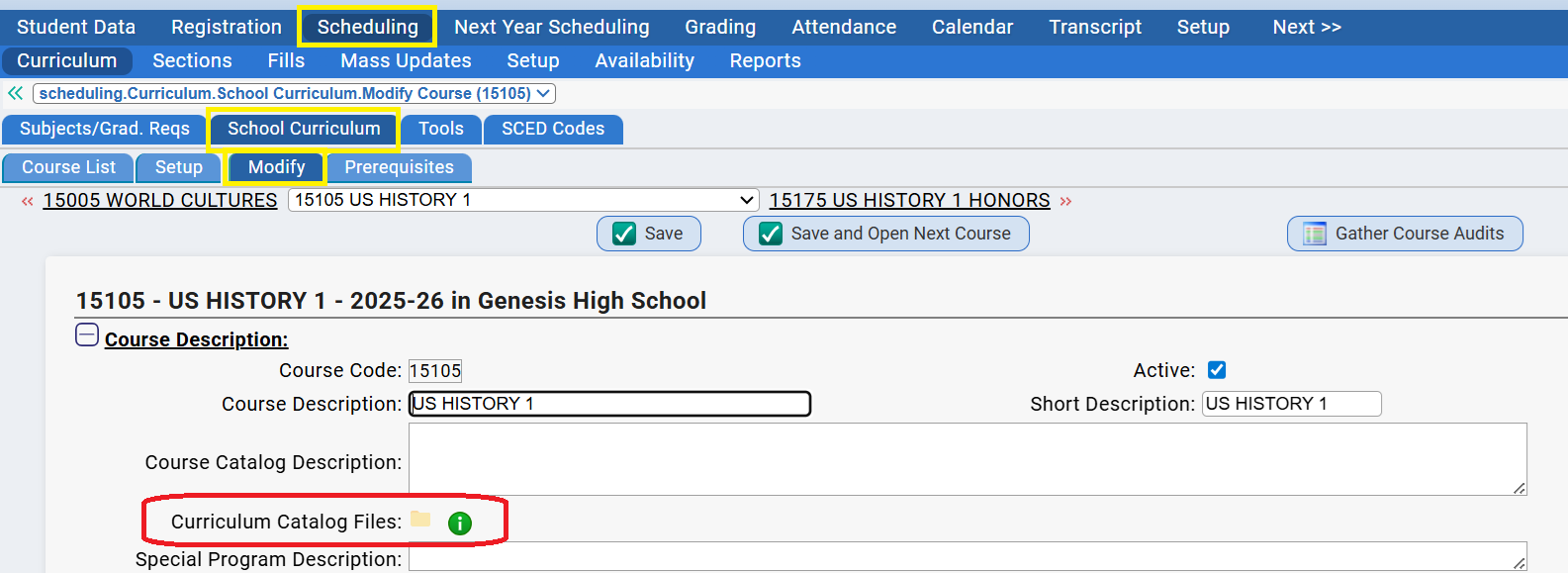
Documents can be uploaded into a curriculum course file via the Scheduling->Curriculum->School Curriculum->Modify screen.
Procedure to Upload Files into a Curriculum Course Record
- Go to the Scheduling->School Curriculum->Course List screen.
- Search for your course.
- When you locate the course you wish to add documents to in the list of courses, click on the "Modify" icon. This brings up the Scheduling->Curriculum->School Curriculum->Modify screen.
- On that screen, locate the "Curriculum Catalog Files" parameter (4th row down from the top):

- Click the yellow folder to bring up the "Add Documents" dialog:
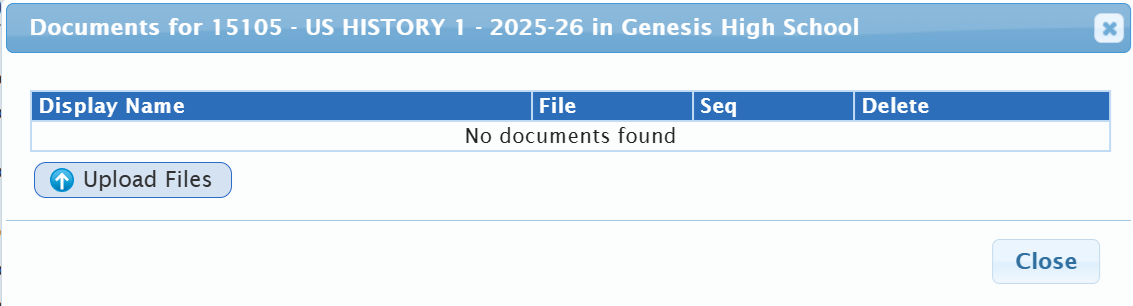
- Click the "Upload Files" button

- This brings up the "upload files" dialog:
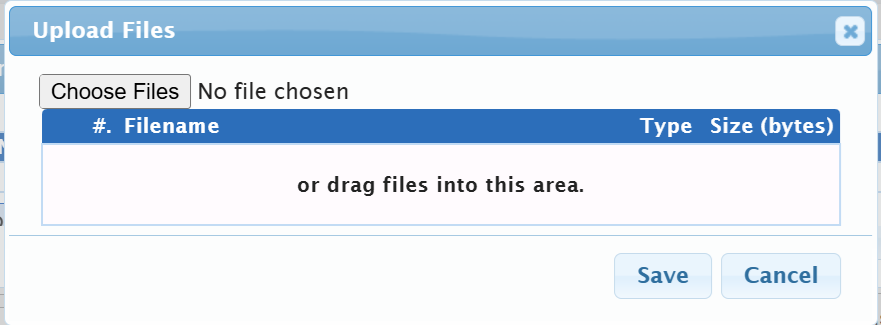
- Use the "Choose Files" file dialog to select the file you wish to add. Then click "Save" to upload the file:
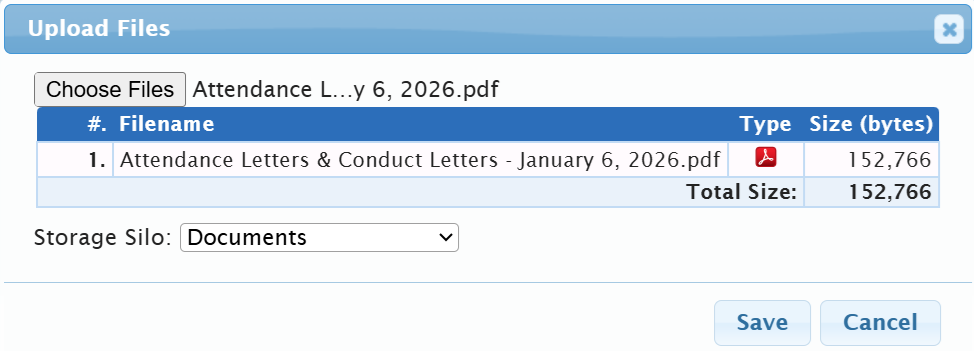 To upload multiple files at once, CTRL-Click on the file name (instead of just clicking on it). This will allow you to pick multiple files. Then click Save to upload the files. See below "Providing Display Names for Files" for changes you can make you have uploaded files into the course record.
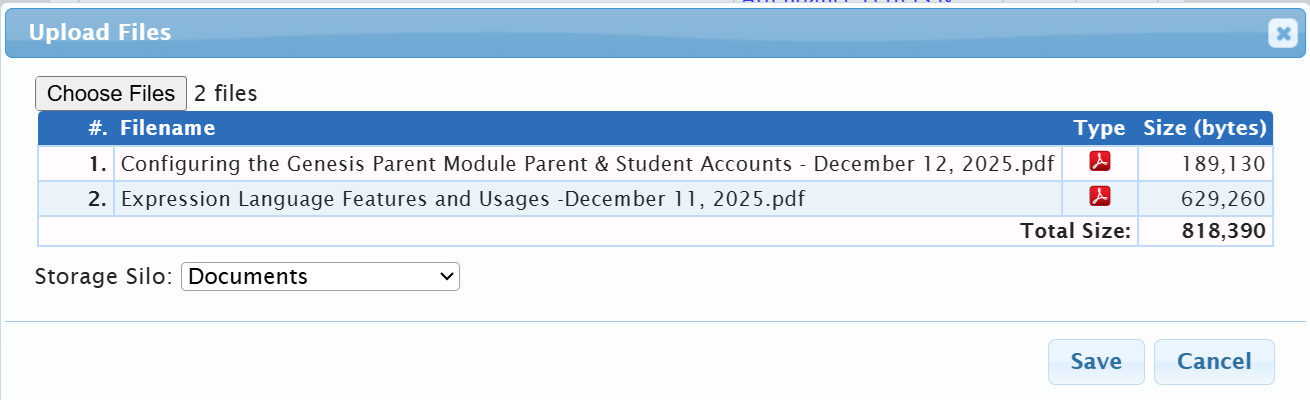 Once you hit Save, the files are uploaded and a confirmation dialog is displayed. Once you dismiss the confirmation dialog the only indication that files are attached is that the file folder icon becomes a brighter yellow:
  The bold yellow file folder indicates that files are attached. To view the files, click on the file folder.
 - Repeat steps 4 to 8 to upload additional files, if desired.
The "Documents for <Course>" Dialog
Once documents have been uploaded into a course, the "Documents for <Course>" dialog becomes active when the yellow Curriculum Catalog Files folder is clicked.
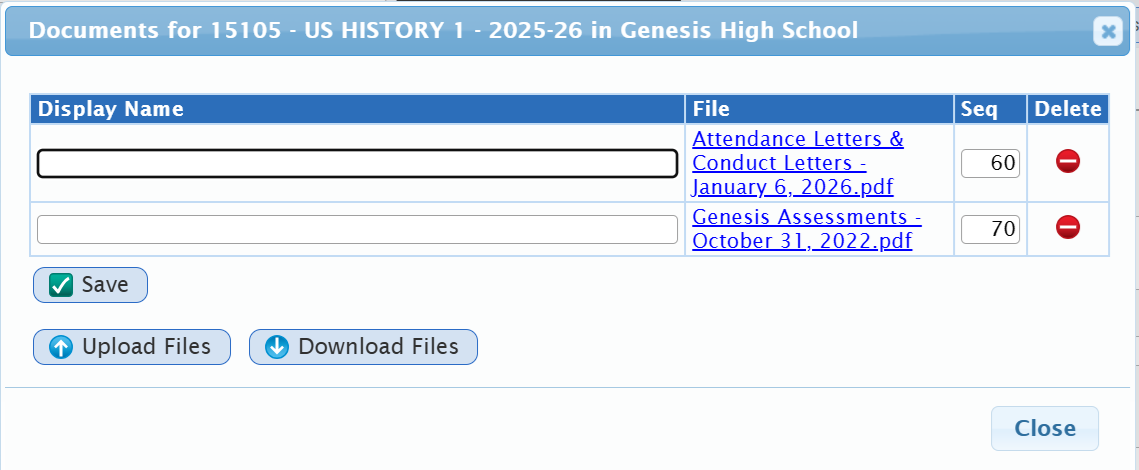
There are five functions available on the "Documents for <Course>" dialog:
- Provide Display Names for files
- Alter the Sequence in which the files are displayed in the course catalog.
- Remove files from the course
- Upload additional files
- Download files to your local computer.
Providing Display Names for Files
After you have uploaded the files, you can add "Display Names" for them. If you add a Display Name for a file, that is the name it will appear under for parents, teachers, etc. If there is no Display Name, the file's regular name will be used. You can also alter the "Seq" sequence number to change the order in which the files are displayed. Files are displayed exclusively in "Seq" # order - changing the Seq #s changes the order in which the files are displayed:
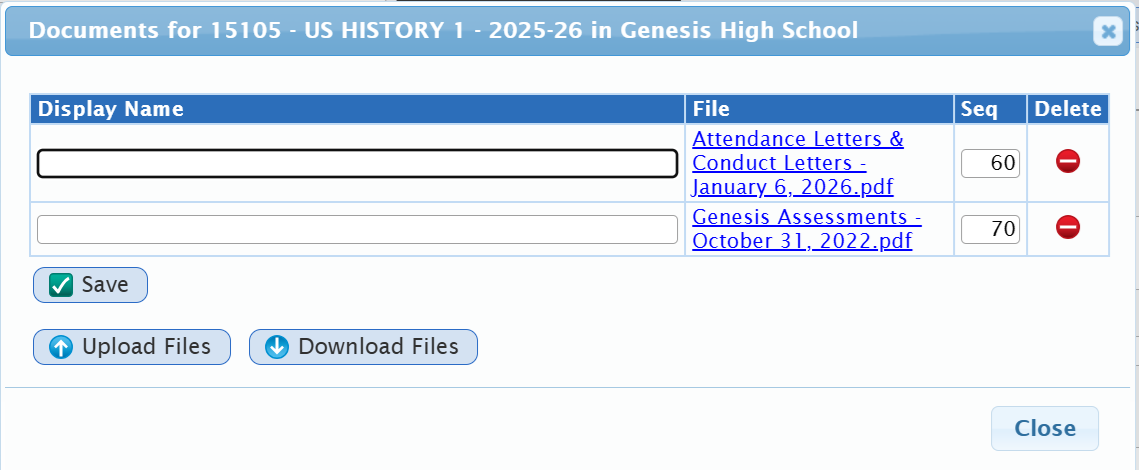
To enter Display Names or alter the Seq numbers, re-click on the yellow file folder icon:
This brings up the list of files with Display Name and Seq text fields: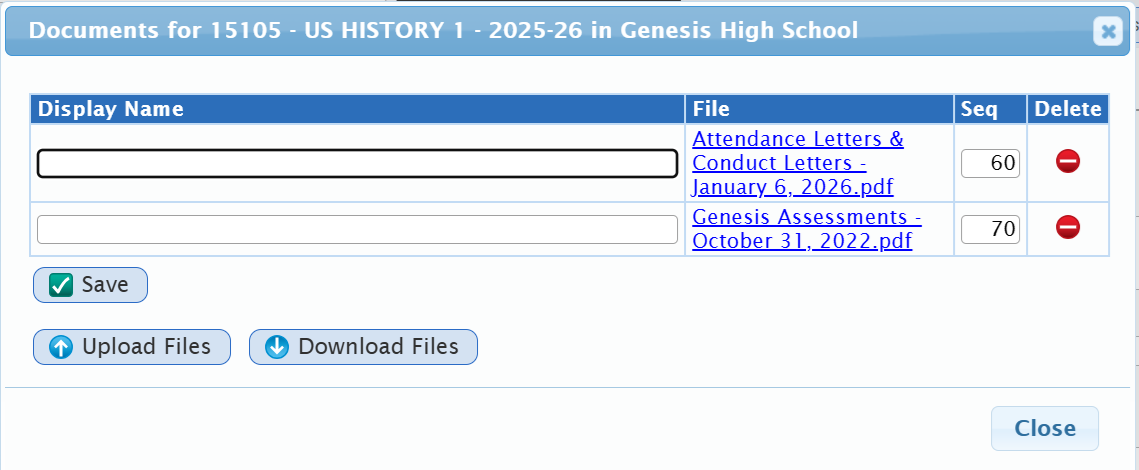 You can edit any of the text fields - Display Name and Seq - and then click the Save button to store your changes. The Display Name and Seq number can be changed at any time.
Removing Curriculum Documents
Curriculum Documents can be removed at any time.
Was this article helpful?
That’s Great!
Thank you for your feedback
Sorry! We couldn't be helpful
Thank you for your feedback
Feedback sent
We appreciate your effort and will try to fix the article