TABLE OF CONTENTS
- Gradebook Discipline Referrals
- Adding and Editing an Incident from Within a Gradebook Roster
- Adding and Editing an Incident from the Gradebook Home Screen
- Webdesk Referrals
- FAQ
Gradebook Discipline Referrals
The Gradebook Discipline Referral feature allows you to create a discipline incident inside of Genesis. The type of incident that is created is often called a Discipline Referral.
There are two spots within Gradebook a user can enter a discipline referral: Gradebook>Gradebook>(Click into student)>Discipline and Gradebook>Home>Teacher Referrals.
The option within the Gradebook roster screen is for a teacher to enter a discipline referral for a student within one of their rosters.
The option on the Home screen is for a teacher to enter a referral for a student not within one of their current rosters.
No actions can be given to the student upon creation of this referral, but any points that are setup to automatically calculate based on an infraction code will be applied to the student.
Once you submit the incident, your disciplinarian will have complete access to the incident, allowing discipline issues to be dealt with quickly and efficiently.
All of the incidents that you have created for the student appear in a list of incidents for the student, allowing you to see the student's discipline history.
Best of all, teachers can see when and what happened to the student once it has been submitted. All of this leads to a more efficient and effective discipline work flow.
Adding and Editing an Incident from Within a Gradebook Roster
From inside your Gradebook spreadsheet, you can click on the student's name, then click on the Discipline tab to view the above screen.
Add an incident by clicking on Add New Incident.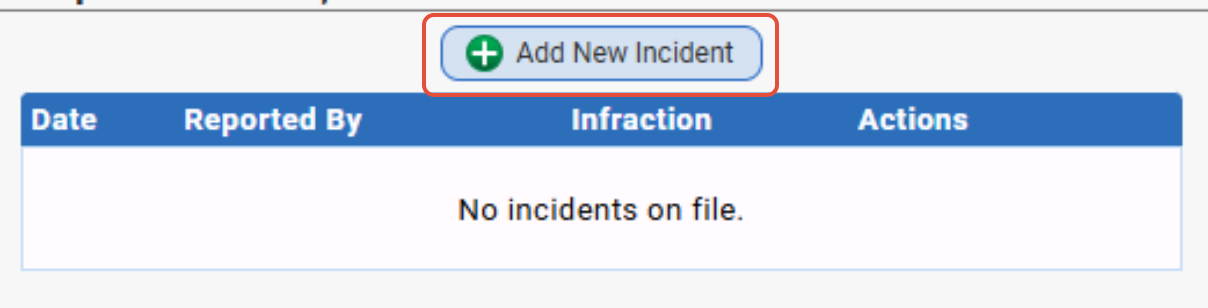
This will display the incident form on the right hand side of the screen.
At least one infraction has to be chosen in order to save the incident.
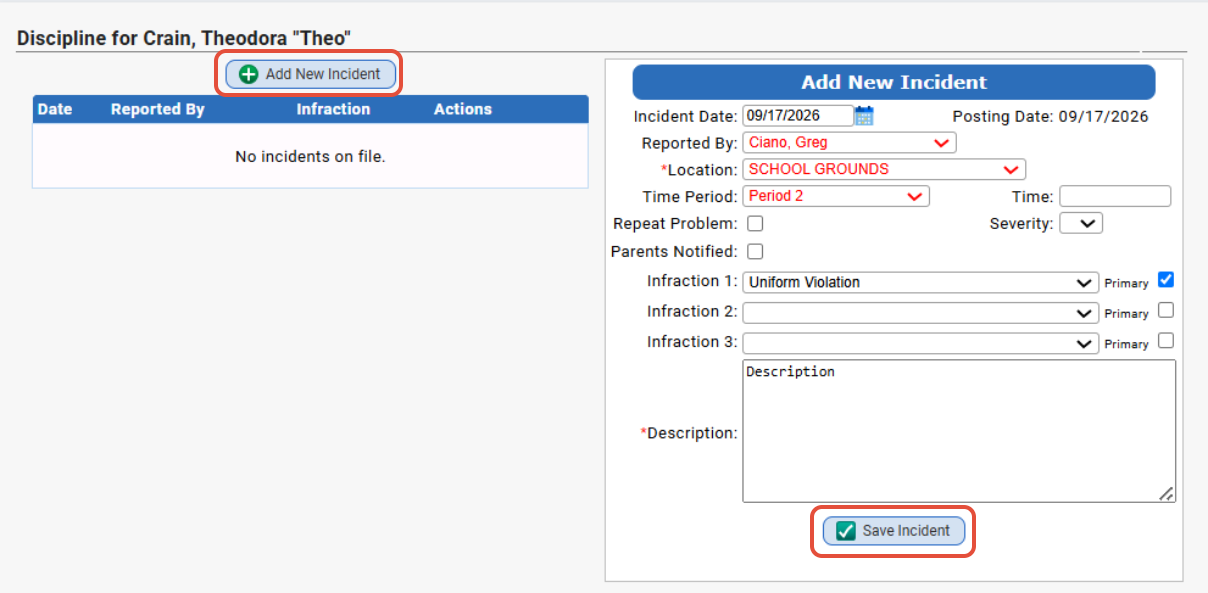
Once you click Save Incident, the incident will be submitted, and will appear on the left hand side of this screen.
Important Notes: Once you have saved the incident, it will be listed on the left hand side of the screen. Depending on your district's setup, you may or may not be able to see the what action was taken by the disciplinarian, shown within the "Actions" column. The list of incidents previously filed (left side of screen) do not represent all of the incidents on file for this student. These are only incidents you have entered yourself.
Adding and Editing an Incident from the Gradebook Home Screen
Navigate to the Gradebook>Home tab and locate the "Teacher Referral" subtab.
After you click on "Teacher Referrals," you will see all the referrals you have created and a tab for you to enter a new one.
Click on "Create Teacher Referral" and search for the student by their ID or last name to get started.
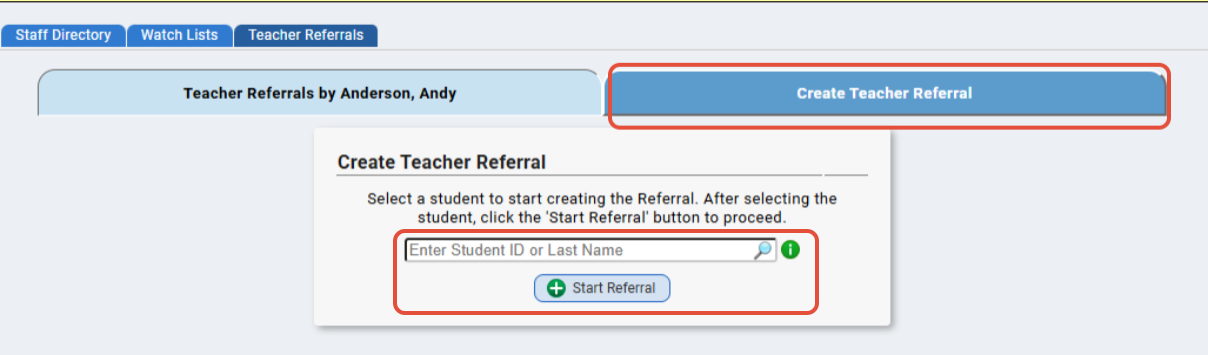
After clicking "Start Referral," the screen will expand with the student selected and you can enter in the various fields:
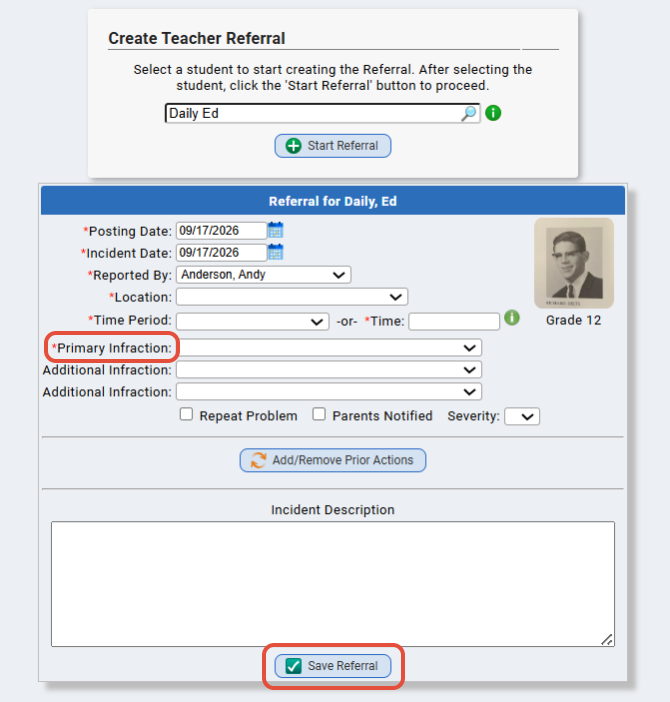
A primary infraction is required. Click "Save Referral" when finished.
New
Conduct.Setup.Conduct Codes.Prior Actions for Referrals
• This screen allows you to set up codes that can be added to Staff Referrals from the Gradebook or the Web Desk. From this screen, you can assign the prior actions to selected schools, edit the existing codes or create new ones.
• Prior Action codes also allow you to select if a date field should appear with the code. If checked, users will be able to add a date next to the code on the Referral screen. For each prior action code, users will also be able to add a note.
• Access to this screen requires the codeofconduct.setup.codes.preactions securable location.
• Once prior action codes have been created and setup, this screen allows codes to be seen on the referral screens by checking the "Enable Prior Action Codes for Referrals" checkbox in the top section. Prior to this being checked, users will not see the prior action codes when creating referrals.
• Once the prior action codes have been enabled, a new button "Add/Remove Prior Actions" will appear on the Referral screen. This button allows users to add the prior action codes to the referral. If a code is added, it will now appear in the referral where the user can add notes to the selected code. If the code has been set up to include a date, a date field will also appear by the code description.
• Prior Action Code information for the offender will appear on the individual incident print outs under the offender information section.
Webdesk Referrals
We added a new Discipline Referrals screen to Web Desk.
This is found via Webdesk>Discipline Referrals.
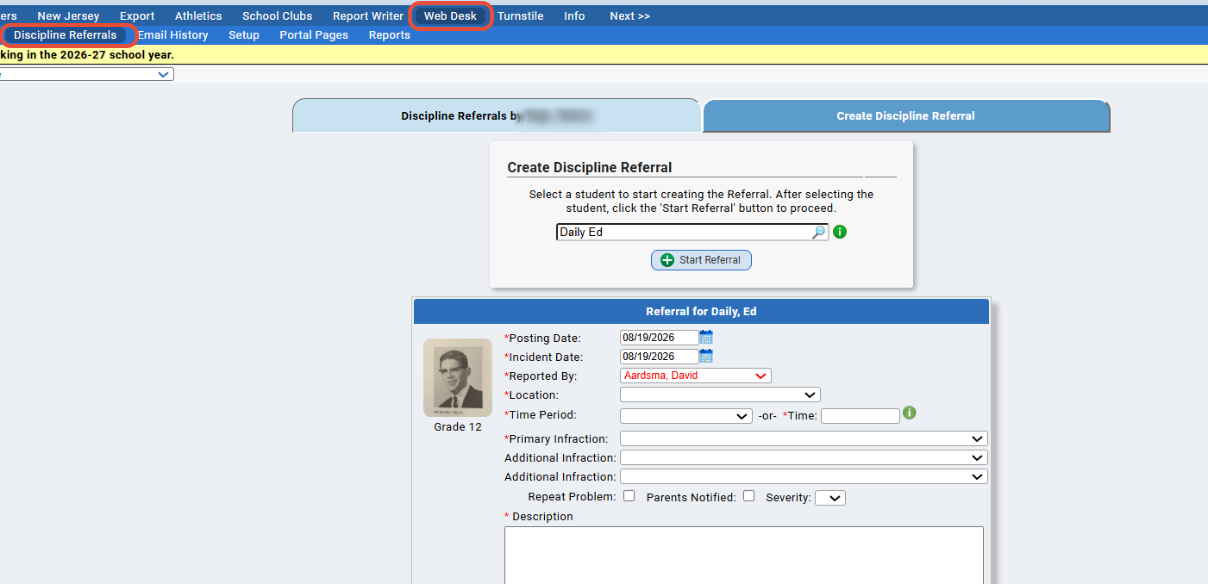
This screen allows users to give referrals to any student within the school.
The user must have a staff member assigned to them and marked as representing them.
FAQ
Q: Will teachers be able to see discipline incidents from other staff members?
A: No, they will only be able to see the incidents they have entered themselves.
Was this article helpful?
That’s Great!
Thank you for your feedback
Sorry! We couldn't be helpful
Thank you for your feedback
Feedback sent
We appreciate your effort and will try to fix the article