TABLE OF CONTENTS
- How can I grant a user access to this report?
- Why can I not send a report through E-Mail on the Schedule Report Screen?
- How do I queue up a report to run on a fixed schedule in Genesis?
- This user does not have that dropdown when running a report. How do I grant a user access to scheduling reports? Is there extra security?
- After I queued a report, it kept pulling data for kids as of the day I queued it. How can I get it to pull today's data?
- What are the report scheduling options and the formatting for the values?
- I queued a report but I need to delete it out/re-queue it. How do I manage this?
- There used to be a Grade Posting Status by Department report. What happened to it?
- Do you have built-in reports for Chronic Absenteeism?
- Can I build my own report?
- Can we copy a built-in report?
- Does Genesis offer a report writing service?
How can I grant a user access to this report?
Reports have role-based security. There are 2 spots where you can add/remove roles from reports.
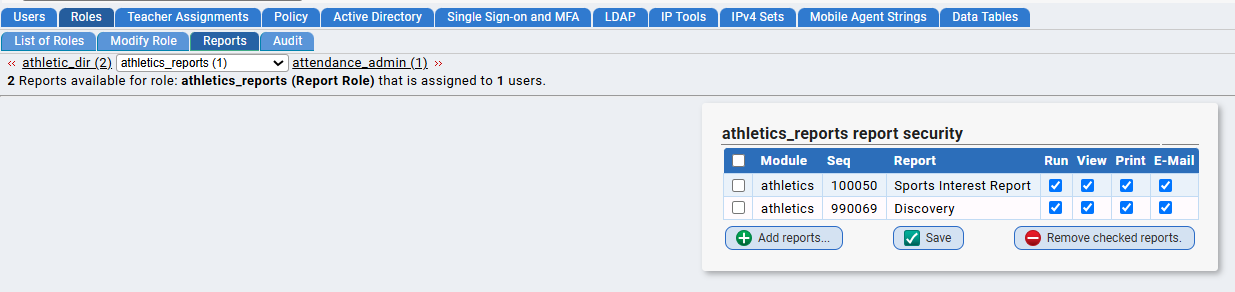
- Click to modify a role via Setup>Security>Roles. There is a "Reports" sub tab. Click "Add Reports," and then you can check off the relevant report(s) and click "Assign Reports." All users with that role would then have access to those reports.
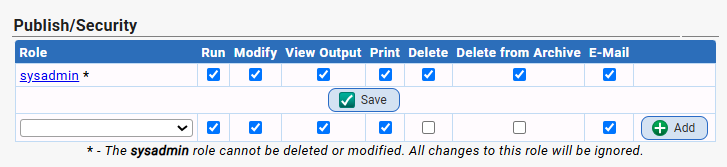
- Click to modify a report from any Reports tab. At the bottom, there is a "Publish/Security" area. You can add in roles from here as well.
Why can I not send a report through E-Mail on the Schedule Report Screen?
The drop down list of users to send a report to only appears when:
Your Genesis Logon has an e-mail address associated with it.
- The drop down list will show only users that have an e-mail address associated and are enabled.
- Your district is not configured to send emails.
- Your User does not have permission to send this report through Email
The Setup>Security>Users>Modify screen is where an e-mail address is associated to a user/logon.
How do I queue up a report to run on a fixed schedule in Genesis?
Locate the report you want to schedule in your list of reports and click into it.
In the "When" dropdown, select "On a fixed schedule" and additional options will then appear: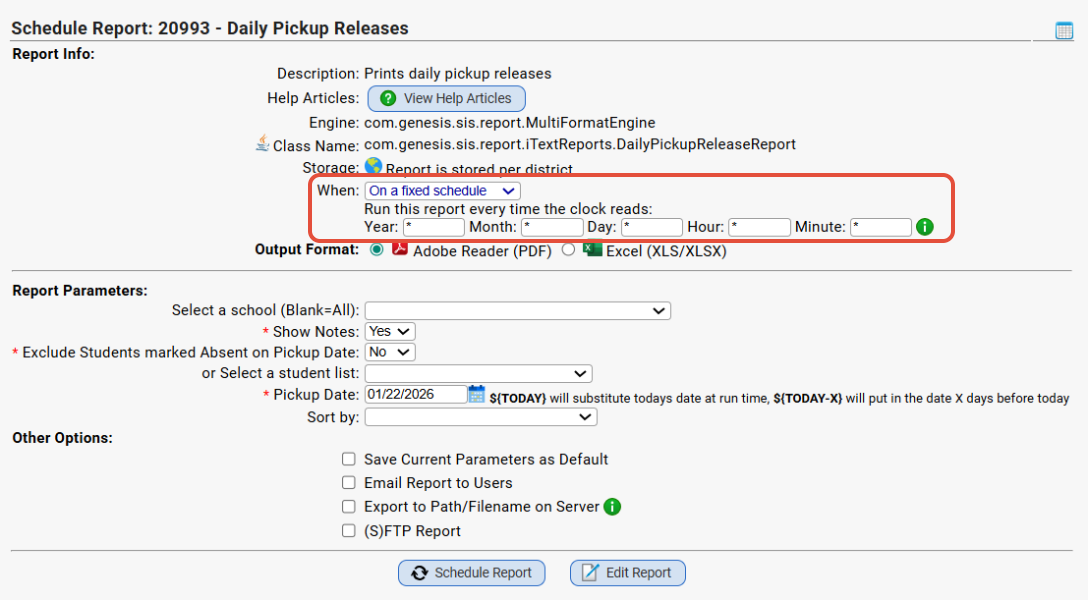
Enter the values needed in the Year/Month/Day/Hour/Minute fields.
Click "Schedule Report" when you are ready to queue it.
This user does not have that dropdown when running a report. How do I grant a user access to scheduling reports? Is there extra security?
Yes. There is an "Advanced Scheduling Options" checkbox on each user's logon ID on their Modify User screen. You can check this off for users via Setup>Security>Users>Modify User as needed.
After I queued a report, it kept pulling data for kids as of the day I queued it. How can I get it to pull today's data?
If there is a "date" field on the report, enter the ${TODAY} macro into the field as you queue it. ${TODAY} will substitute today's date at run time, ${TODAY-X} will put in the date X days before today etc.
What are the report scheduling options and the formatting for the values?
The recurring fields are:
Field | Description | Possible Values |
Year | 4 digit year. | * = Every Year |
Month | Month (no leading zero) | * = Every month |
Day | Day of the month | * = Every Day |
Hour | Hour of the day (00-23) | * = Every hour |
Minute | Minute in the hour (00-59) | * = Every minute |
Examples:
Year | Month | Day | Hour | Minute | Description |
* | * | * | 12 | 30 | Every day at 12:30pm |
* | 9,10,11,12,1,2,3,4,5,6 | * | 06 | 30 | Every day at 6:30pm from September through June |
* | 10 | 15 | 12 | 00 | On October 15th at 12:00pm |
* | * | M,T,W,R,F | 09 | 30 | Every week day at 9:30am |
I queued a report but I need to delete it out/re-queue it. How do I manage this?
You can modify and/or delete out queued reports via the (MODULE)>Reports>Queue tab. You can search for the report and click to modify the parameters or click the trash can to delete it from the queue.
There used to be a Grade Posting Status by Department report. What happened to it?
This report has been replaced by the Student Data>Student List>Grade Search>Posted Grade Verification screen.
Do you have built-in reports for Chronic Absenteeism?
Districts can run Report 1026 report to identify chronic absenteeism students.
We also have the following screen which has all the same capabilities: Student Data>Student List>Attendance Search>Daily Attendance Search.
We also have a search result view available for download that gives absence rate and present rate which districts can then customize themselves. This is found here.
Can I build my own report?
Yes, you can use our Report Writer feature to create custom reports. More info is found here.
We also have a library of 'custom report writer reports' that you can download and import into your Genesis system. This can be found here.
You can also use our Search Result feature to create custom 'search' views that you can use/export on the Student Data>Student List>Student Search screen. More info is found here.
Can we copy a built-in report?
Most built-in reports cannot be copied by users. You can enter a help desk ticket with us if you'd like to request changes/enhancements to a built-in report. You can also review our Custom Report Writer Report library to see if a report writer version is listed.
Does Genesis offer a report writing service?
Please click here to read about the services Genesis offers.
Was this article helpful?
That’s Great!
Thank you for your feedback
Sorry! We couldn't be helpful
Thank you for your feedback
Feedback sent
We appreciate your effort and will try to fix the article