You can run and collect the Course Submission files in Genesis from the NJ>NJSLEDS>Course Submission tab.
Make sure to check out the NJSLEDS site for known errors or updates on their end: https://nj.gov/education/sleds/

Tip from NJSLEDS: Always make corrections in your local source system first, then re-upload the file to NJSLEDS.
In this Section:
- Other Helpful Resources
- Where/How to Collect and Download the Files for Submission to NJSLEDS
- Options on the Course Submission Extract Tab
- General Best Practices for Course Roster Submission
- Genesis Options for Practice Submission
- Reporting Section Entry & Exit Dates
- Automatic Schedule Creation for Schools Without Schedules
- Can we preview Course Roster Submission data for an individual student?
Other Helpful Resources:
- Course Submission FAQ
- Creating/Extracting the STUDENT submission file
- Creating/Extracting the STAFF submission file
- Mapping Courses for the Collection
- Student NJSLEDS Screen
- Genesis Course Submission Verification Report
- NJSLEDS - Course Roster Guides
- NJSLEDS - Known Issues
Where/How to Collect and Download the Files for Submission to NJSLEDS
This is located on the NJ > NJSLEDS > Course Submission screen. Start by clicking Collect Data for each school. The system will generate a report, and this only takes a few moments:
To download the files, locate each of the blue floppy disk icons; 1 for the staff data and 1 for student data:

NOTE: Only the CSV download should be submitted to NJSLEDS. If you download the EXCEL version of these files, it will contain extra columns of data for troubleshooting purposes. Do not submit the EXCEL files to NJSLEDS or it will create column/file formatting errors. For more information on working with CSV files, Click Here. Or, continue onto the next section for information about the 2 download options.
Options on the Course Submission Extract Tab
| Option | Notes |
| Use Practice Grade | Select a Marking Period in the “Use Practice Grade” column to obtain fake “Final Grades” to test with if no FG exists. System will always first try to use FG but if none exists, it will instead use the MP grade you select. |
| Adjust Course End Date | This will ADJUST your Course Section End Date to be TODAY if your Course Section End Date is greater than TODAY. This should used in conjunction with Use Practice Grade for test submissions prior to the end of school. |
| Use Other ID | If this is checked for the school, it is going to pull an ID for staff members based on the "Other ID" rather than the "Local ID" on their Staff record.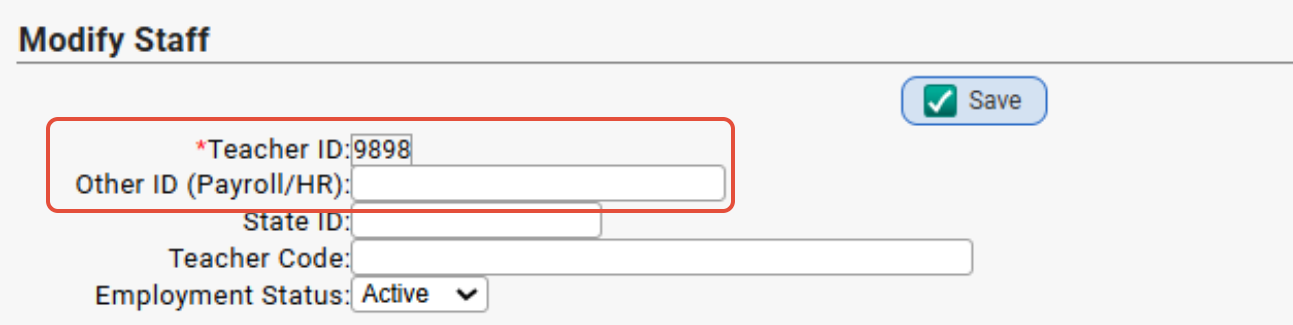 These fields are found via the Staff tab. If you do not utilize the "Other ID" field in the school, you can uncheck this option and click "Save Settings for All Schools" before recollecting and then the system will pull from the staff Local ID instead etc. These fields are found via the Staff tab. If you do not utilize the "Other ID" field in the school, you can uncheck this option and click "Save Settings for All Schools" before recollecting and then the system will pull from the staff Local ID instead etc. |
Always use Elem HR for grades PK-04 or grades PK-05 | Check the “Use only Elem Homeroom for grades PK-05” checkbox if your PK-05 students have schedules in Genesis and you want to ignore them and instead have Genesis create one course per school teacher in the Staff Course Submission file. |
Never Use Elem HR (Recommended) | If this is checked, Genesis will never assign a HR as course for a teacher who is not assigned to a scheduled course. If teacher does not have scheduled courses, that teacher will not be included in collection. |
| Staff Data | The excel icon allows you to review the data - but do not upload the excel to NJSleds.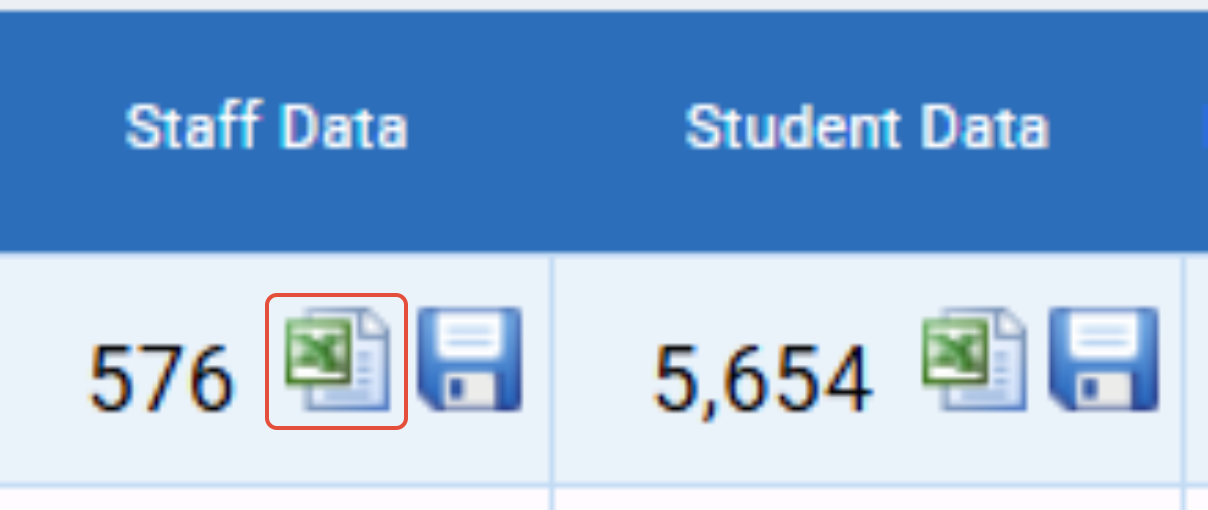 The CSV icon allow you to download the Staff file - upload this CSV file to NJSLEDS The CSV icon allow you to download the Staff file - upload this CSV file to NJSLEDS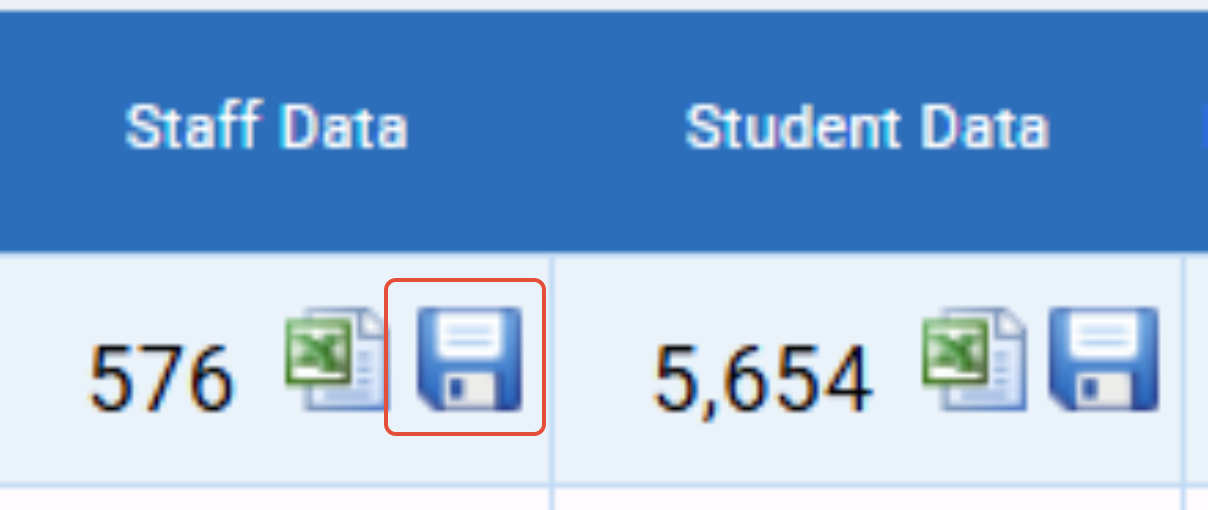 |
| Student Data | The excel icon allows you to review the data - but do not upload the excel to NJSLEDS.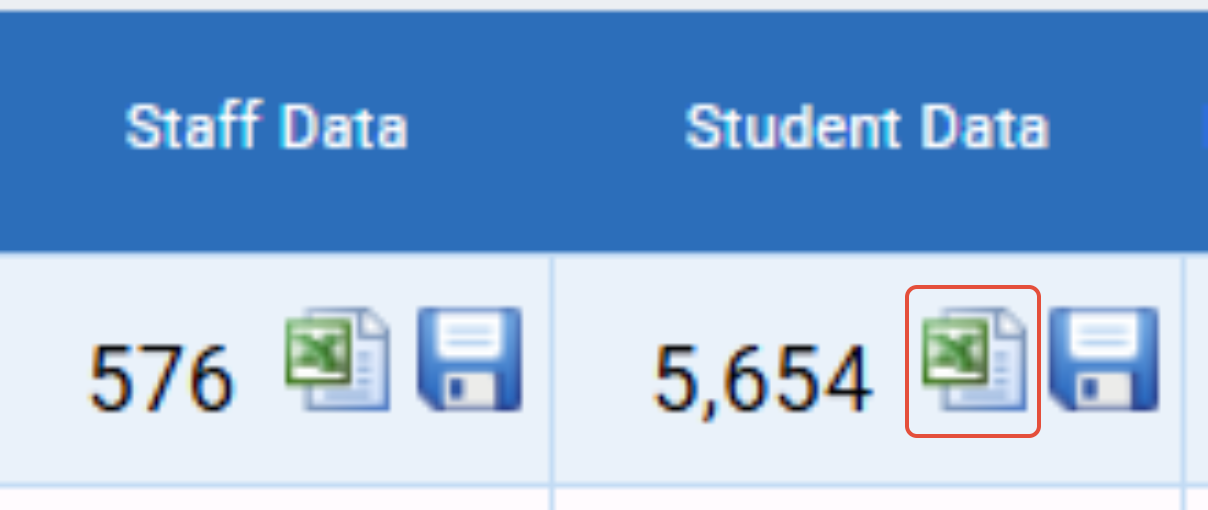 The CSV icon allow you to download the Student file - upload this CSV file to NJSLEDS. The CSV icon allow you to download the Student file - upload this CSV file to NJSLEDS.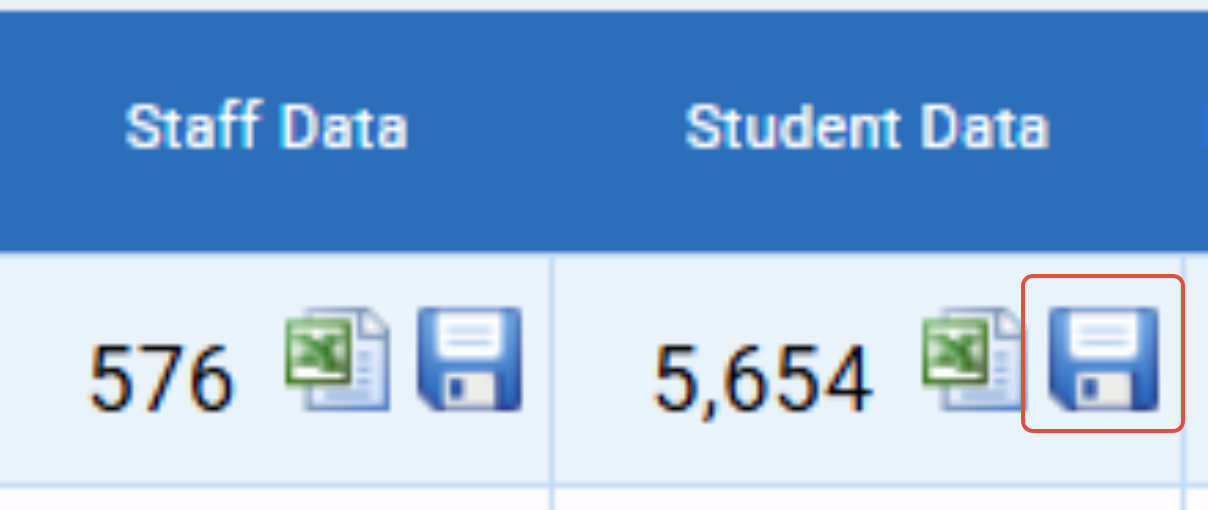 |
| Teacher Verification | You can download the teacher verification files as a PDF or excel. |
| Collection | Clicking "Collect Data" will collect the files for the school(s).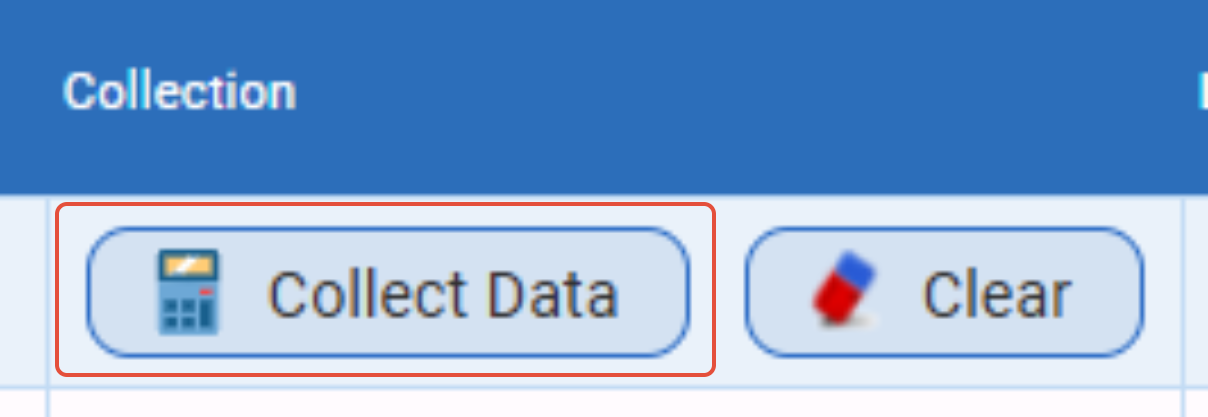 Clicking "Clear" will clear the data for the school(s). Clicking "Clear" will clear the data for the school(s).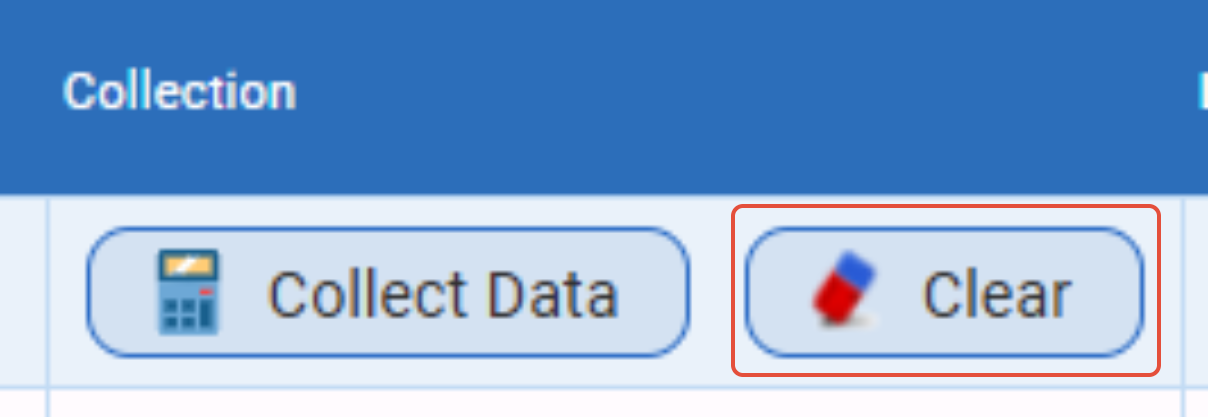 |
| Log | After collecting data, you can click the pencil clip icon in the Log column to see a log of any errors, skipped data, or missing data in the file so that you can make adjustments in the system. |
| Other options to check/uncheck on the screen: | |
| (Recommended) Check here to export student's dropped and ungraded courses (will still exclude student courses dropped at the start of the school year). | |
| Do not include student course if it was dropped at beginning of school year prior to Sept 15 | |
| Check here to export all courses NOT marked as Exclude from NJSLEDS Course Submission. (includes Courses NOT marked as Graded Courses in Curriculum) | |
| Check here to add local school code to all course codes (to be used if you have multiple schools/buildings with duplicate CDS). | |
| Check here to add to modify Rigor on auto generated Elem HR courses based on 'Basic Skills Teacher' setting of HR teacher. | |
Merge Teacher Course Sections when days between teacher exit and teacher reentry is equal to or less than X days. | |
NOTE: If you make any changes to an option on this screen - make sure you click "Save Settings for All Schools" before recollecting the data to ensure you are getting new info.NOTE
* Only schools that have the option Include students in state reporting(true), In District School(true), Exclude from NJSMART(false) and have a CDS code assigned are available for this collection.
* Only Grade Collections that are flagged Marking Period or Final Grade are shown.General Best Practices for Course Roster Submission
- Submit to the practice period to get ahead in correcting scheduling data for the official period.
- Always make data corrections directly in Genesis; do not open or update any NJSLEDS exports from Genesis prior to submitting them.
- Always submit your district's STAFF Roster file before submitting the STUDENT Roster file.
- Be sure to use the CSV output when submitting to NJSLEDS. The Genesis Course Submission extracts have CSV and Excel options. The Excel file is only used for reviewing the data, and has additional non-NJSLEDS columns in place to assist with data verification.
- Always use the Effective Date when making schedule changes to students during the school year.
Genesis Options for Practice Submission
- Use Practice Grade - Adjust this option to MP3 or another marking period that has already passed, to ensure there are course grades included in the practice submission. After the practice period, change this option back to FG so that Genesis reports Final Grades to the official submission.
- Adjust Course End Date - Check this option to have Genesis use today's date when reporting section exit dates. Use this option if you are receiving errors due to having course end dates in the future.
Reporting Section Entry & Exit Dates
Ensure the Section Entry/Exit Dates are correct for Staff and Students. The Genesis extract has been updated to handle students who leave and re-enter a course section during the year.
- For Courses - Courses are assigned start/end dates based on the 'Semester' assigned to the section of the course. Ex: a section assigned to "FY" will take on the start/end dates of the school year. Learn more...
- For Staff - Staff are assigned entry/exit dates based on the 'Semester' assigned to their class section. Sections may also have 'historic' teachers added to account for previous current-year teacher(s) of the class. Learn more...
- For Students - Students are automatically assigned the start and end dates of their section, unless they are not enrolled for the entire length of the course. The students' actual Entry and Exit dates are tracked based on the Effective Date used when making schedule changes. These dates can always be adjusted from their Current Year Schedule tab, and then under the Schedule Audit screen. Students should never be reported with entry/exit dates that fall outside of the course start/end dates. If a student dropped a course with an effective date that occurred prior to the school year start date, then the section would not be reported for that student. Learn more...
Automatic Schedule Creation for Schools Without Schedules
The Course Submission extract in Genesis has an option available for schools that do not have a master class schedule to use for reporting. The following is not intended for schools that have scheduling data (Scheduling > Sections) as Genesis recommends reporting based on the school's master schedule for most accurate reporting:
- For schools with a Master Class Schedule - Check the Never Use Elem HRs option on the Course Submission screen, and then Save Settings prior to running. Be sure the Always use Elem HR… options are also unchecked.
- For schools with NO Schedule - Check off one of the Always Use Elem HR… options to have Genesis prepare this school's Course Submission files based on Homeroom Assignments. In the export, students will be assigned a course based on their homeroom, and any courses in their schedule will be ignored. For example, a student's course would appear as "Grade 04" instead of "Language Arts - Grade 4". This option is not recommended, as the extract will not pick up on any historic teachers or midyear schedule changes.
Can we preview Course Roster Submission data for an individual student?
Yes - you can pull up an individual student to see how the info may pull for them via Student Data>Modify Student>NJSLEDS>Course Submission.

Was this article helpful?
That’s Great!
Thank you for your feedback
Sorry! We couldn't be helpful
Thank you for your feedback
Feedback sent
We appreciate your effort and will try to fix the article