TABLE OF CONTENTS
- Overview
- Creating a Form
- Parent Form Template Options
- Parent Form Questions
- Adding a New Section
- Publishing Forms
- Recalling Forms
- Parents View of Forms
- Exporting Form Answers
- Parent Form Results Screen
- Archiving and Un-archiving Templates
- Import/Export of Form Templates
- Parent Form Change Requests
Overview
Parent forms allow you to publish web-based forms to gather information from guardians in the parent's module.
Quick Overview of some options currently available:
- Questions can be presented to users as:
- Text Boxes
- Dates
- Check boxes
- Drop Down Lists
- Multi-select
- Document Upload
- Built-in Responses (Medical, Military etc)
- Certain questions/responses can tie back to Genesis and update student information IF you allow it to.
- NOTE: You can also show and require users to check a Finalize checkbox before writing linked data back to the student.
- Parent responses (and lack of responses) are recorded in an easy to export excel file on the Parent Access>Forms>List tab.
- Forms can be made available for a range of dates.
- Forms can be set up to lock a parent out of the other tabs within the portal UNTIL they submit the form.
- Responses can be linked to custom Student User Flags or Text fields
- You can assign user flags to the 'List' response type*
- You can create a "Daily" parent form (to capture daily responses to a set of questions etc)
- You can gather documents from parents via Questions
- You can publish forms to guardian parent user accounts by student list or query.
- You can make it visible to: guardians, students, only guardian 1.
- Note: There is only one copy of a form. Making form visible to both Guardians and Students does not create multiple forms. It is one shared form.
- Forms can be recalled from all accounts, if necessary, which removes the form and all answers from parents.
- You can preview the form from within Genesis before publishing.
- You can import/export form templates.
Creating a Form
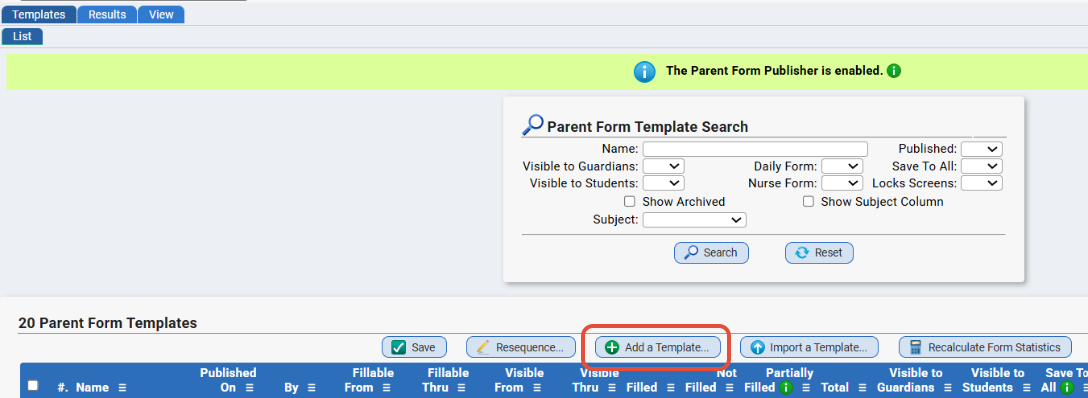
You create a form on the Parent Access>Forms>Templates>List screen.
- To create a new Parent Form, click 'Add a Template' button.
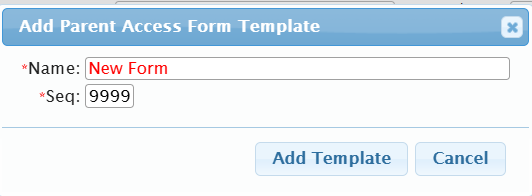
- In the corresponding pop-up, fill out the name of the form and choose a sequence number and then you can start modifying it.
Parent Form Template Options
Below are some of the template options you have with your forms.
You can see this when modifying a form - on the Parent Access>Forms>Templates>Modify Template tab.
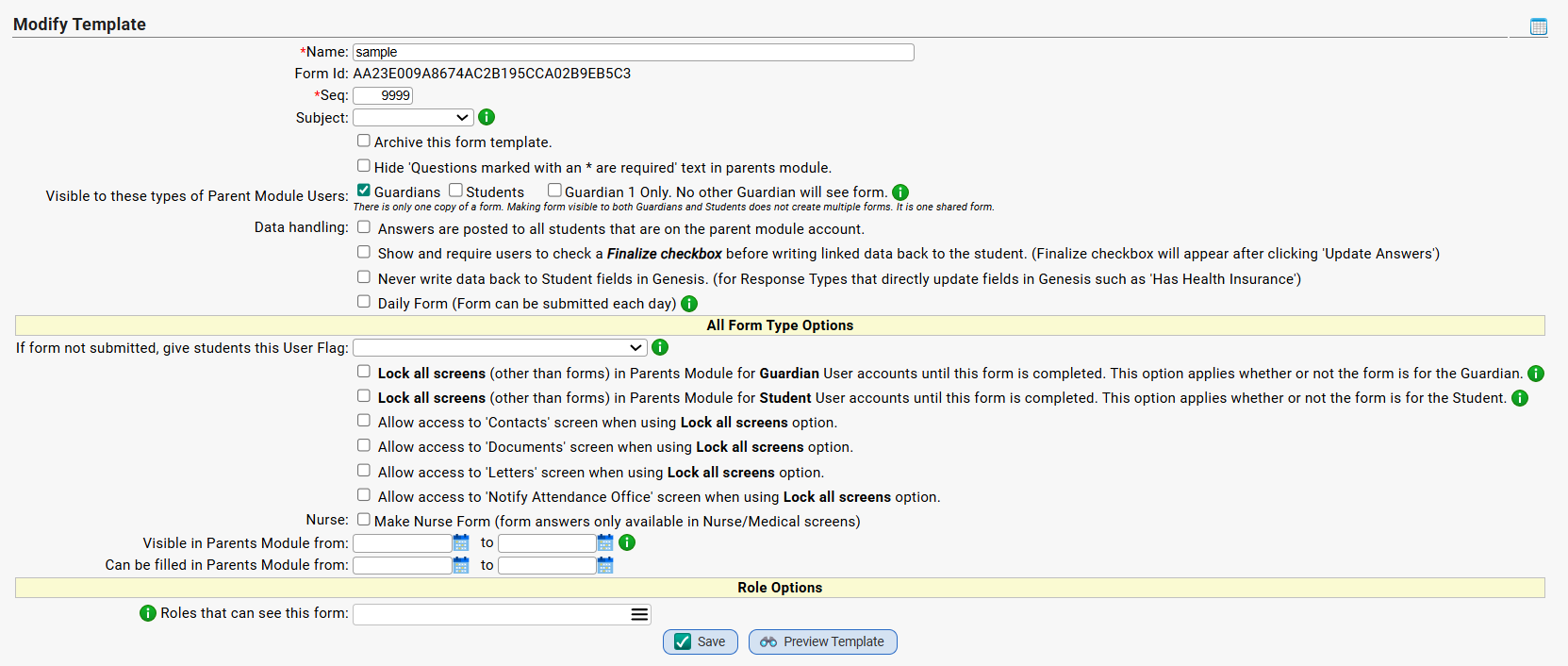
Parameters on the Parent Form Template Screen:
Option | Notes |
Name | This is the name of your Parent Form. |
Form ID | This is the internal ID of your Parent Form. You can use this in report writer reports etc. |
Seq | This is the sequence number of your Parent Form. This will affect how it displays on the Parent Access>Forms>List tab. |
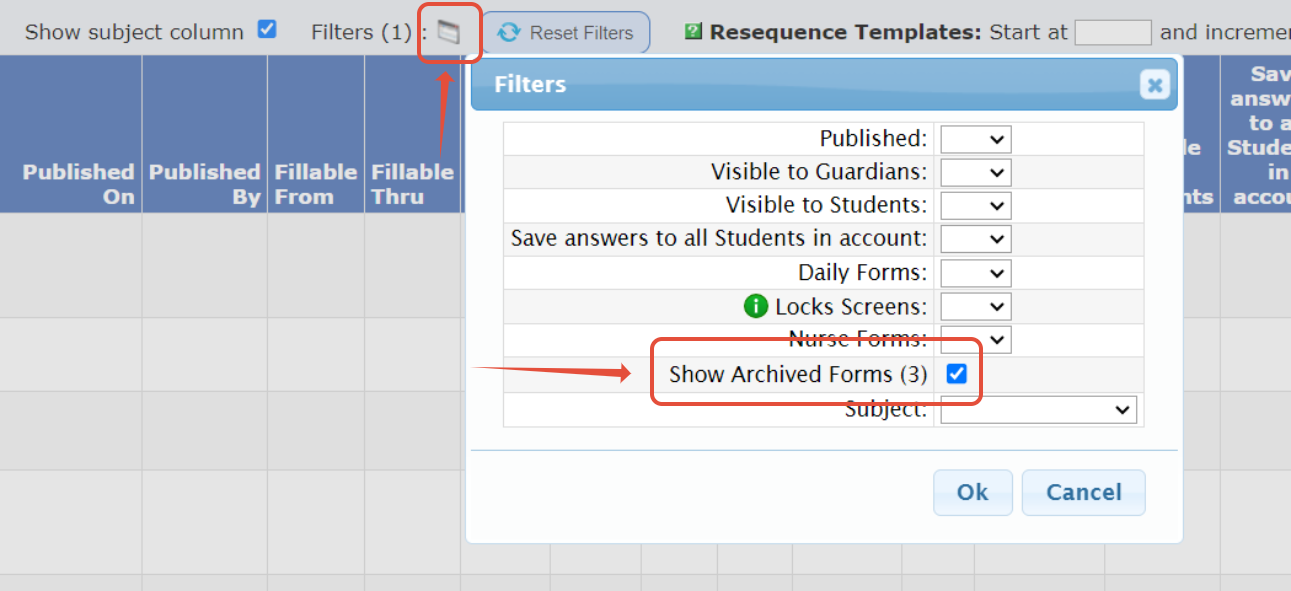
Archive This Form Template | This option allows you to archive and un-archive form templates. Archiving simply removes it from the list view. You can see the archived templates by checking "Show Archived Forms" |
Subject | This list of subjects is populated from the Form Subjects (seq 595) generic code. Subjects can be added through Setup>Codes>Generic Code Tables>Modify Codes. |
Hide 'Questions marked with an * are required' text in parents module. | Optional. You can hide this text if needed. |
Visible to these types of Parent Module Users |
There is only one copy of a form. Making form visible to both Guardians and Students does not create multiple forms. It is one shared form. |
Answers are posted to all students that are on the parent module account. | This will allow a parent to answer the questions, and it will be applied to all students connected to the parent account. |
Show and require users to check a Finalize checkbox before writing linked data back to the student. (Finalize checkbox will appear after clicking 'Update Answers') | This option will give the user an additional (and required) option to finalize the form before submitting. |
Never write data back to Student fields in Genesis. (for Response Types that directly update fields in Genesis such as 'Has Health Insurance') | If checked, the following fields will update on a students form, but not in the corresponding fields on the students record - Has Health Insurance, Health Insurance Provider, Release name/address to NJ Family Care, Military Connected Indicator, Medical Conditions. |
Daily Form (Form can be submitted each day) | Daily Forms are forms that reset every night to allow parents/guardians/students to answer the form afresh every day. Only Basic Options are allowed for a response type. |
If form not submitted, give students this User Flag | The selected flag will be automatically given to students when the form has been published. If this flag is set AFTER the form is published, the flag will be assigned to students by the System Utility Task.
Flags that will NOT appear in this drop down: 1) Flags that are turned on by a document. 2) Flags that have already been used by another form for non-submission. |
Do not show this form: (Daily Forms Only) |
|
Lock all screens (other than forms) in Parents Module for Guardian User accounts until this form is completed. This option applies whether or not the form is visible to the Guardian. | If this is checked on a Form Template, that Form must now be saved or finalized before a parent user is allowed further access to parents module. When parents log on, they will be directed to the forms page where they must submit all required forms. If this is a Daily Form, Lock All Screens will not lock screens on non-school days nor for students who are virtual or absent for the day. |
Lock all screens (other than forms) in Parents Module for Student User accounts until this form is completed. This option applies whether or not the form is visible to the student | If this is checked on a Form Template, that Form must now be saved or finalized before a student user is allowed further access to parents module. When students log on, they will be directed to the forms page where they must submit all required forms. If this is a Daily Form, Lock All Screens will not lock screens on non-school days nor for students who are virtual or absent for the day. |
Allow access to 'Contacts' screen when using Lock all screens option. | If checked, this option will allow the users to navigate to the CONTACTS tab within the portal even if there is a Parent Form set to "lock all screens." |
Allow access to 'Documents' screen when using Lock all screens option. | If checked, this option will allow the users to navigate to the DOCUMENTS tab within the portal even if there is a Parent Form set to "lock all screens." |
Allow access to 'Letters' screen when using Lock all screens option. | If checked, this option will allow the users to navigate to the LETTERS tab within the portal even if there is a Parent Form set to "lock all screens." |
Allow access to 'Notify Attendance Office' screen when using Lock all screens option. | If checked, this option will allow the users to navigate to the NOTIFY ATTENDANCE OFFICE tab within the portal even if there is a Parent Form set to "lock all screens." |
Make Nurse Form (form answers only available in Nurse/Medical screens) | Parent Form Templates may now be set as a "Nurse" form from the Template tab. Nurse forms will appear in a NEW tab found in Student Data -> Modify Student -> Medical -> Forms. Nurse forms will still be listed (and marked as a Nurse Form) in the Student Data->Modify Student->Forms tab but no information/answers within the form will be visible from this location. |
Visible in Parents Module from | This option allows you to set a range of dates where the form is visible to users within the portal. If this form is marked as required and a visibility end date has been filled in, the form will no longer be required after the visibility end date. |
Can be filled in Parents Module from | This option allows you to set a range of dates where the form can be filled out within the portal. |
| Roles that can see this form on View tab | This option allows users with the roles you select to access this form on the Parent Access>Forms>View tab. Roles will also need inquiry rights for the parentaccess.forms.view location. |
Parent Form Questions
The Parent Access>Forms>Templates>Questions tab is where you create your questions and sections. You can enter a block of text and/or text that requires an answer of some sort so that you can gather info from parent and/or students in the portal.
To add a new question, click the "Add Question" button and enter info into the preliminary fields on the pop-up: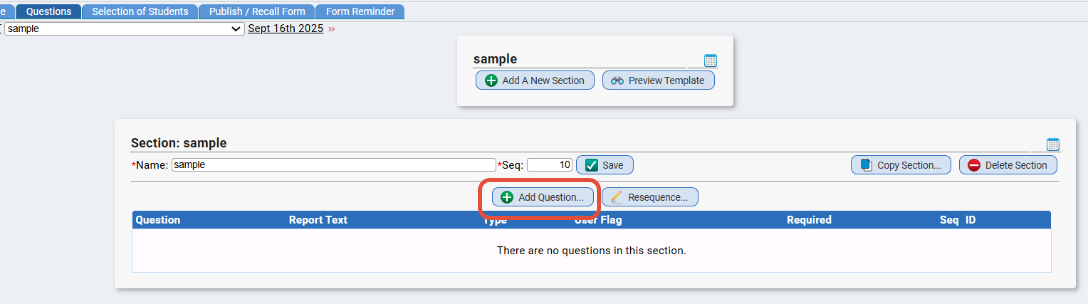
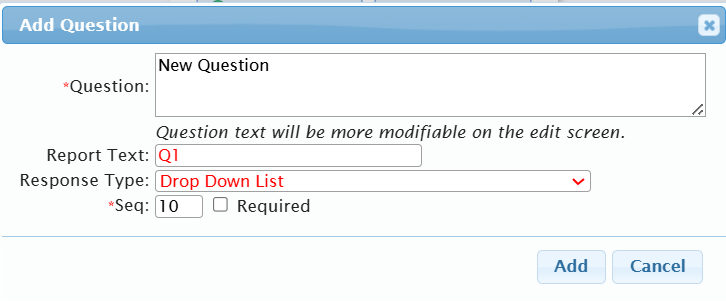
After you click "add" you can use the text box to create your question: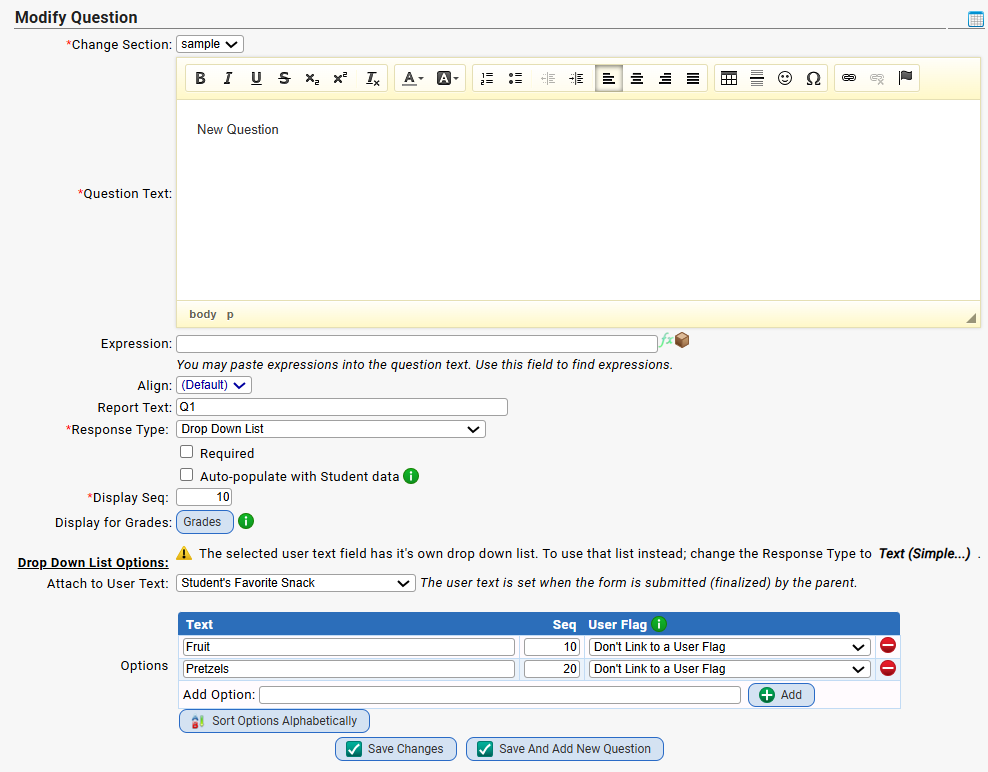
You can ask as many questions as you would like to. This is where you would select your Response Type. Response types can vary.
Response Types Currently Available
Select a 'Response Type' to determine how you would like to record the parent's answer to the question.
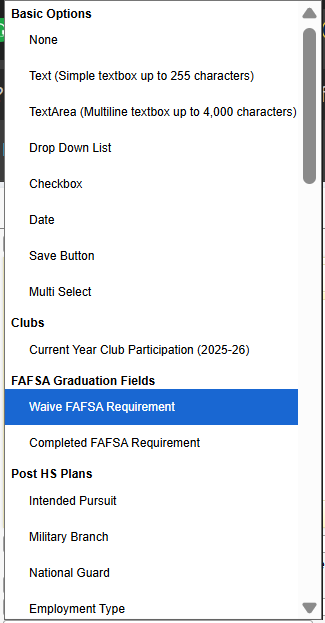
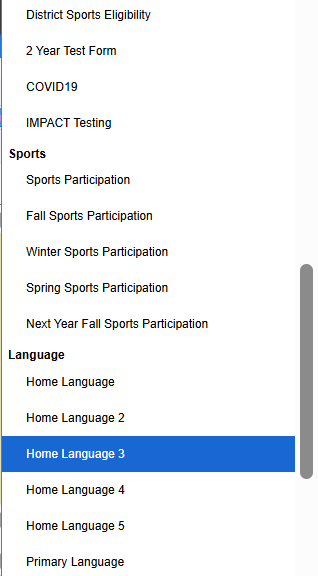
Basic Types
- Text - One line of text (can be tied to User Text fields)
- Text Area (Multi line) - Multiple lines of text (up to 4,00 characters)
- Drop Down List - A drop down list of predetermined answers Drop down list options can now be tied to student user flags. If an option is tied to a user flag and it is not selected when the form is submitted, that user flag will be unset on the student. The selected user flag will be set when the form is submitted (finalized) by the parent. Any option tied to a user flag that is not selected will be unset. A typical use case would be to have 'Yes' and 'No' options, with the 'Yes' option tied to a user flag. Note: If the parent selects 'No', the user flag will be unset. Another use case would be to have multiple options, each tied to a user flag. This would be useful for mutually exclusive user flags, since any options the parent doesn't choose will result in the corresponding user flag being unset.
- Checkbox - Can be tied to a User Flag when checked
- Date - A date selector
- Save Button - Updates answers in a particular section
- Multi Select
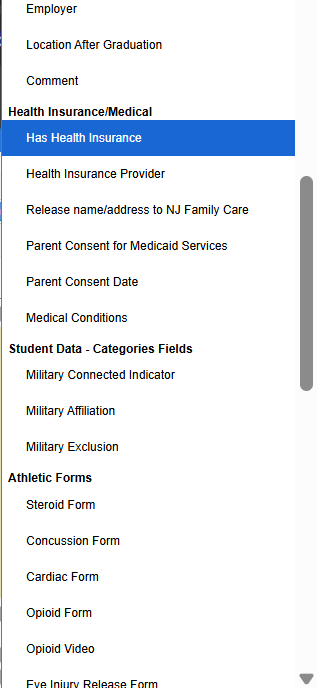
Student Data Types
These Types write data back to the students fields in Genesis:
- Clubs - Current Year Club Participation
- Has Health Insurance
- Health Insurance Provider
- Release name/address to NJ Family Care
- Medical Conditions (creates a list of all Medical Conditions that are set to be Displayed In Parent Forms): If you create a question on your parent form with a response type of "Medical Condition", the parent form will display a list of conditions that parents may check off for their student. You may configure which medical conditions appear in the form by setting individual medical conditions to be visible in parent forms from the Nurse>Setup>Medical Conditions screen. If your Parent Form Template is set with field "Require users to check a Finalize checkbox before writing linked data back to the student" - then the medical conditions will be updated directly to the student's Health Records page.
- Military Connected Indicator
- Military Exclusion - Yes/No: If parent selects 'Yes' then the student's Military Exclusion box will be checked. If they select 'No,' then the Military Exclusion box will NOT be checked.
- Military Affiliation
- Athletic Form - Steroid Release (marks form "Completed" and dates form when acknowledged).
- Athletic Form - Concussion Release (marks form "Completed" and dates form when acknowledged).
- Athletic Form - Sudden Cardiac Release (marks form "Completed" and dates form when acknowledged).
- Athletic Form - Custom Forms (marks form "Completed" and dates form when acknowledged).
- Sports - Sports Participation (creates Sports Participation Cards when acknowledged).
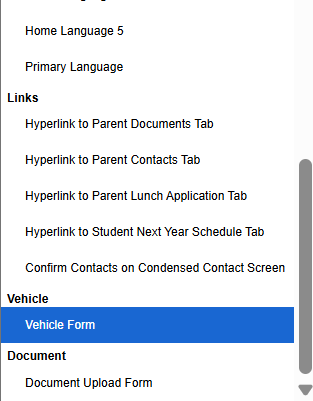
- Language - Home Language
- Language - Primary Language
- Links - You can link to another tab, such as Documents tab, Contacts tab, Lunch Application tab, Student Schedule tab, Confirm Contacts tab. This can help force your parents to enter/acknowledge different pieces of data in the portal.
- Vehicle Form - This is to gather vehicle information
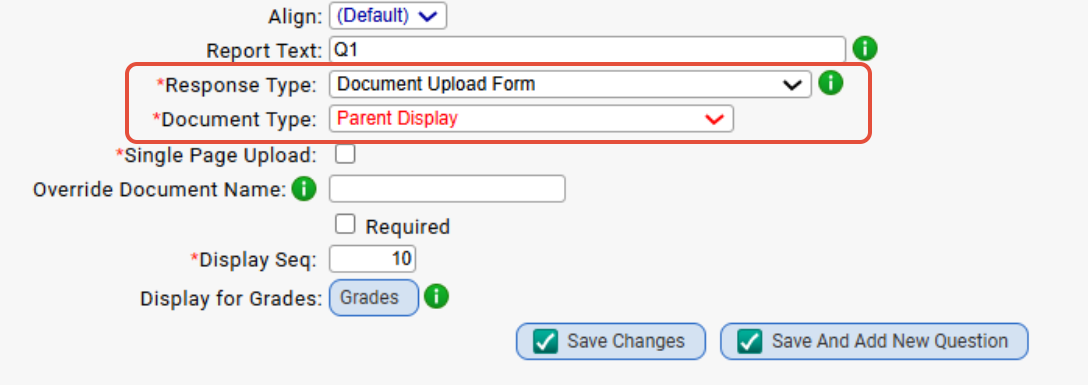
- Document Upload Form - This response type prompts parent user for a document to upload. Parent may load multiple pages into the form if their document is saved in more than one singular file.
 Click here for our article on PARENT FORMS AND DOCUMENTS for more info.
Note:  We added the ability to auto-populate the answers to questions. When enabled for a question, the question will initially be filled in with values from the system.

For example, if the question's response type is 'Military Connect Indicator', the initial value will be the student's current military connected indicator.

The auto-populating will only happen when there are no recorded answers on the form.

Once the form has been submitted once, the auto-populating will no longer happen for that form.

Answers may be auto-populated for questions with the following response types: NJ Family Care, Has Health Insurance, Health Insurance Provider, Military Connect Indicator, Military Affiliation, Military Exclusion, Medical Conditions
Linking to Other Screens Within a Question
We have a response type that would allow you to link to other screens in Parents Portal.
These are the current options:
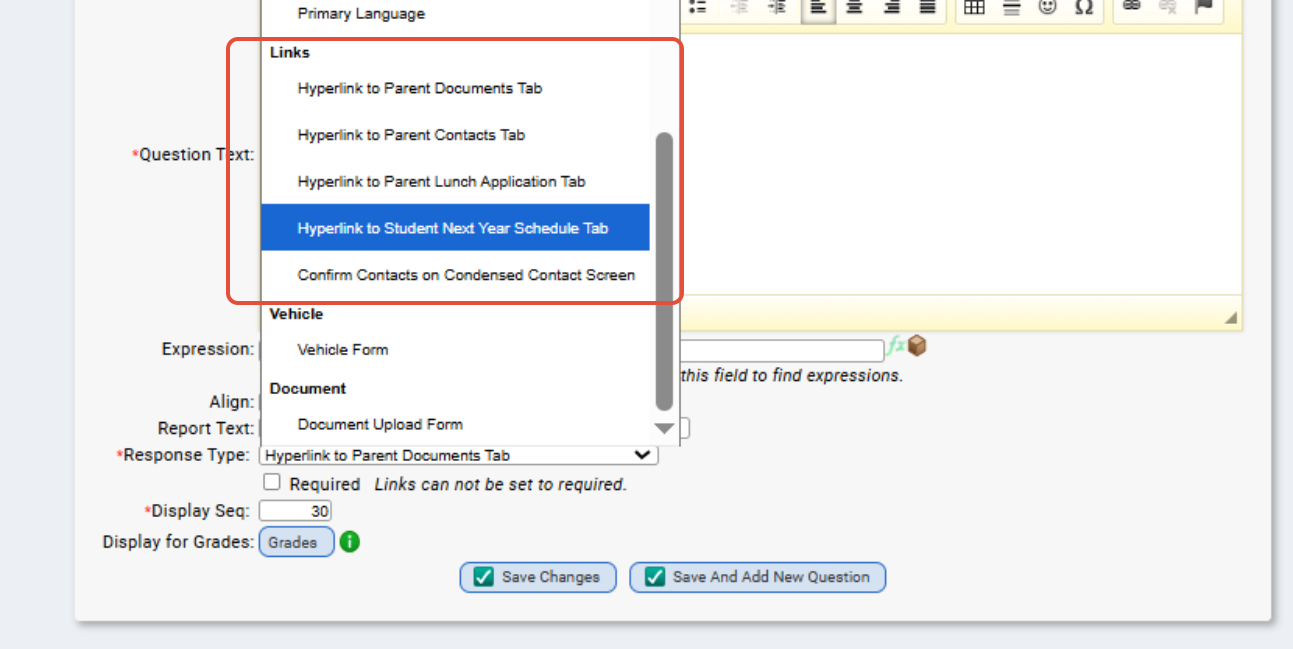
Example Links will open in a new tab:
- "Hyperlink To Parents Document Tab" has been added as a new Response Type. Adding this type of question will create a hyperlink that will open a new tab to the documents tab.
- (If your form is set to lock tabs in Parents Portal make sure your form also has "Allow access to 'Documents' screen when using Lock all screens option." checked if you add this type of question.)
- "Hyperlink To Parent Contact Tab" has been added as a new Response Type. Adding this type of question will create a hyperlink that will open a new tab to the Contacts tab.
- (If your form is set to lock tabs in Parents Portal make sure your form also has "Allow access to 'Contacts' screen when using Lock all screens option." checked if you add this type of question.)

Example of Form using Athletic Sudden Cardiac Release type.
Tying Form Responses to User Flags and User Text Fields
You have the option to link a user's response to a custom User Flag or User Text.
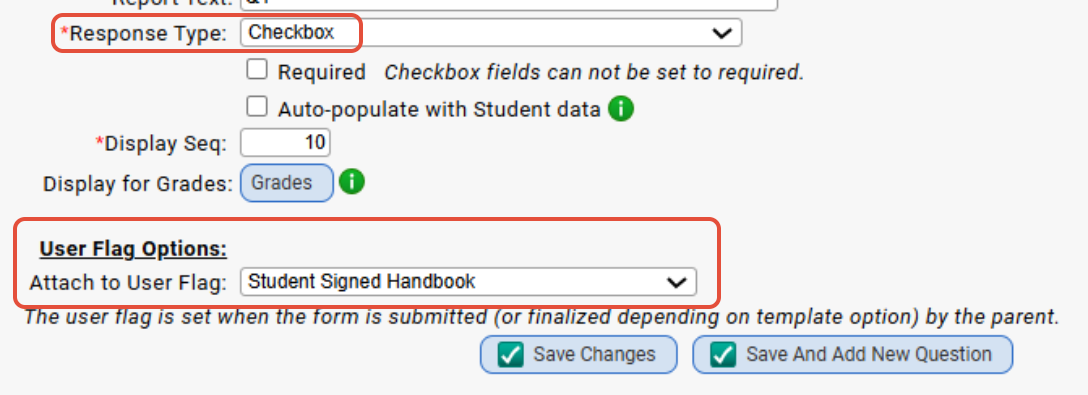
User Flag is tied to the "Checkbox" response type.
For a user flag:
- Select the user flag that you would like to tie the parent response to and click 'save changes'
- Once parents check the checkbox the user flag will appear on the student tied to the form
You can also assign user flags to selections with the 'Drop Down List' response type: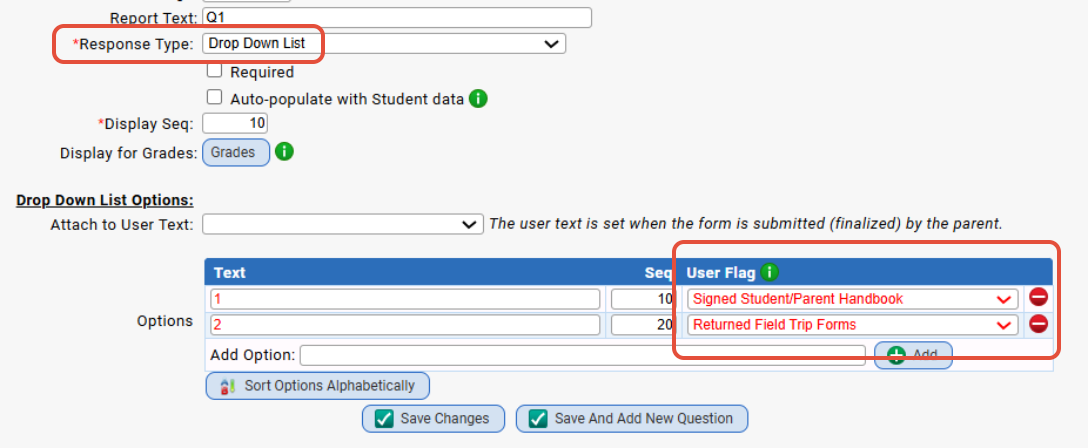
The selected user flag will be set when the form is submitted (finalized) by the parent. Any option tied to a user flag that is not selected will be unset.
A typical use case would be to have 'Yes' and 'No' options, with the 'Yes' option tied to a user flag.
Note: If the parent selects 'No', the user flag will be unset.
Another use case would be to have multiple options, each tied to a user flag.
This would be useful for mutually exclusive user flags, since any options the parent doesn't choose will result in the corresponding user flag being unset.
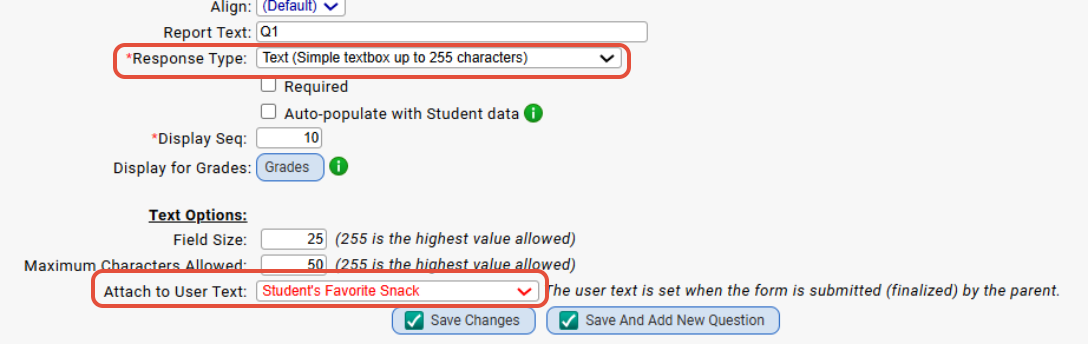
User Text option is tied to "Text (simple...)" response type.
For a User Text:
- Select the user text field that you would like to tie the parent response to and click 'save changes'
- Once parents fill out the text box the corresponding user text field will get filled out with the response text
Adding a New Section
Click the ' Add a new section' button to create a new section (sections are groupings of questions).
There is no limit to the number of questions you can have per section. You can name each section differently.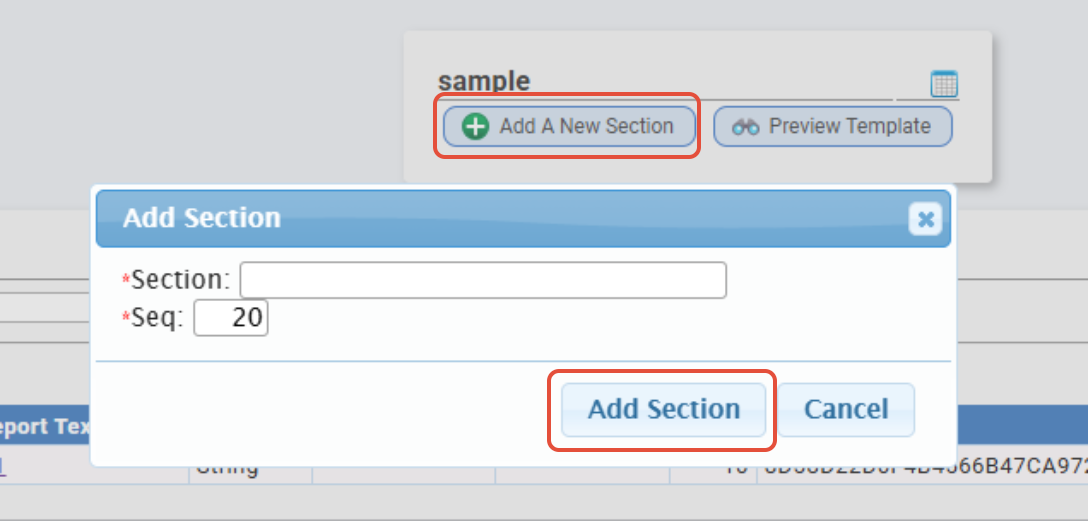
Publishing Forms
There are two ways to choose how you want to select the students you are going to publish the form to: By Query and by Student List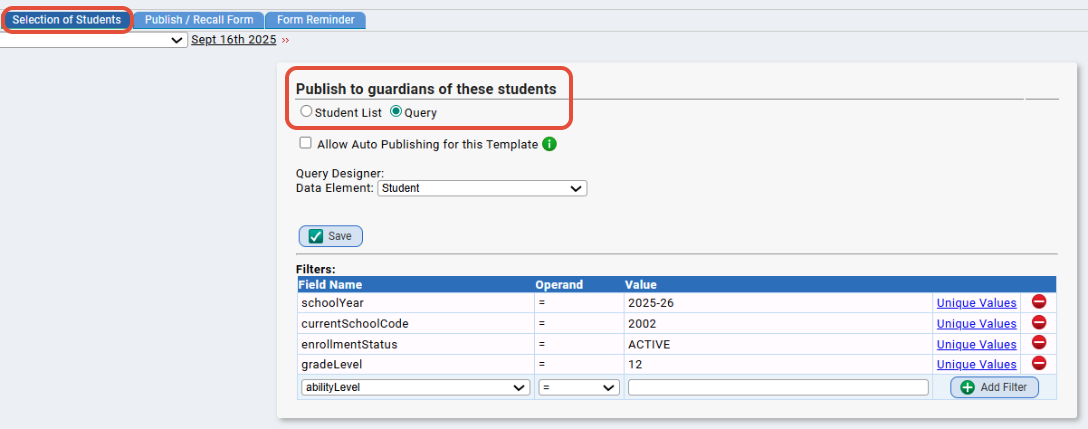
You make this selection via Parent Access>Forms>Templates>Selection of Students.
- Query lets you create a very specific set of parameters to get your selection of students:
- Student List lets you use any of your previously created student lists:
You publish and/or recall the form via Parent Access>Forms>Templates>Publish/Recall Form:
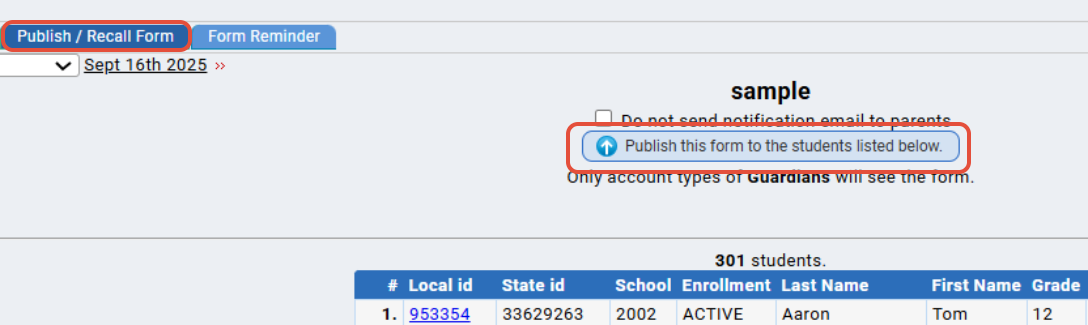
- Once you have decided which way to select your students you will want to verify and then publish the form to the students listed on this screen
- When ready to publish the list, click the 'Publish this form to the students listed below' button
- Parent accounts with permission to view student forms will be able to access and view the forms published to their students
Recalling Forms
After a form is published you have a few options available if you need to recall the form.
You publish and/or recall via Parent Access>Forms>Templates>Publish/Recall Form.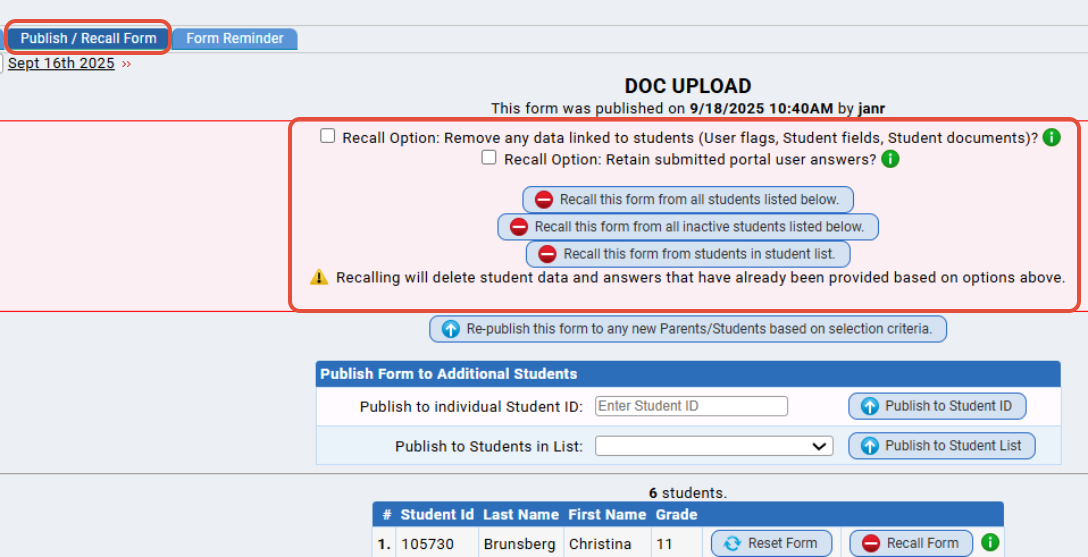
Recalling will delete student data and answers that have already been provided based on options above.
- Recall this form from the students listed below- This will recall the form from your selection of students.
- Remove any data linked to students (User Flags)? - If this is checked and the recall form button is used then the form data collected with be removed from all students in the selection
- Recall Option: Retain submitted portal user answers? - This will retain portal user answers. If you republish this form, the portal user will receive form with their previous answers intact. However, users will have to resubmit forms as they will no longer show as 'submitted on'
- Re-publish this form to any new Parents/Students based on selection criteria - This will publish the form to any student who qualifies to get the form (ie: newly registered students), but did not get it yet
- Reset Form - This will clear all data collected for the form for an individual student, allowing parents/students to reenter the form data and resubmit the form.
- Recall Form - This will recall the form for a single student. Keep in mind if you are using the Parent Form Publisher task, this form will be re-published.
Parents View of Forms
These are what the Forms screens look like in the Parent Portal.
Forms Library:

Viewing of a Particular Form:

You can also preview the form via Parent Access>Forms>Templates>List before publishing:
- You can also preview what the form looks like in Parents Module by clicking the 'Preview' button to the right of the corresponding form you want to see
Exporting Form Answers
You can export responses to an excel file at any time.
*Make sure to set the "Report Text" for your Question when creating your Form.
That "Report Text" value will appear in the columns in the excel so you can evaluate the answers easily.
From Parent Access>Forms>Templates>List -
- To get a quick export of form answers click the Excel Icon to the right of the corresponding form you want the answers file for.
From Parent Access>Forms>Templates>Modify Question -
- You can control the column header for form answers within the Excel file by setting the 'Report Text' field on the corresponding Question:
This is what the Excel of form answers looks like. I've highlighted the 'Report Text' field that I set above:

Parent Form Results Screen
A new tab has been added to view Parent Form Results. This tab can be found from Parents>Forms>Results. The Results screen allows you to view all questions in a form and allows sorting and filtering by the specific answers from each question. In addition, you may add in any additional student columns by use of your already existing Search Result Views (Student Data>Student List>Search Result Views). After adding your columns, sorting and filtering the results, you may then export the data to excel by use of the Excel button at the top of the screen.
- Only Forms Templates that have been filled out by parents will be available in the Parent Form drop down
- Column headers are based on the 'Report Text' column found on questions in your Parent Forms. If 'Report Text' is not found on a question then the column header will default to 'Question x' where x is set to the question sequence on the form.
Archiving and Un-archiving Templates
Archiving is designed to hide Templates that are no longer actively needed but whose data you wish to continue to store in the system.
It is a mechanism for reducing clutter on the Parent Access>Forms>Templates>List screen.
By default, the Parent Access>Forms>Templates>List screen displays only unarchived Templates.
There is a FIlters control at the top of the screen - click the icon to the right, and from there, you can check/uncheck "Show Archived Forms":
Archiving Templates
Every non-archived Template has an  button on the right side of the screen:

or

To archive the Template, click the corresponding  button.
Unarchiving Templates
Once a Template is archived it no longer appears by default on the Parents>Forms>Templates>List screen.
To bring it back, click the icon to the right of the "FILTERS" verbiage -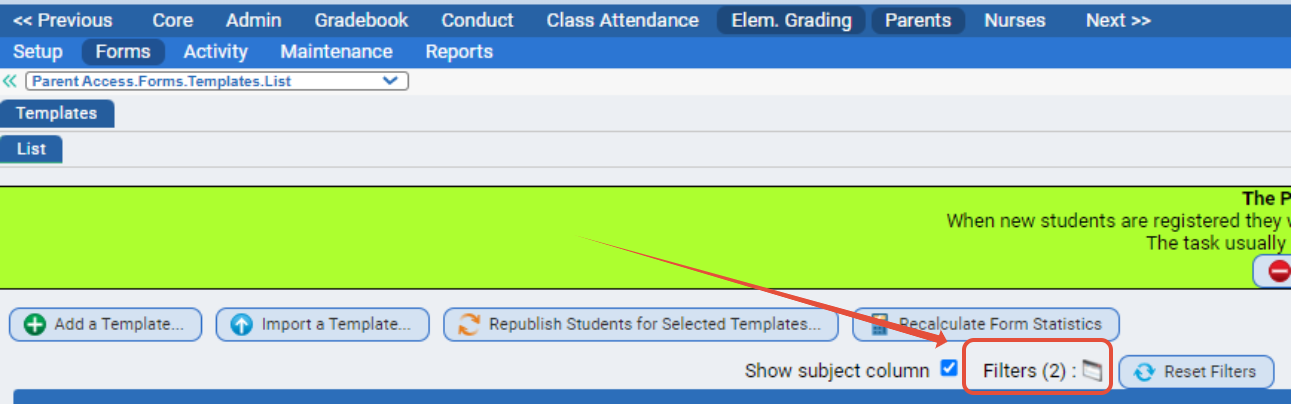
and from there, you can check "Show Archived Forms" in the pop up that appears and click OK.
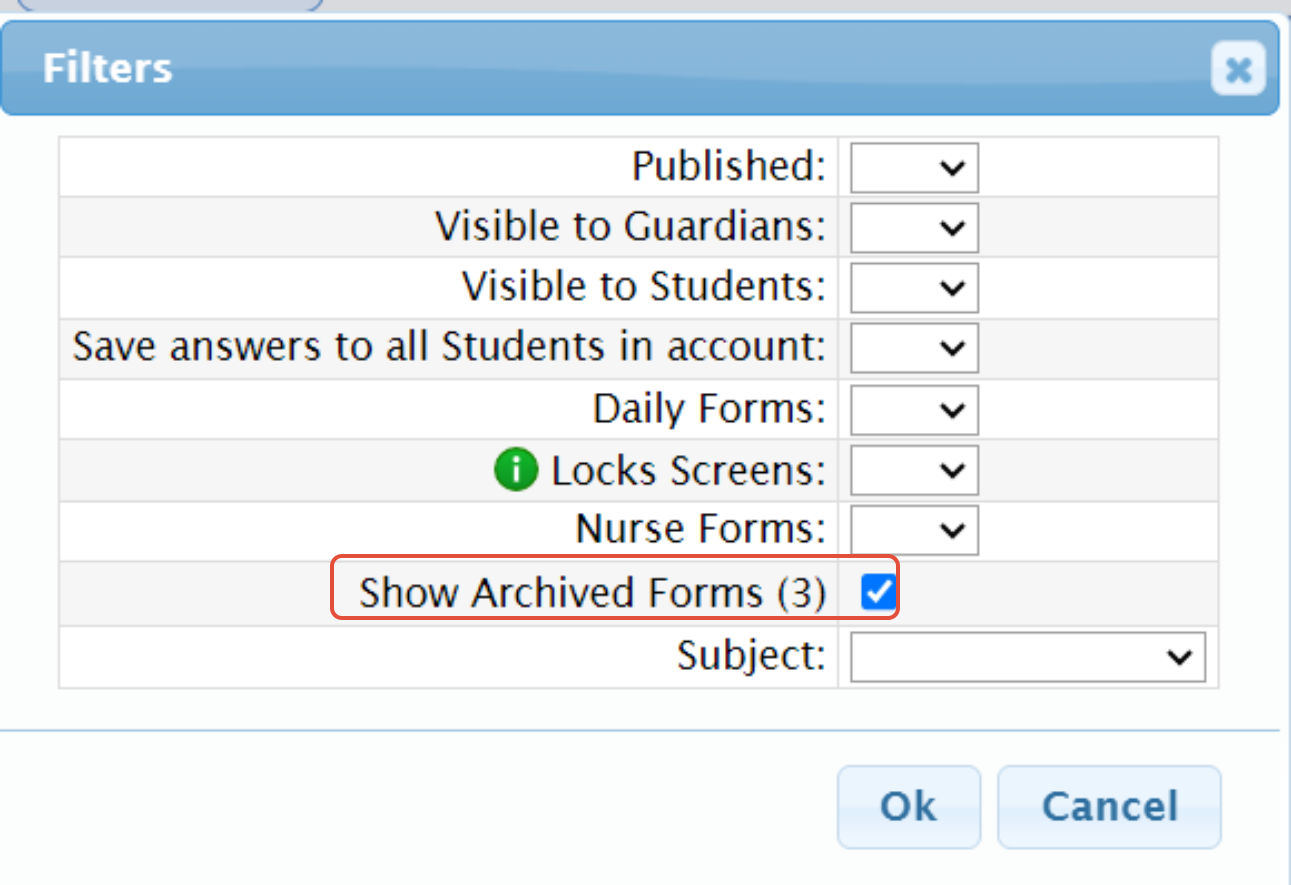
When archived Templates are then listed, the list of actions includes an  button:

Clicking the  button returns the Template to always being visible.
Import/Export of Form Templates
You can export and import form templates from one Genesis system to another, via Parent Access>Forms>Templates>List
How to Export:
- Click the 'Blue Arrow' icon to the right of the corresponding form template that you would like to export to another Genesis System:

- It will download the form to your local machine in .gz file format
How to Import:
- You can import any previously exported Genesis System form template file that was exported as a .gz file
- Click the 'Import a Template' button:
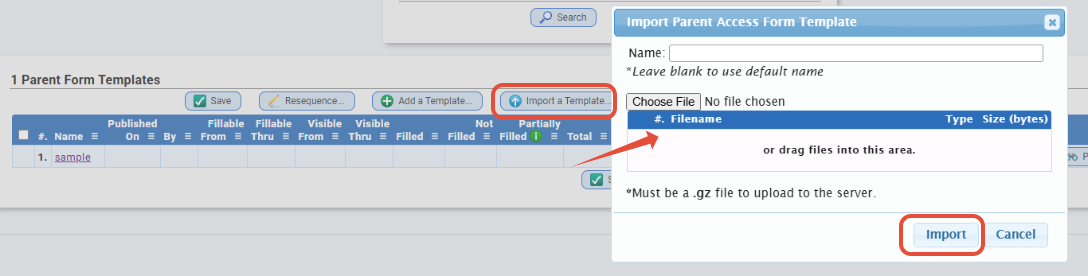
- Select your file from your local machine and give the incoming form template a name
Parent Form Change Requests
You can Accept or Deny Parent Form Change Requests via Student Data>Change Requests>Parent Form Change Requests.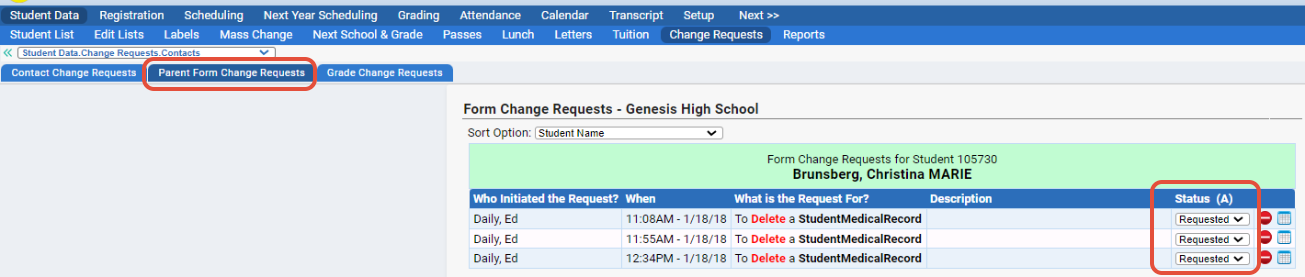
TIP: Want a list of all students who have filled out a form on your Webdesk? Click here for instructions!
Was this article helpful?
That’s Great!
Thank you for your feedback
Sorry! We couldn't be helpful
Thank you for your feedback
Feedback sent
We appreciate your effort and will try to fix the article