TABLE OF CONTENTS
- How to Lock Out Users Until They Sign a Parent Form
- How to Lock Out Users Until They Acknowledge a Posted Document
How to Lock Out Users Until They Sign a Parent Form
You have options to lock out users from accessing the rest of the Parent Portal until they sign off on a Parent Form.
These options are found on the Parent Access>Forms>Template screen.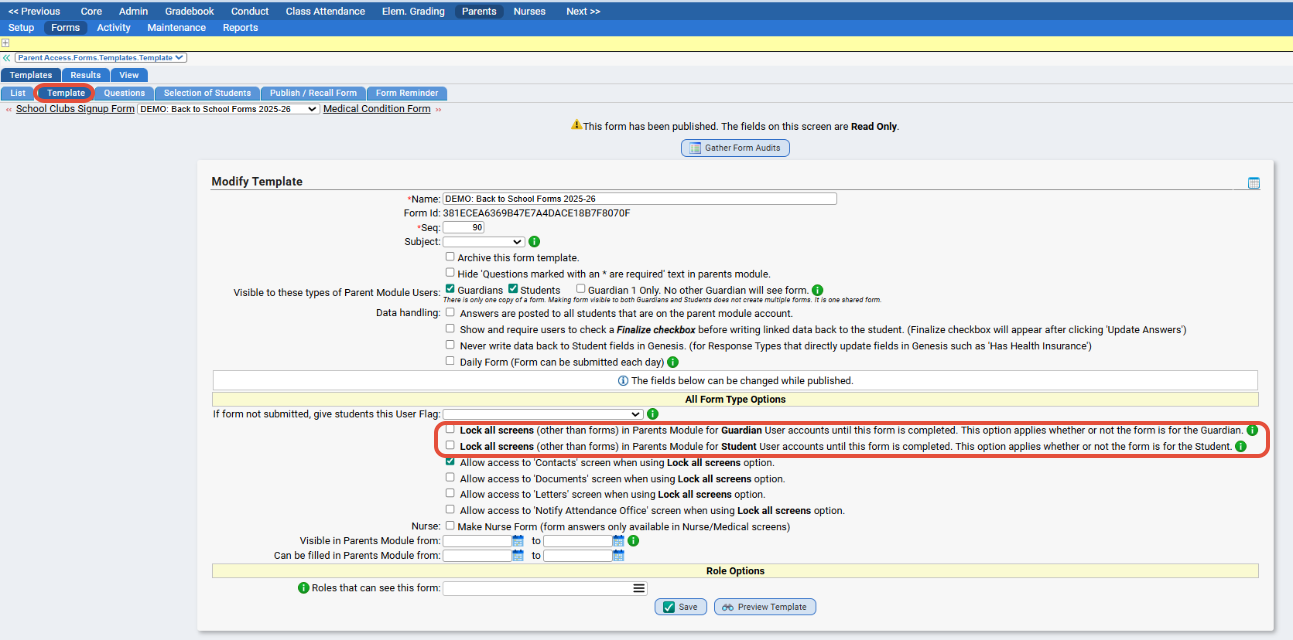
Options | Notes |
Lock all screens (other than forms) in Parents Module for Guardian User accounts until this form is completed. | This option applies whether or not the form is visible to the Guardian. |
Lock all screens (other than forms) in Parents Module for Student User accounts until this form is completed. | This option applies whether or not the form is visible to the student. |
Allow access to 'Contacts' screen when using Lock all screens option. | This will allow access to the Contact screen regardless. |
Allow access to 'Documents' screen when using Lock all screens option. | This will allow access to the Documents screen regardless. |
Notes:
- Options for locking screens have been simplified. They no longer depend on whether the document is visible to the parent user. There is now an option to lock screens for Guardian User accounts or Student User accounts until the form has been filled out. The accounts will be locked whether or not they have access to the form.
- If you want both types (Guardian and Students) to get a copy and only be locked out of their own account until signed, you would need to publish the doc twice and have two separate doc types for it: one for guardian and one for student.
- Make sure the parent portal accounts have the "FORMS" tab checked off in their ROLES. If they do not, they may be locked out and stuck in a loop since they cannot access the tab itself. Roles can be modified / reviewed via Parent Access>Setup>Roles.
How to Lock Out Users Until They Acknowledge a Posted Document
You now have the option to restrict access to the full parent portal until users acknowledge a posted Document.
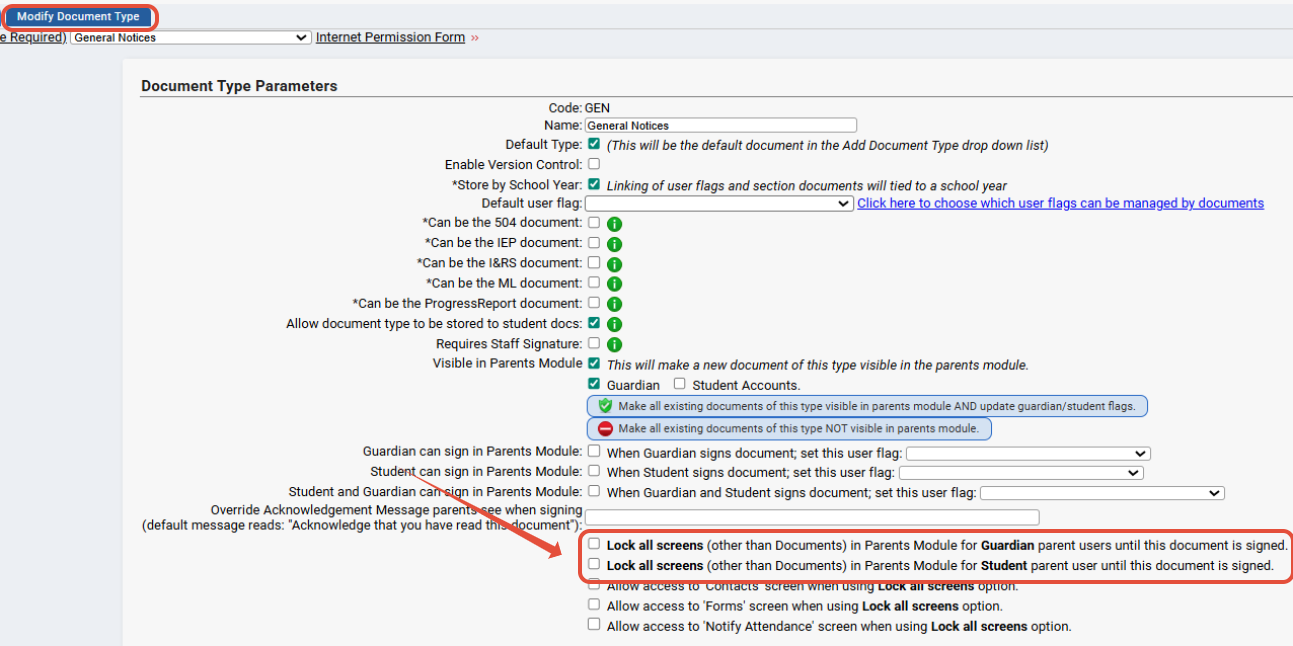
To do so, you would need to modify the DOC TYPE via Document Management>Setup>Modify Doc Type and check off one of these options:
- Lock all screens (other than Documents) in Parents Module for Guardian parent users until this document is signed.
- Lock all screens (other than Documents) in Parents Module for Student parent user until this document is signed.
Additional Options:
- Allow access to 'Contacts' screen when using Lock all screens option. - This will allow access to just the "Contacts" tab in the portal as well.
- Allow access to 'Forms' screen when using Lock all screens option. - This will allow access to just the "Forms" tab in the portal as well.
Make sure the parent portal accounts have the "DOCUMENTS" tab checked off in their ROLES. If they do not, they may be locked out and stuck in a loop since they cannot access the tab itself.
Roles can be modified / reviewed via Parent Access>Setup>Roles.
Was this article helpful?
That’s Great!
Thank you for your feedback
Sorry! We couldn't be helpful
Thank you for your feedback
Feedback sent
We appreciate your effort and will try to fix the article