*The Genesis Metrics module is currently in development and running in BETA for select districts.*
Student Detail
The Student Detail page provides one location to search on student performance data that meets certain criteria. This tool is is the engine of the Metrics module and can combine any of the metrics filters available in the Early Warning Dashboard and Assessment Dashboard. From the Student Detail page, you can filter by:
- Metrics: Absentee Rates, Missed Class Time, Projected Grades, Assessment Scores, Incidents & Actions.
- Student Info: School Year, School Code, Name, Grade, Tier, Gender, Counselor, Race, and Multilingual status, IEP, 504, and Free/Reduced Lunch eligibility.
Student Detail Search Form
The top portion of the search form displays the Early Warning Indicators, while the bottom portion of the search form displays Student Information filters. Selecting an indicator opens a multi-select menu with predefined data ranges. Users may apply multiple indicator filters at the same time. Filters are inclusive, meaning:
- A student must meet all selected indicator criteria to appear in the results.
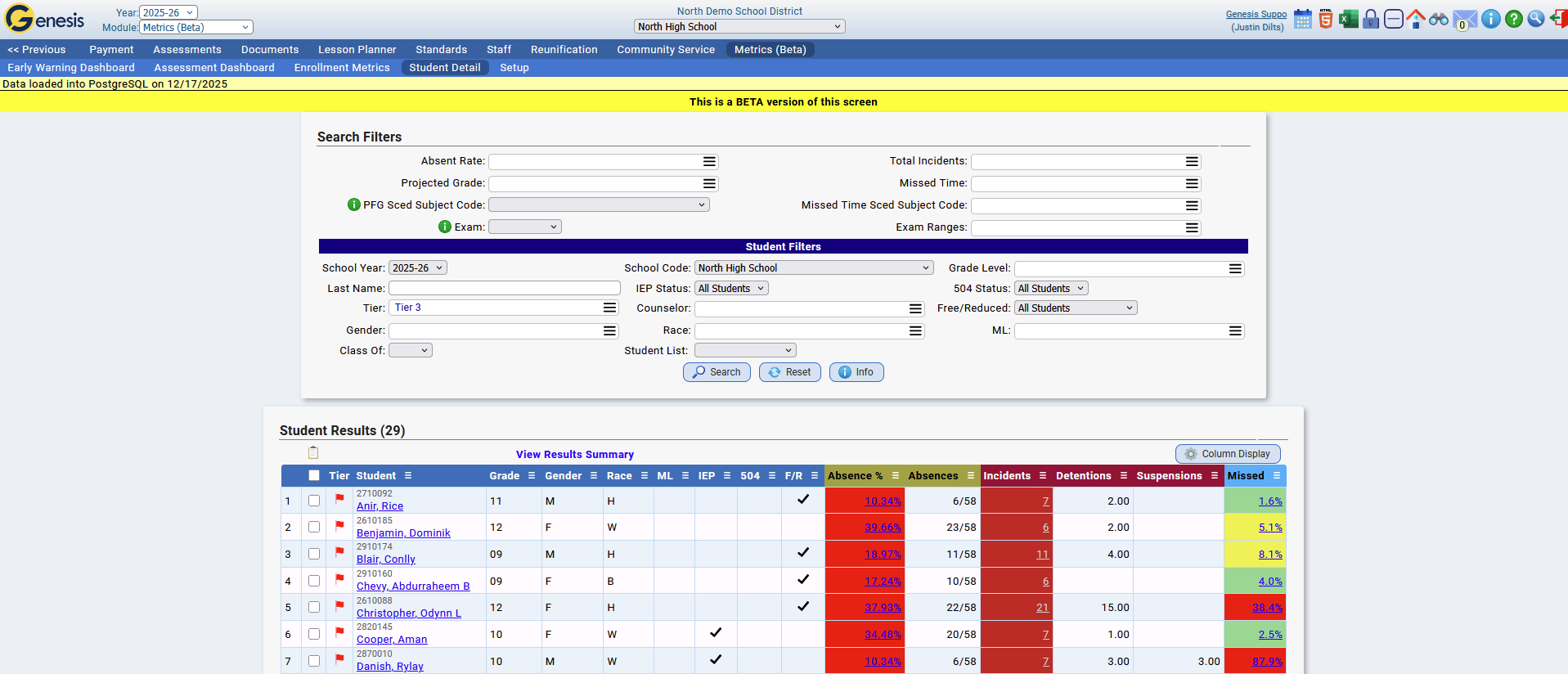 Student Detail
Student Detail Results Display Options
Results are display instantly and can be displayed using our current Column Display options:
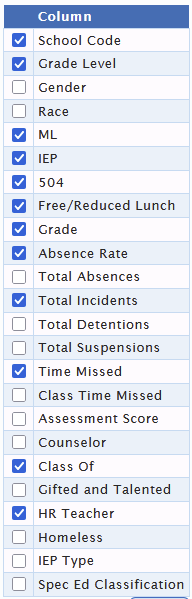
There are many capabilities and features within the Student Detail search. From this page you are able to categorize Students into Tiers or Student Lists, drill-down into a specific student's data, and organize the results display.
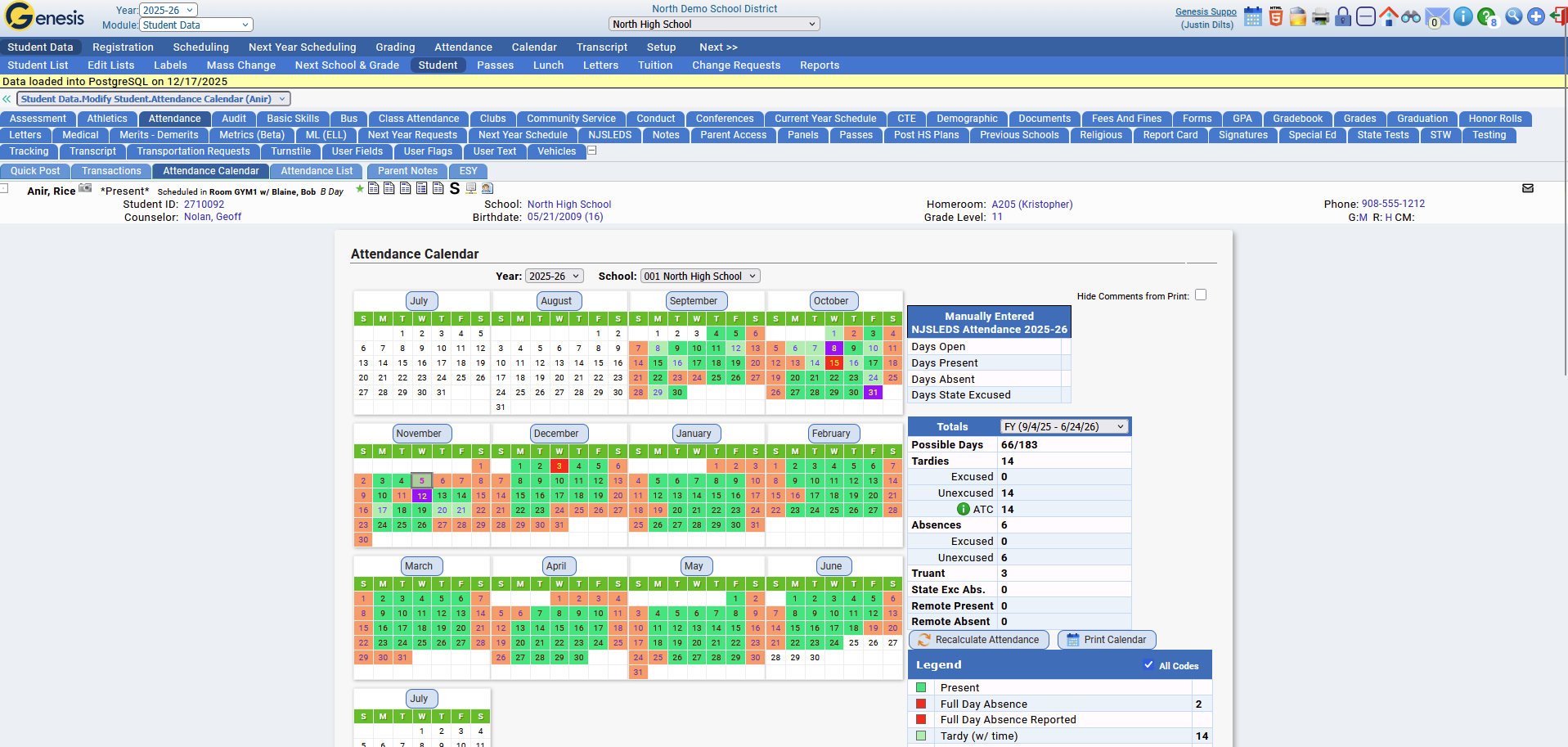
For example, clicking into a student's individual Absence %, you will be brought to that students Attendance Calendar.
Results Summary
The Results Summary feature on the Student Detail page displays a percentage breakdown of how students in the search results compare across multiple indicators. Educators can analyze correlations between high ELA grades and low attendance risk to see if there is a pattern, enabling data-drive decision making for interventions.
Student Intervention Tiers
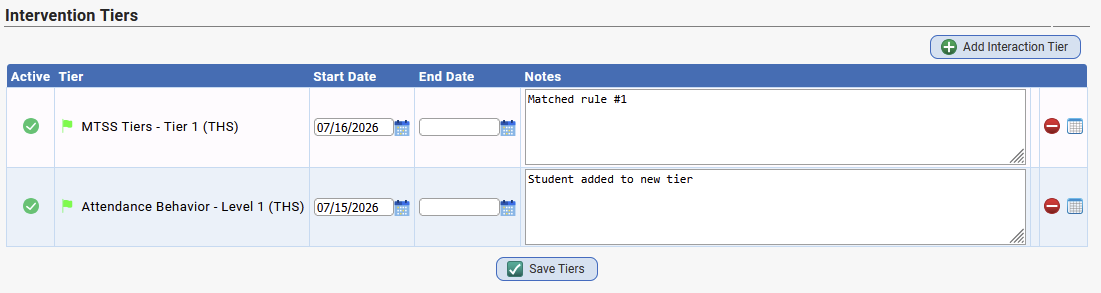
Intervention Tiers allow schools to categorize students based on risk levels and assign tailored support plans. Users can add notes and maintain a historical record of interventions, ensuring accountability.
- When assigning or removing a tier, users can enter a note explaining the change.
- The system records the date, tier level, and note.
- A complete audit trail of tier changes is available in the student’s Metrics tab.
Clicking the green plus icon on the Student Detail page will allow users to manually assign students to Intervention Tiers.

Advanced Tiers
- Added the ability to create multiple student tier groups. The default is labeled MTSS Tiers
- These tiers can be flagged as able to be auto-generated vs manually assigned to students
- A task has been added to allow auto assigning of the tiers for allowed schools, if they are flagged as auto assign.
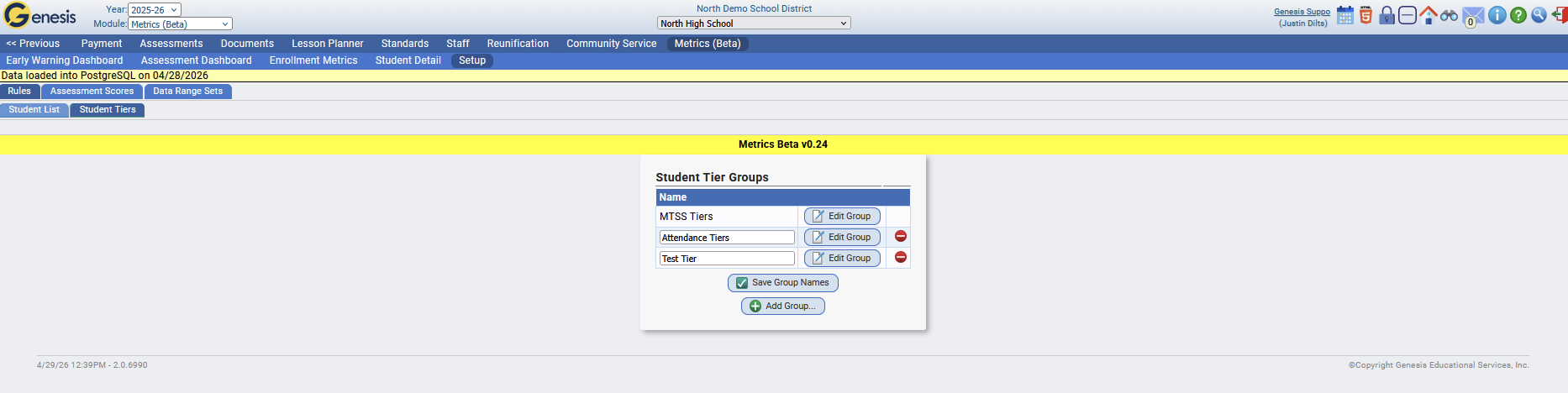
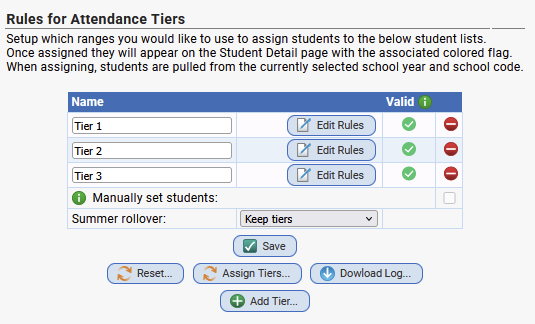
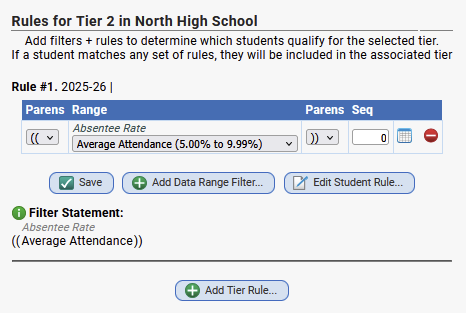
Tier rules can be configured under Metrics > Setup > Rules > Tiers. Configuring Tier rules allows students to be automatically categorized into different tiers based on the Metrics available in the system.
Student Lists
You are also able to create and customize Student Lists in the same way as Intervention Tiers. You can configure Student List rules under Metrics > Setup > Rules > Student Lists.
Individual Student Record > Metrics tab
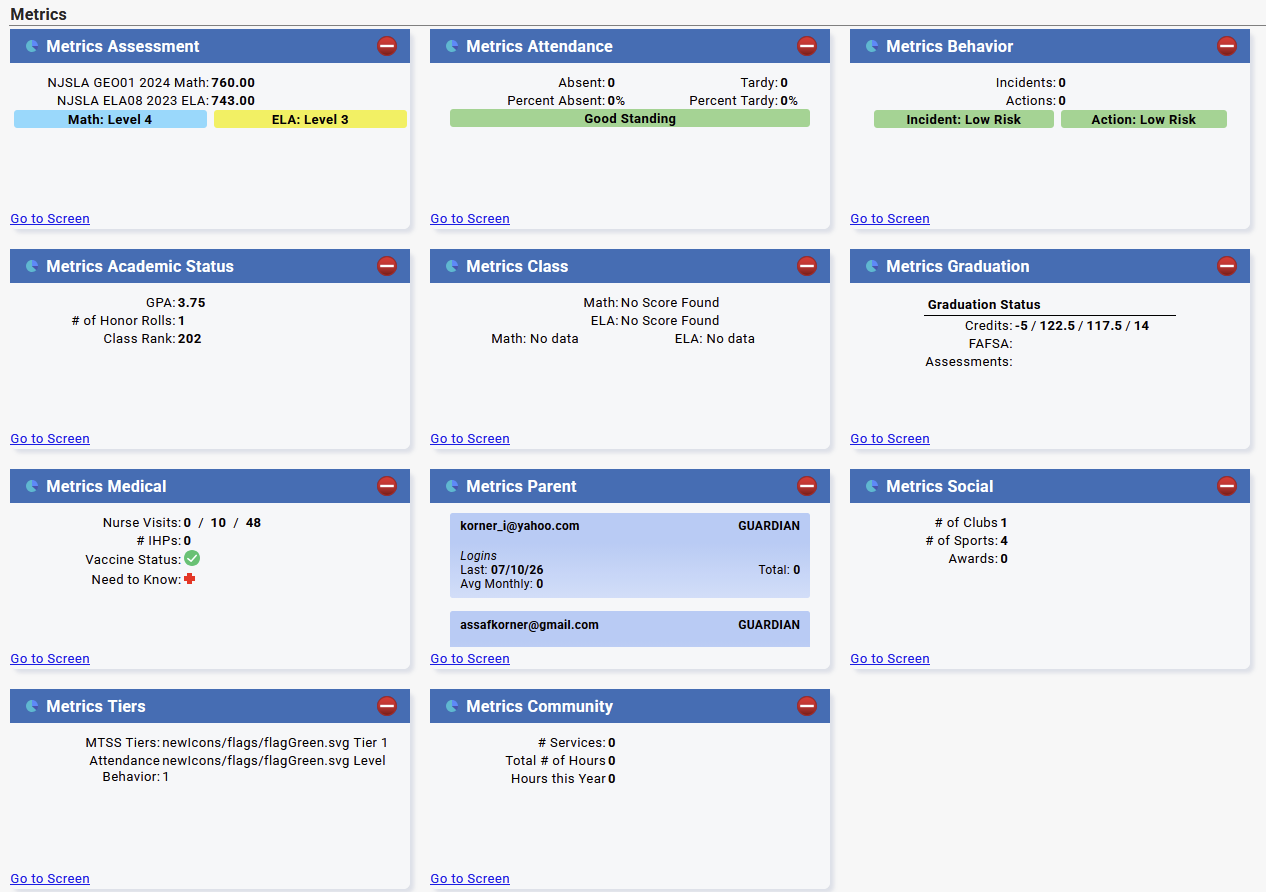
Clicking into a student's name on the Student Detail page will open the Metrics tab on a students profile, which contains two sub-tabs:
- Overview: provides a full performance overview for the individual student.
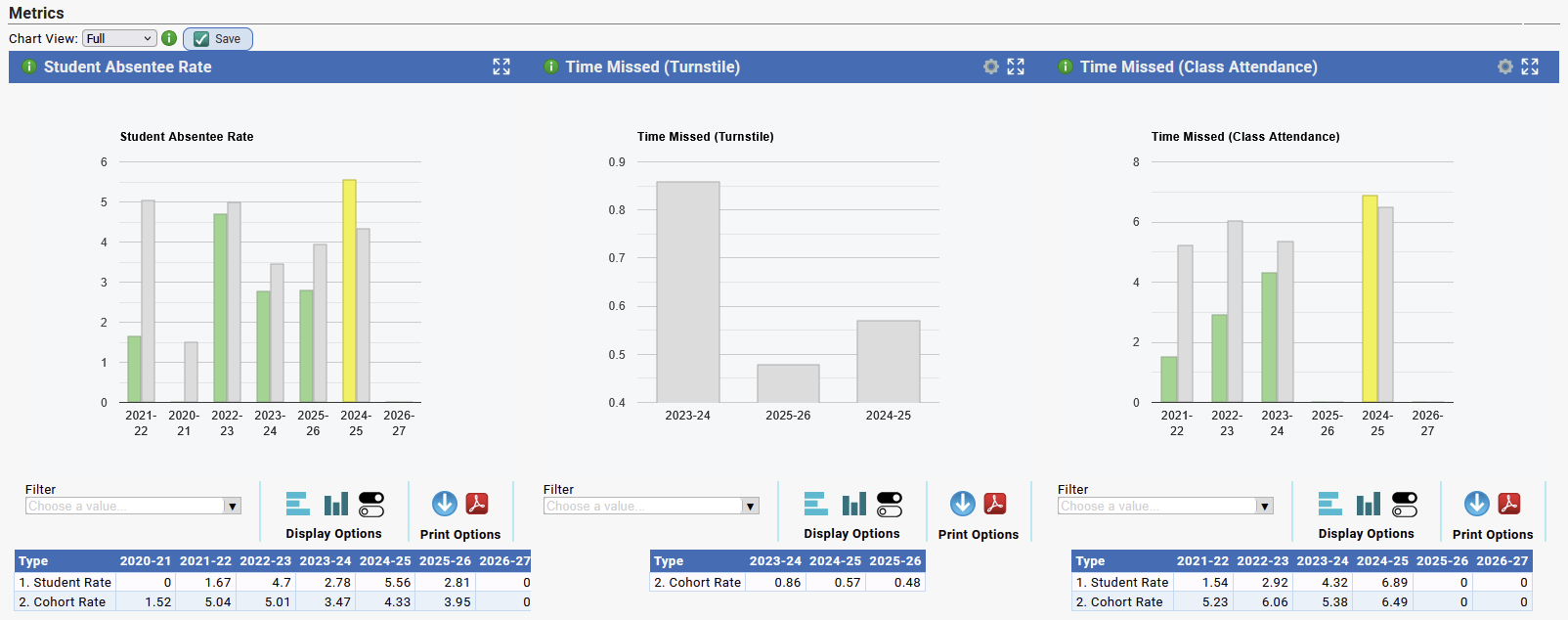
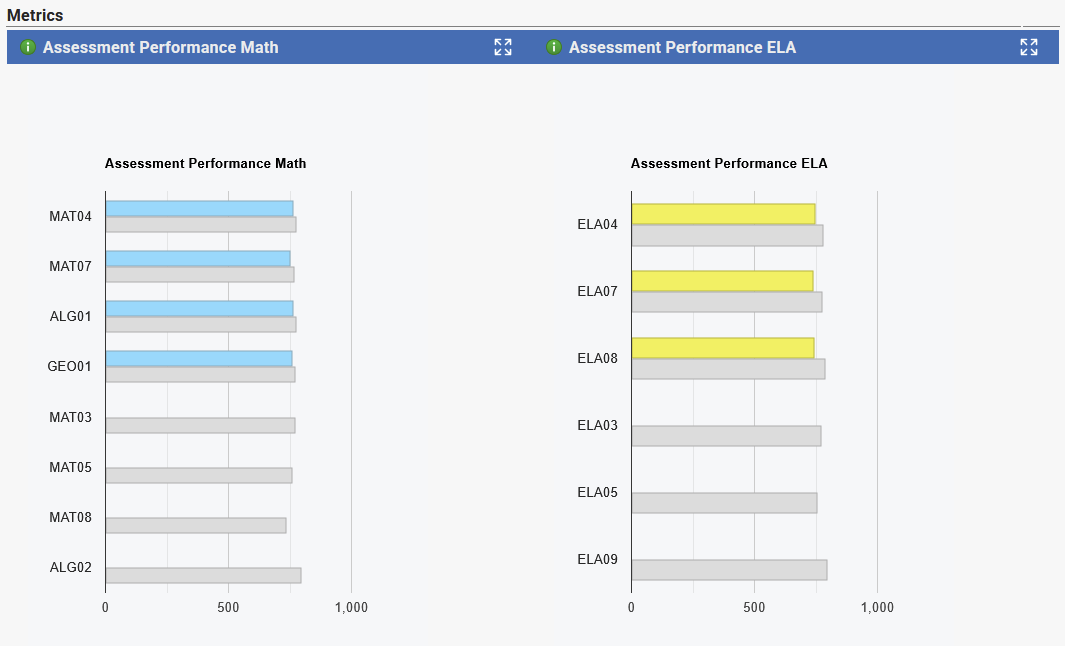
- Early Warning Dashboard > Attendance, Behavior, Class: displays "Cohort Comparisons" to see where the individual student falls in comparison with their peers. Cohort defaults to 'Class Of'.
- Assessment: displays "Cohort Comparisons" for Assessment results to see where the individual student falls in comparison with their peers. Cohort defaults to 'Class Of'.
- Tiers: displays the student's complete Metrics Tier tracking history.
Was this article helpful?
That’s Great!
Thank you for your feedback
Sorry! We couldn't be helpful
Thank you for your feedback
Feedback sent
We appreciate your effort and will try to fix the article