TABLE OF CONTENTS
Restricting Access to Daily Attendance Codes
This feature allows you to restrict which users can post specific attendance codes. A Role or Roles can be added to an Attendance code. If at least one Role is added to the "Security" of an Attendance code, that code will only be able to be posted by staff members who have one of the included Roles.
If a Role is added to an Attendance code, users who do not have that Role will not be able to post the code. If multiple Roles are added to an Attendance code, a user must have at least one of those Roles to be able to post the code.
Restricting Access to a Set of Selected Roles
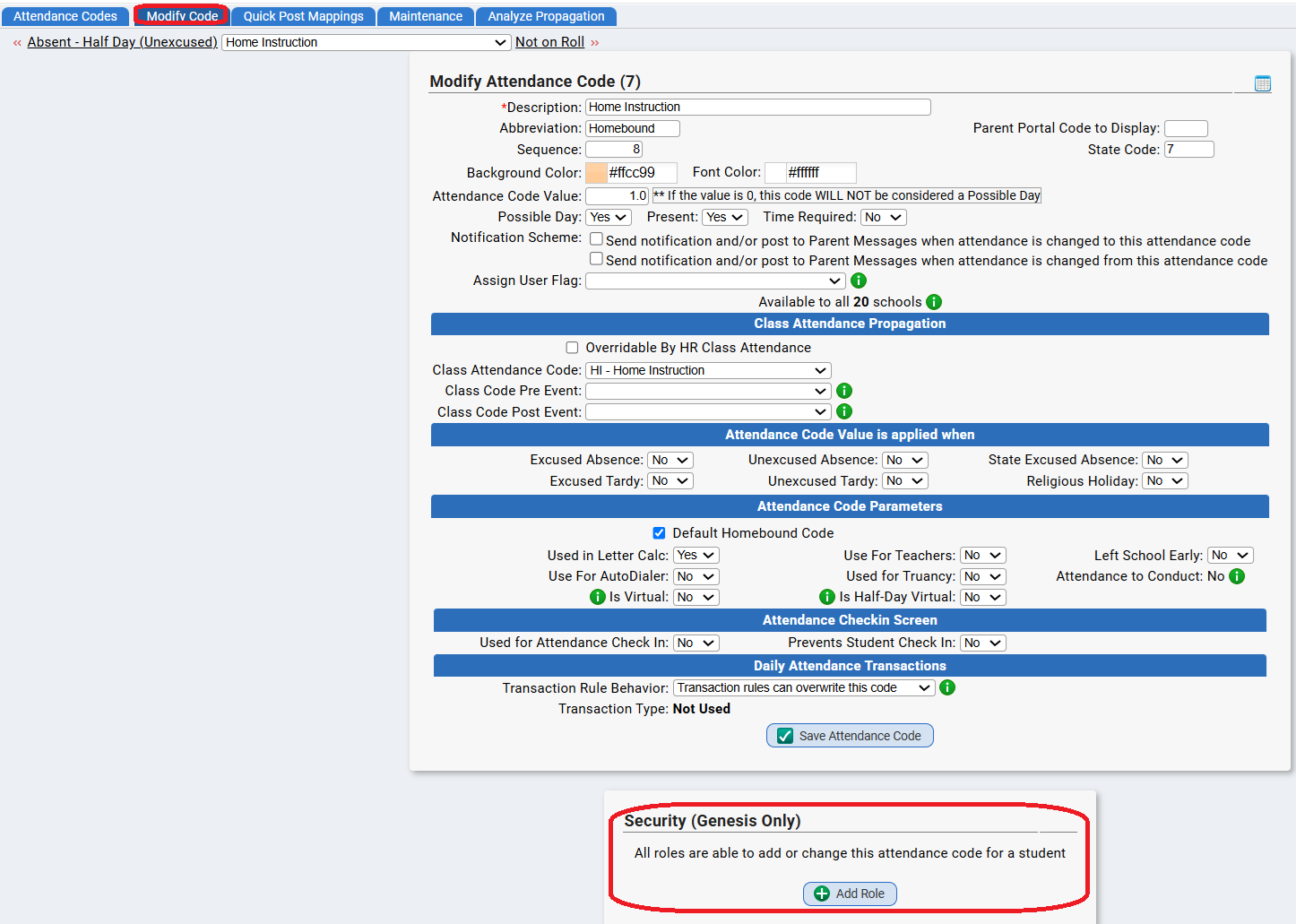
Procedure to restrict usage of an Attendance code to a specific set of users (via the use of Genesis Roles):
- Go to the Attendance->Codes->Attendance Codes screen
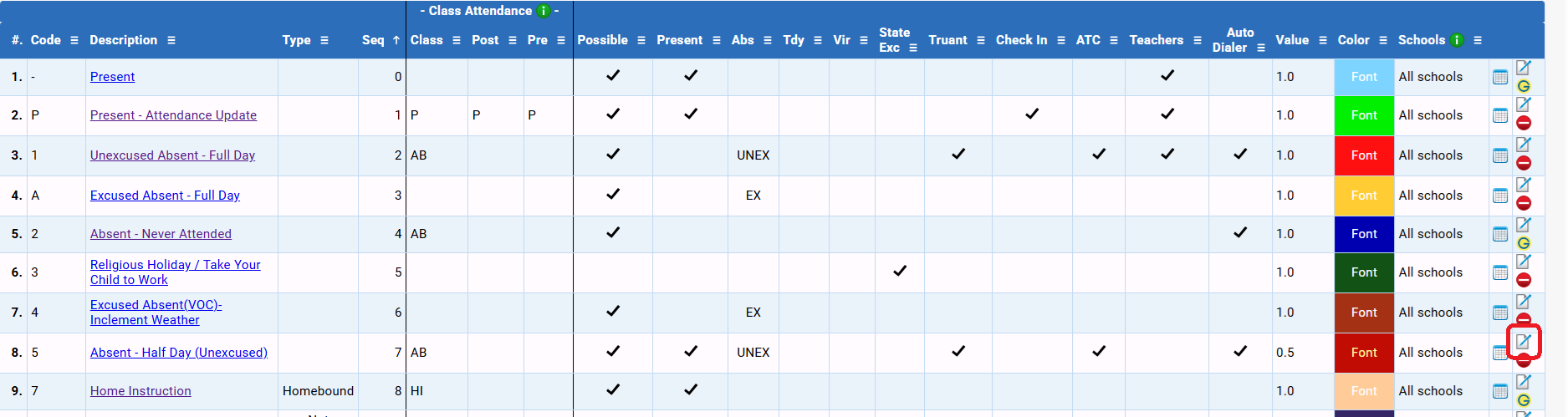
- Locate the Attendance code you wish to restrict access to and open it for editing:
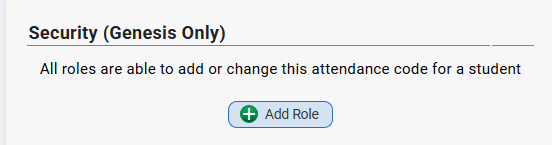
- Scroll to the bottom of the screen and locate the "Security" section:
- Click the "Add Role" button. This brings up the "Add Role" dialog:
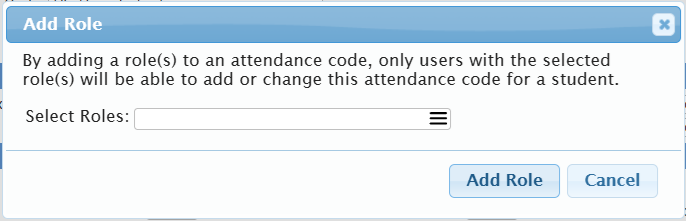
- At the right side of the "Select Roles" field, click the 'multi-selector' control:

- This brings up a "Select Roles" dialog with a list of all available Roles in the system:
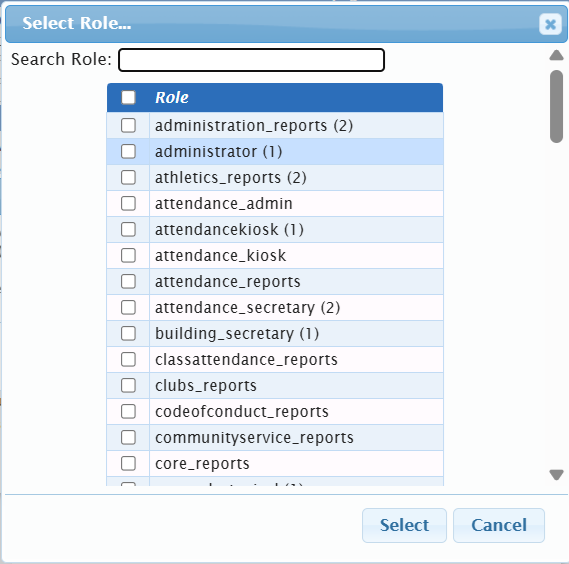
- The Roles are arranged alphabetically in the display. You can select all of the Roles you wish to grant access to the code. You can also use the search area at the top to search for specific Roles (especially if you have a large number of Roles in your Genesis system):
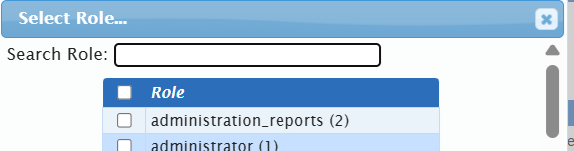
- Check the checkboxes for all the Roles you wish to restrict access to, then click the "Select" button. This condenses the view:
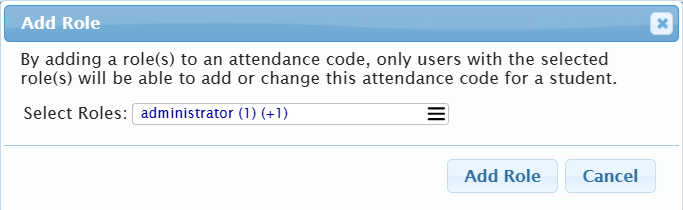
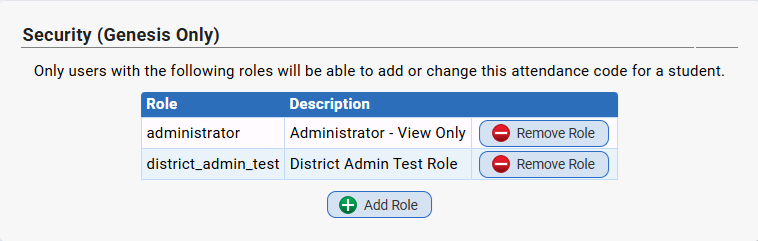
- Finally, click the "Add Role" button to actually add the selected Role(s). All of the Roles you have granted access to now appear in the "Security" area in the 'Roles" list:
- You are done: you can repeat steps 3 to 9, if you wish, to add more Roles to the set granted access to the code.
Removing Access from a Role
Procedure to remove a Role from an Attendance code:
- Go to the Attendance->Codes->Attendance Codes screen.
- Locate the Attendance code you wish to restrict access to and open it for editing:
- Scroll to the bottom and locate the "Security" Section:
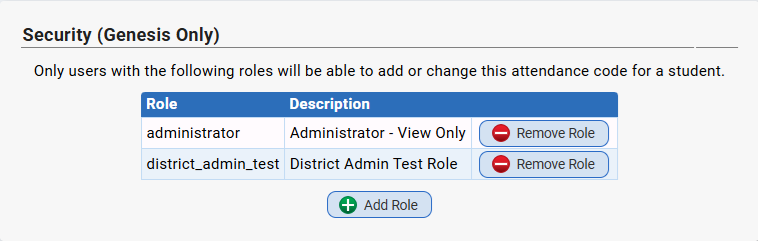
- If no Roles are listed there, there is nothing to remove. If you locate a Role in the list that you wish to remove, click the corresponding "Remove Role" button. This displays a confirmation dialog:
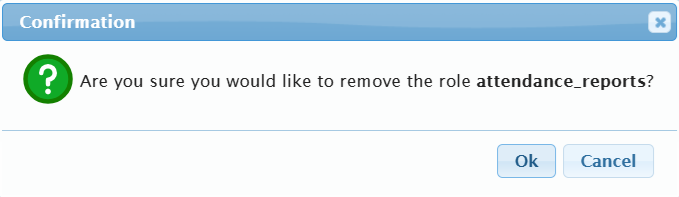
- To go ahead and remove the Role, click OK. Otherwise click Cancel to abandon the operation. There is no verfication dialog after you remove the code.
Was this article helpful?
That’s Great!
Thank you for your feedback
Sorry! We couldn't be helpful
Thank you for your feedback
Feedback sent
We appreciate your effort and will try to fix the article