Functions Enabled Directly on the User Login
The capabilities described here fall into two categories:
- Data Visibility Options
- Report Scheduling Options

Data Visibility Options
Controlling Access to Students
The "Data Visibility Options" are all about controlling which students a given has access to. If none of the "Disable Searching for students NOT in Staff's" checkboxes below are checked, the user has access to all students.

These checkboxes are additive: a user can have multiple checkboxes checked. For example "Classrooms" plus "Coach/Club Advisor", "Static Lists" and "Dynamic Lists".
Teacher Access to Students
The "Homeroom" and "Classrooms" checkboxes are targeted to teachers. When one or both of these are checked, the user loses access to all students except the students in their Homeroom or Course Sections ("Classrooms").
If either of these are checked for a user who is not a teacher, the user loses access to all students.
Counselor Access to Students
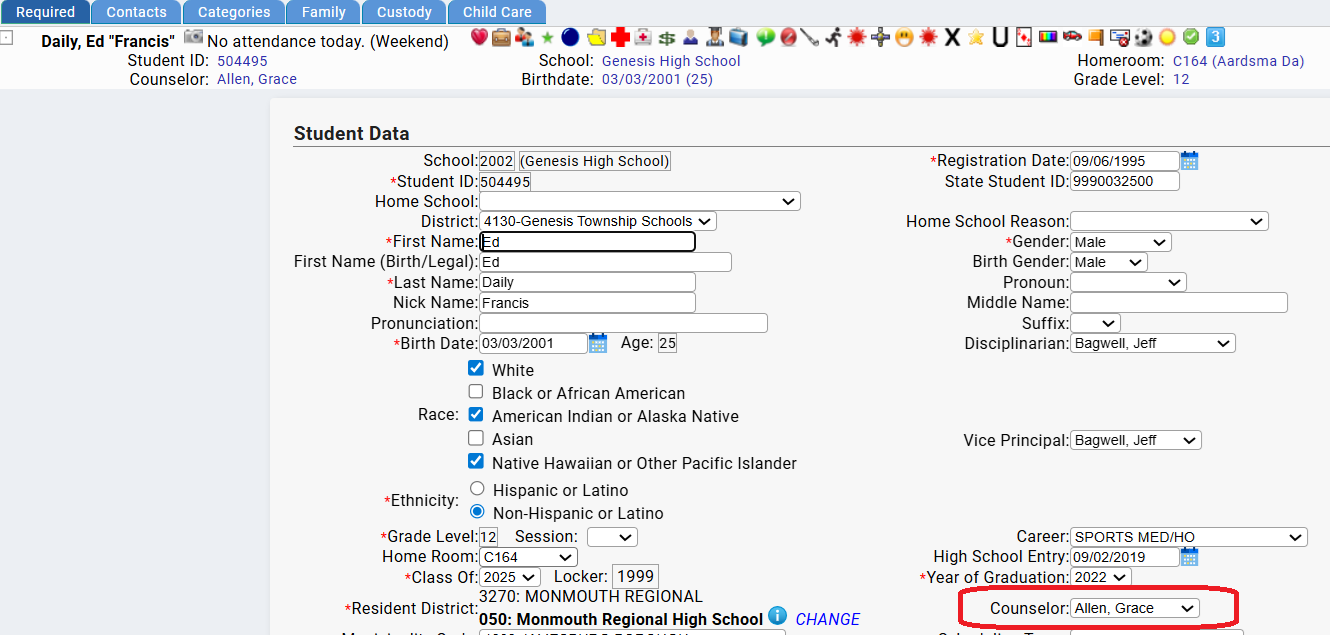
The "Counselor Group" option applies to counselors who have students assigned to them as counselors. If this is checked they have access only to the students who have them as their counselor:
Case Manager Access to Students
The "Case Managewr Group" option applies to 'case managers' who have students assigned to them as Case Manager. If this is checked they have access only to the students who have them as their case manager:
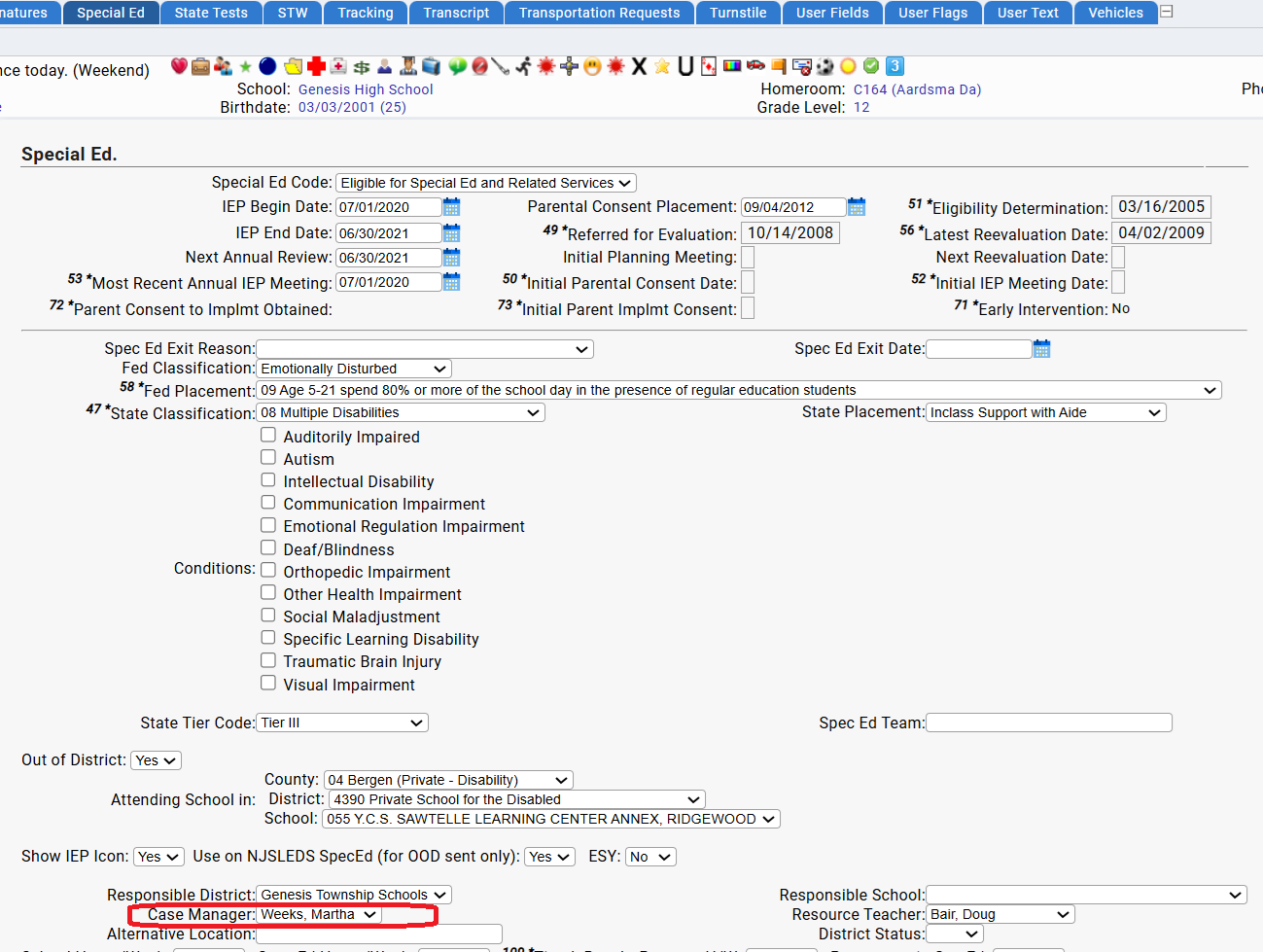
The case manager is identified on the current "IEP" record on the student's Special Ed screen.
If the case manager checkbox is checked on the user login, the user has access only to the students who have them selected as their current case manager.
Coach & Club Advisor Access to Students
The "Coach & Club Advisor" option applies to any user who is set as either the "Head Coach", "Assisstant" or "Administrator" of a sports team or as an "Advisor" or "Administrator" of a school club. Students need to be on the roster of the team or the roster of the club for the user to have access to them. Checking this checkbox gives the user access to the students who are on one of their clubs or teams.
This checkbox is designed to give coaches and club advisors access to students in addition to students they might normally have access to, as, for example, a teacher or a counselor. This checkbox can also be used for "out of district" coaching staff to limit the students they have access to only to those students on the team or teams they coach.
All Users' Access to Students via Student Lists
The "Static Lists" and "Dynamic Lists" checkboxes give any user access to the students who appear on either a Static List or a Dynamic List that is shared with them. These two checkboxes were designed to be used in addition to one of the other restrictive checkboxes. For example, if a user is a teacher, the Dynamic List checkbox allows them to also see students on any list shared with them - presumably as a teacher they also have the Homeroom and/or Classrooms checkboxes checked.
If a user only has the Static Lists and Dynamic Lists checkboxes checked, then they can ONLY see students who are on lists another user has shared with them.
Audit Tool Access
A large number of screens in the system now have an "Audit" icon available next to various records. For example, in School Clubs:
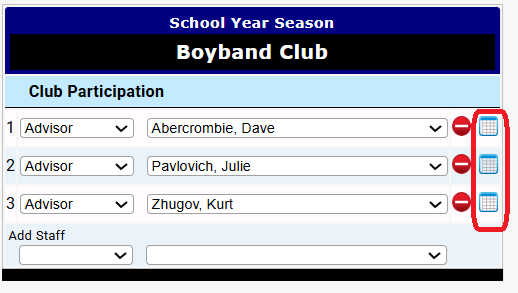
The "Audit Tooltips on Most Screens" option enables these audit icons & their associated popu dialog boxes for the user. If the checkbox is not checked, the user does not see the icon.
Show Freshdesk Support Icon in Toolbar
This checkbox is only checked for users who have Freshdesk support access - that is, a Genesis-assigned login for the Freshdesk ticketing and support system. It should never be turned on for other users.
Report Options

Advanced Scheduling Options
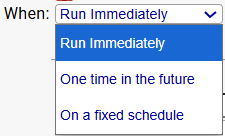
Reports always have a "Run Immediately" option. When a login's "Advanced Scheduling Options" checkbox is checked, the user sees two additional "When" options: "Once time in the future" and "Ona fixed schedule".
FTP or SFTP Reports and Save Reports to File on Server
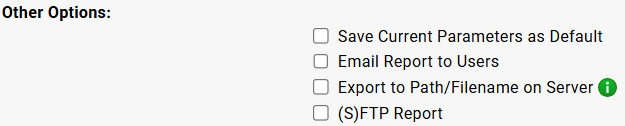
In the "Other Options" section, the "Save Reports on File on the Server" checkbox turns on the user's ability to save files on the server when running Reports. This causes the "Export to Path/Filename on Server" checkbox to appear for them when running a report. Checking the "FTP or SFTP Reports" checkbox causes the "(S)FTP Report" checkbox to apear in the "Other Options" section when running a report:
Export to Student Documents
Checking the "Export to Student Documents" checkbox on the User Login causes the "Store in Student Documents" section to appear for the user when they run a report that can generate a "form":

This gives the user the ability to "burst" out forms produced by a report and store them as "Documents" on the students' Documents screens. These stored forms can then optionally be displayed in the Parent module.
Was this article helpful?
That’s Great!
Thank you for your feedback
Sorry! We couldn't be helpful
Thank you for your feedback
Feedback sent
We appreciate your effort and will try to fix the article