Health History Update Forms on the Student's Exams & Participation Tab
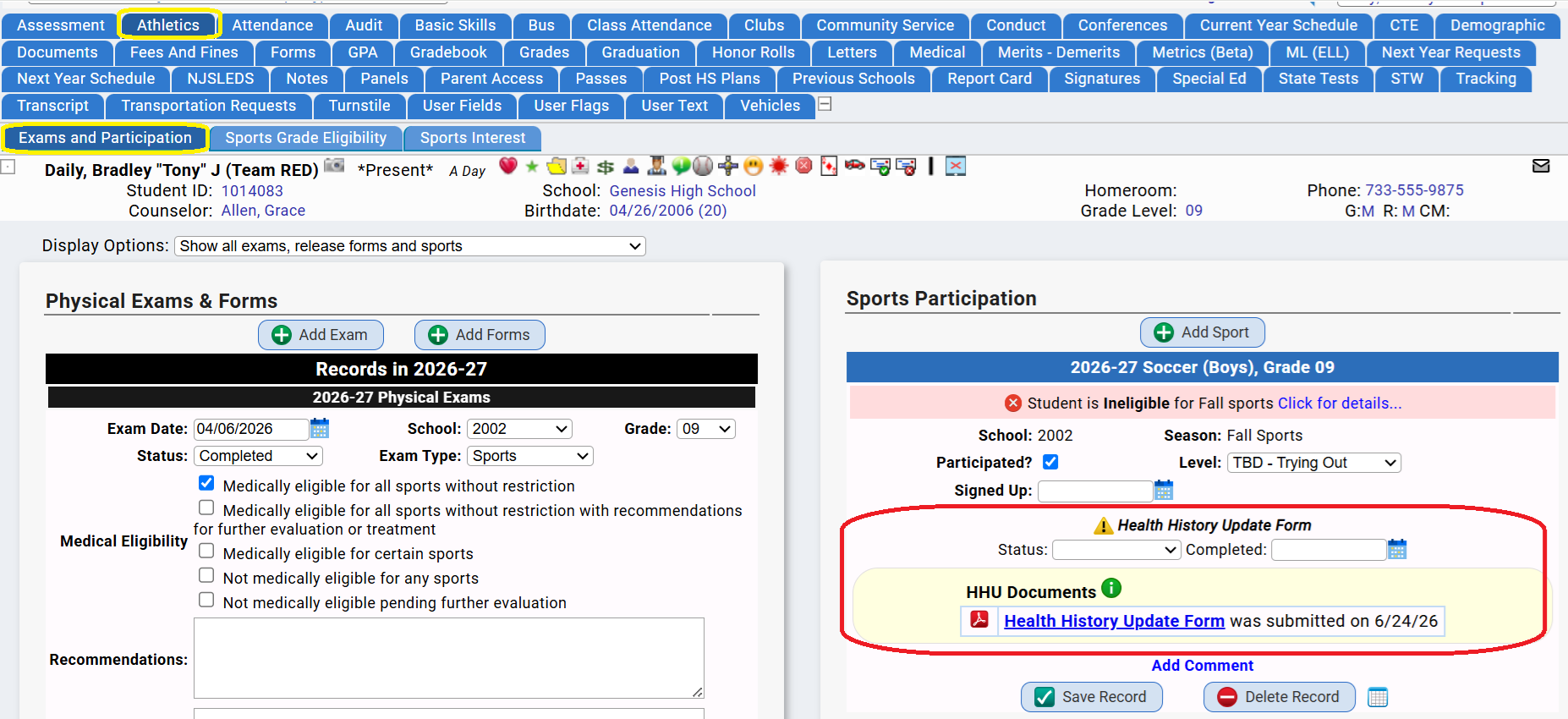
A Health History Update Form can appear on students' Athletics->Exams and Participation screen if:
- The form is stored on the student's record with a Document Management DocType with the "Can be a Health History Update Form" checkbox checked.
- The Health History Update Form document was uploaded within 90 days of the start of the "season" selected on the Participation record.
- The form can be viewed until roughly 90 days are elapsed: it does not permanently appear on the student's Exams and Participation screen; however it does permanently appear on the student's Documents tab.
- One of the student's reasons for 'ineligibility' is not having a valid Health History Update Form.
The Setup: Creating a DocMgt DocType
Procedure to Create a "Health History Update Form" DocType.
- Go to the Documents->Setup->Document Types screen:
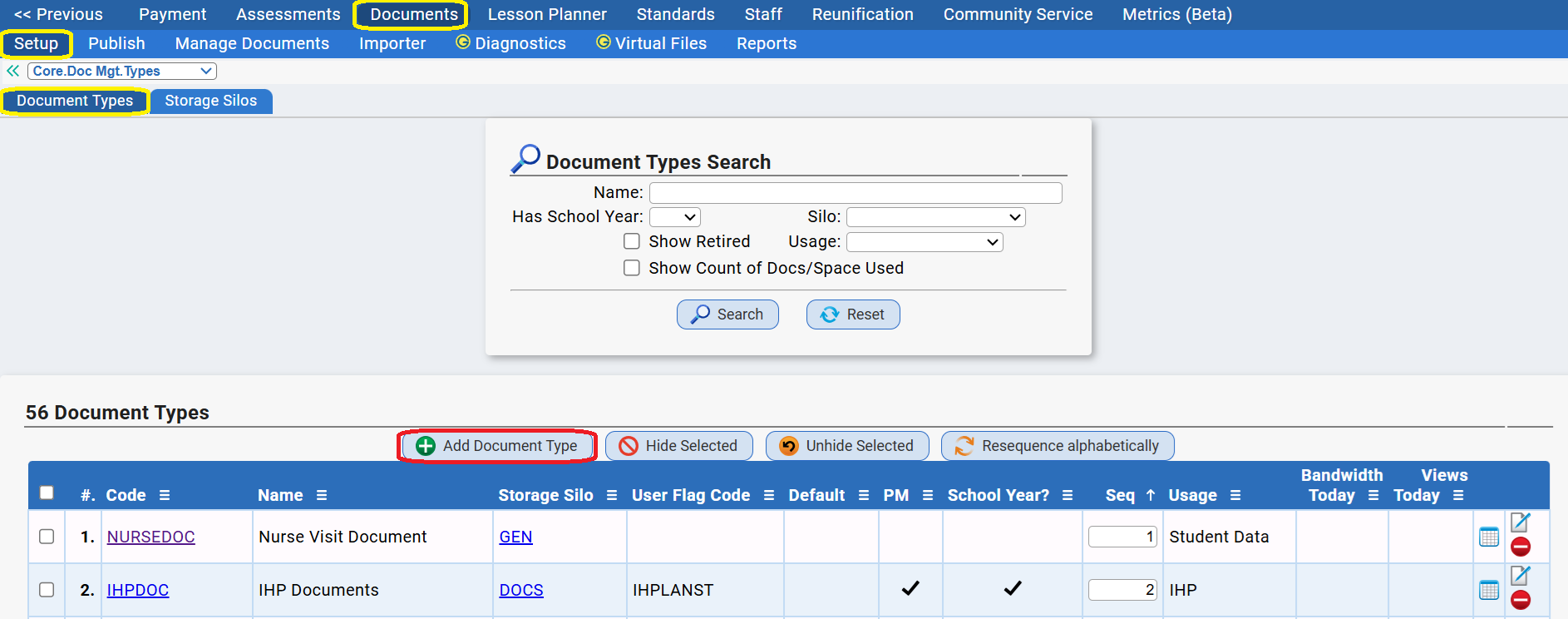
- To add a new DocType, click on the "Add Document Type" button. This will bring up the "Add DocType" dialog box:
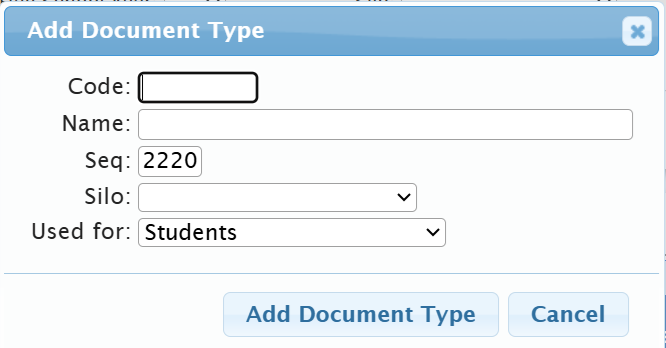
- Fill in the Code and Name fields with whatever you wish to name your Health History Update Form, then select the "Silo". The "Silo" is where to physically store the documents of this type.
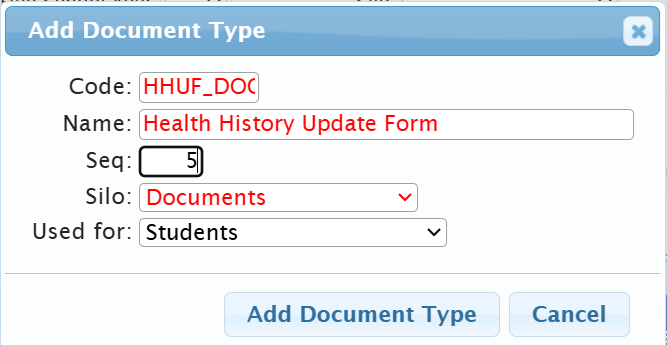
- To be clear, you do not need to use the code and name shown in the above example. You can choose whatever local code and name you wish to use. Once you have entered the information, click the "Add Document Type" button to create the actual DocType. This brings up the "Modify DocType" screen:
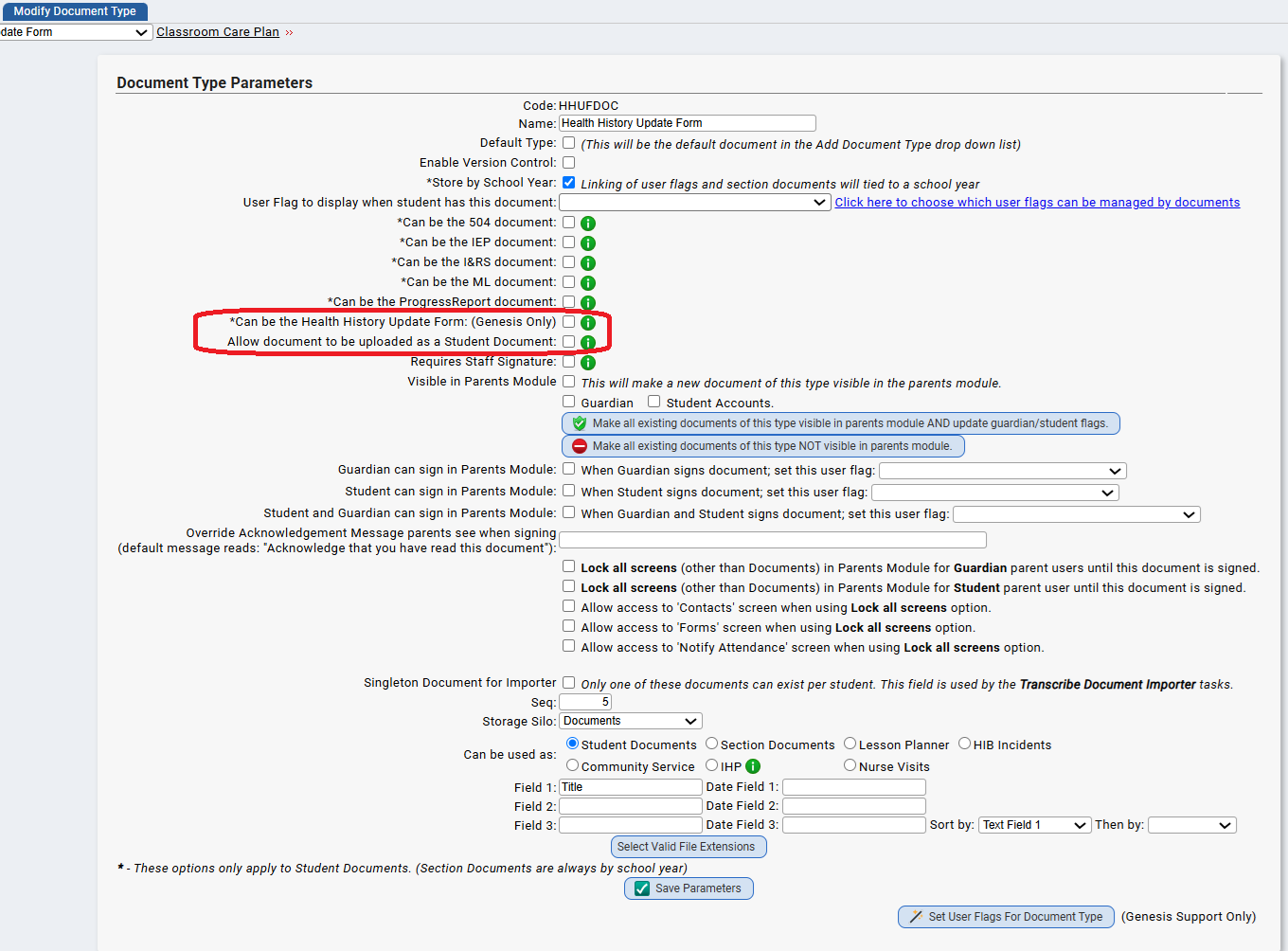
- On the Modify DocType screen you must check two parameters:
- Locate and check the "Can be the Health History Form" checkbox.
- Locate and check the "Allow document to be uploaded as a Student Document" checkbox.
- Optionally, you can check the "Visible in Parents Module" if you want the uploaded documents to be visible to parents & guardians. You can then check the "Guardian" checkbox and/or the Student Accounts checkbox.
- Scroll to the bottom and click the "Save Parameters" button to save the changes.
- Now scroll to the bottom of the screen and locate the "Security Granted to Roles" area:

- You will want to select and add Roles that give access to any of your staff members who have to see, upload or otherwise access the Health History Forms, including your nurses, possibly the Athletic Director and anyone who must either upload a Health History Update Form or use a ReportWriter report to generate Health History Update Forms and store them in student records.
- Once you have added the necessary Role(s), you are finished creating the DocType.
How are Health History Update Forms Added to Student Records?
There are currently three ways to add a Health History Update Form to a student's record so that it will appear on the student's Exams and Participations screen:
- A form can be be uploaded directly from the student's Documents screen.
- A form can be generated by a ReportWriter report and saved to the student's record by the ReportWriter.
- A parent/guardian can upload a Health History Update Form directly from the Parents Module.
Uploading a Document Directly on the Student's Documents Screen
To directly upload a file containing a Health History Update Form do the following:
- Look up the student whose form you wish to upload.
- Open their student record and go to the "Documents" tab and scroll to the very bottom. There will be an "Upload Document" tool
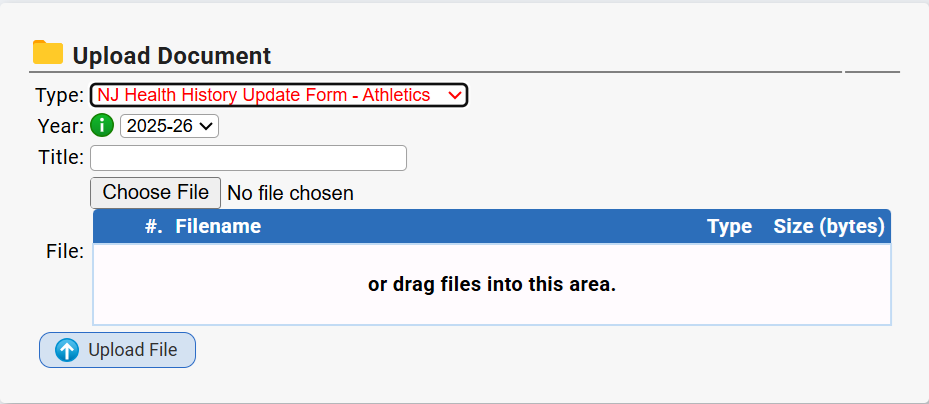
Select your Health History Update Form DocType.
Enter a title for it.
Use the "Choose File" file chooser to select the file to upload and click the "Upload File'
Click the "Upload File" button to upload the file. It should now be available on the student's record.
Generating a Health History Form from a ReportWriter Report
Please see the information here regarding installing a Health History Form Tool in your Genesis system.
Was this article helpful?
That’s Great!
Thank you for your feedback
Sorry! We couldn't be helpful
Thank you for your feedback
Feedback sent
We appreciate your effort and will try to fix the article