Copying Lesson Plans Across Schools
If a teacher has access to Lesson Books in multiple schools, they can copy lessons from any of their lesson books, regardless of which school the lesson book is in to any of their other Lesson Books, regardless of location. The way to do this is a bit subtle.
Lesson Plans can be copied from a Lesson Book in one school to a Lesson Book in another school on the Lesson Planner->Lesson Books->Copy Lessons screen.
Procedure to Copy Lesson Plans across Schools
- Go to the Lesson Planner->Lesson Books->Copy Lesson screen.
- Select the school year you wish to copy from. The current school year automatically displays. All prior school years in which you had Lesson Books will be listed in the "Select Year to Copy From" drop down:
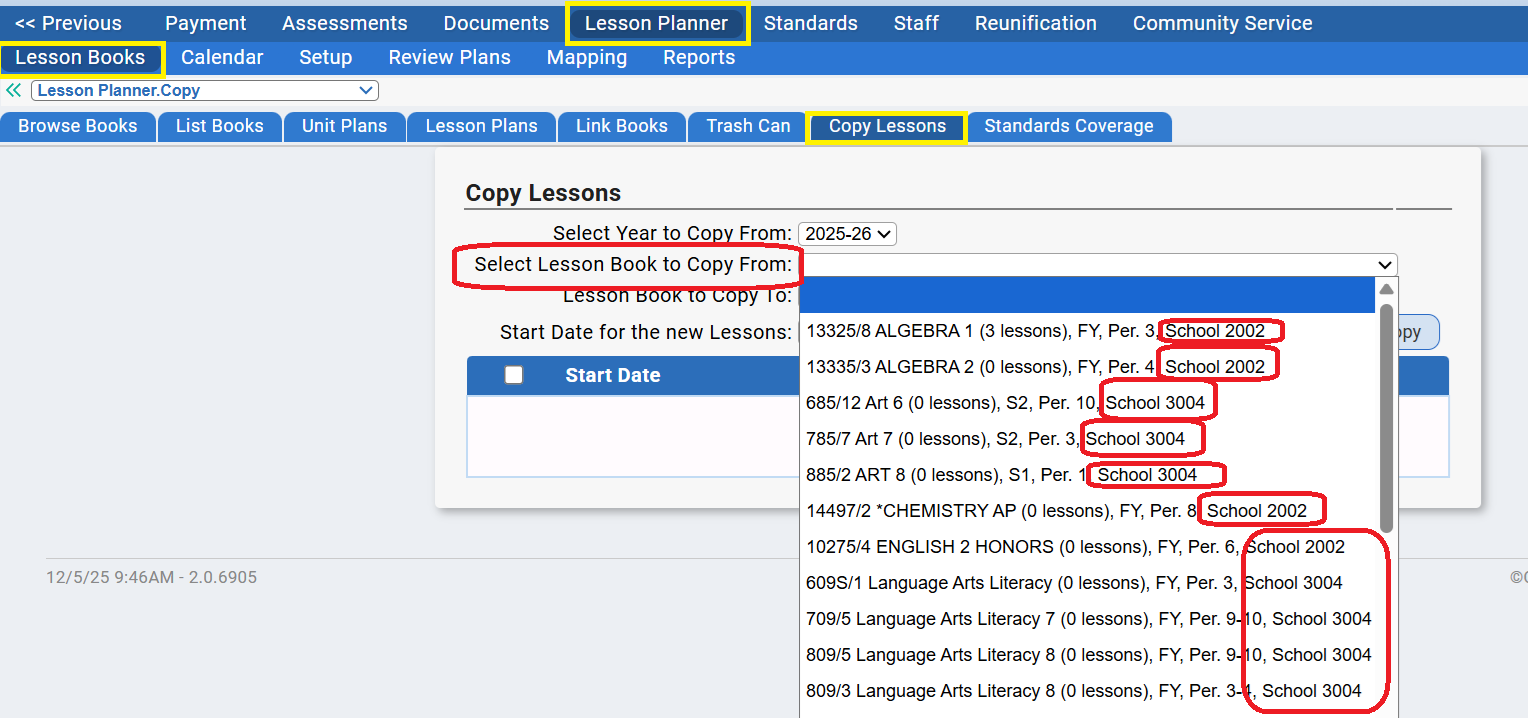
- Select the Lesson Book to Copy From - All your Lesson Books will be listed in the drop down, including those from other schools. The school is listed, by school code, post-fixed to eachLesson Book name:

- Once you have selected a Lesson Book to copy from, all of the units and daily lesson plans in that book witl be displayed:
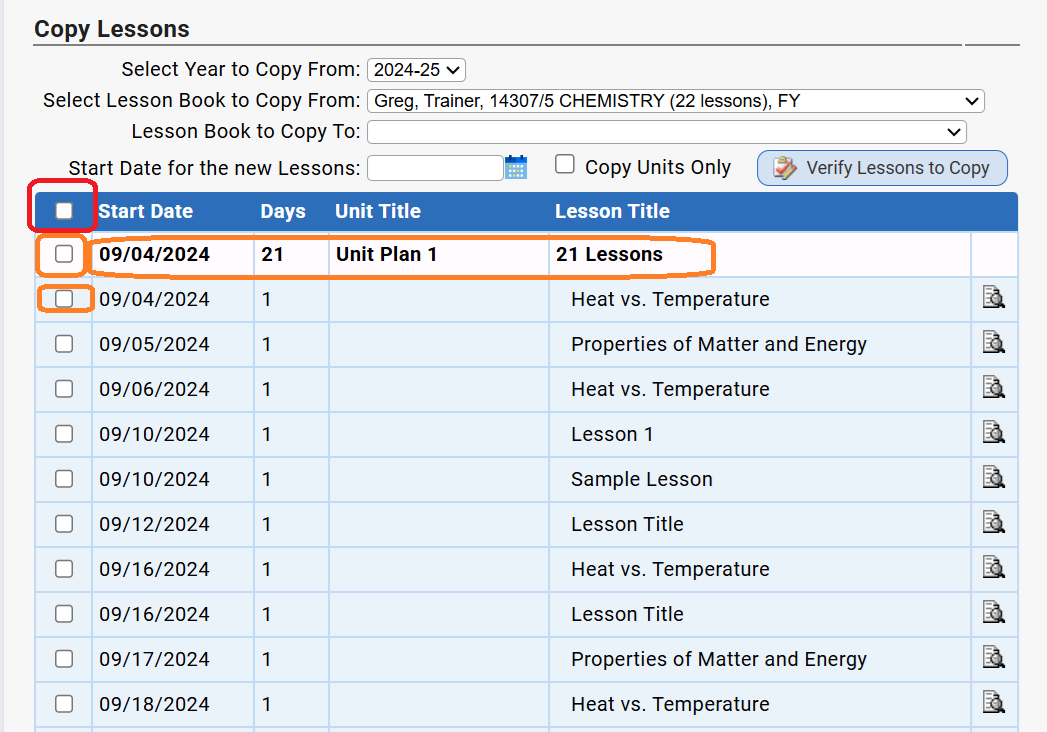 You can copy entire Units or individual daily lesson plans. Check the checkboxes for the plans/units you wish to copy.
 - Select the Lesson Book to Copy To - Again, all your Lesson Books are listed in the drop down:
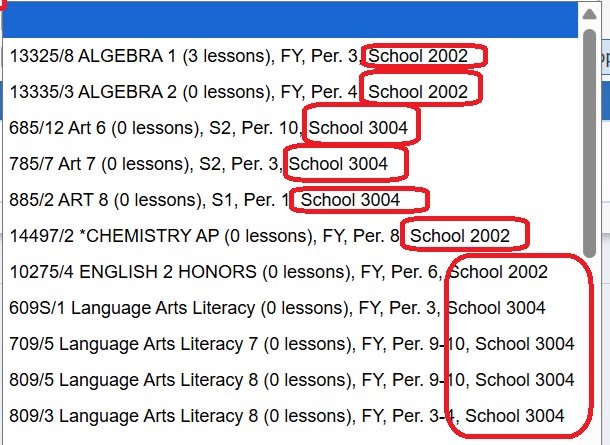 The drop down contains all your Lesson Books: You can copy to any listed Lesson Book in any school.
 - You now can select a start date for the lesson you are copying.
- Finally, click the "Verify Lesson Plans to Copy" button. This brings up the "Verify Copy" screen with the selected lesson plans/units listed on the left side of the screen and the copies to be created on the right side of the screen:
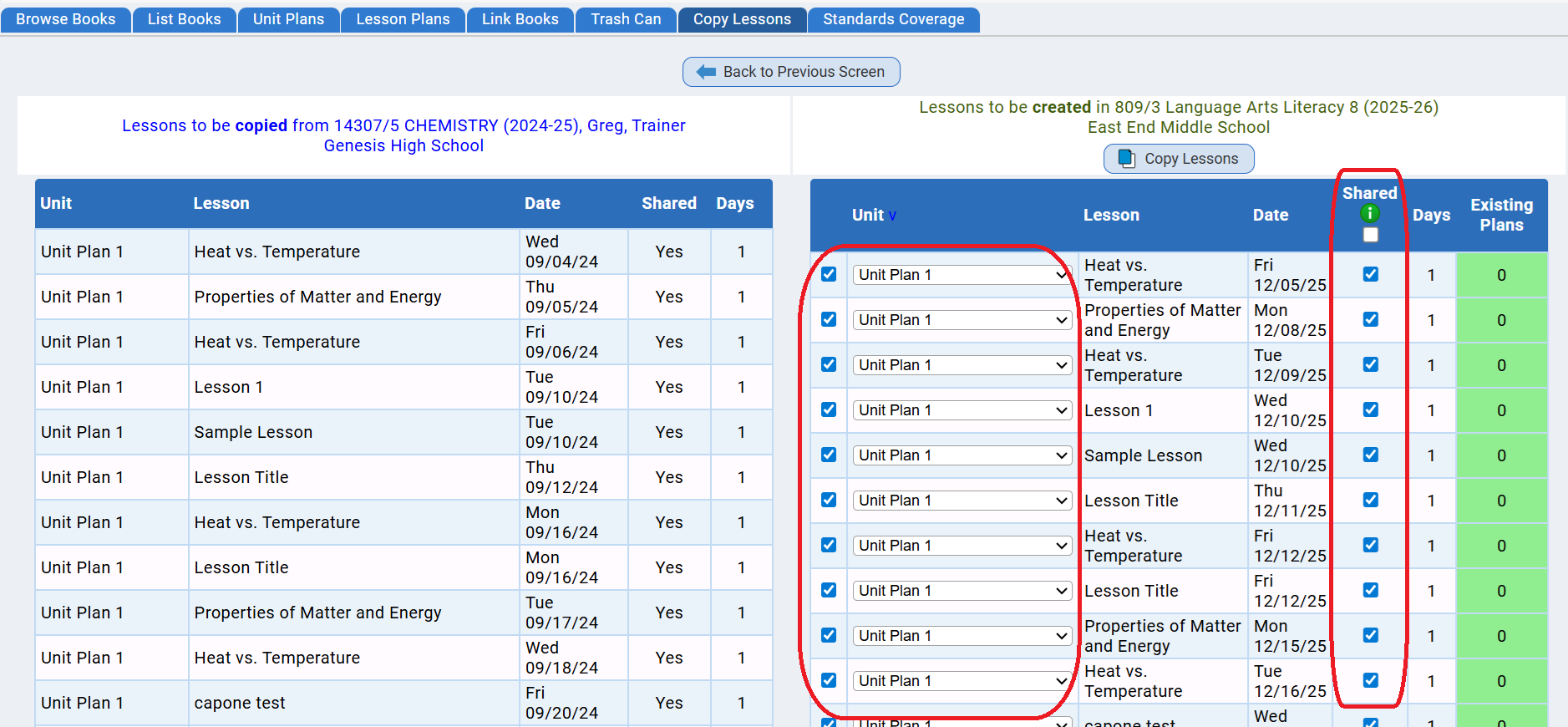
- At this point you can deselect any copies you do not want made, select the Unit Plan you wish the each copy to be created in, and determine if you wish the copies to be "shared" or visible to your Lesson Pals.
- When you have finished configuring the copy, you can click the "Copy Lessons" button to actually to start the actual copy. A verification dialog is displayed - if the Lesson Book you are copying to is linked to other Lesson Books, the verification dialog includes the option to also copy the plans to each of the linked books. To copy to the linked books, check the appropriate checkboxes:
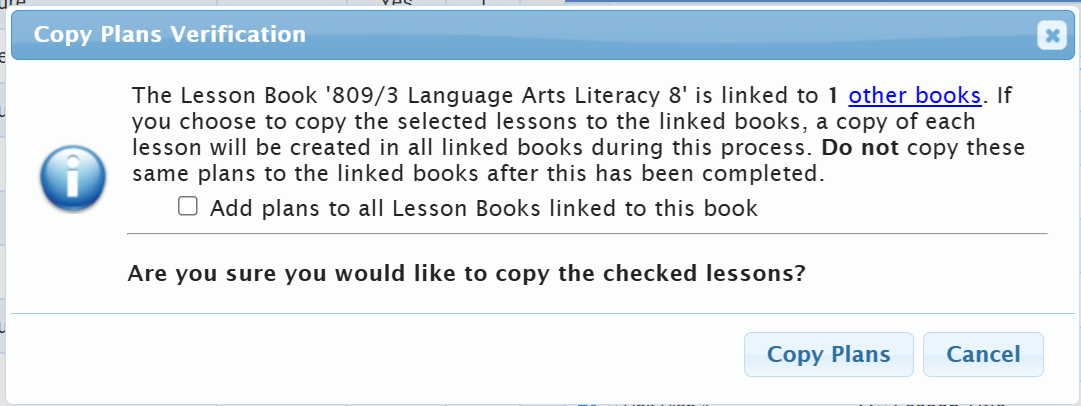
- Click "Copy Plans" to actually do the copy. Click "Cancel" to abandon the operation and do nothing.
Was this article helpful?
That’s Great!
Thank you for your feedback
Sorry! We couldn't be helpful
Thank you for your feedback
Feedback sent
We appreciate your effort and will try to fix the article