TABLE OF CONTENTS
- Creating a New School Code
- Adding Start and End Dates for the School
- Adding and Updating Cycle Days on the New School's Calendar
- Adding Valid Grade Levels to the New School
- Attendance Cycles
- Basic Params Tab
- HR Params
- Scheduling
- Note Permissions
- Assigning Access to the School
- User Flag and User Text Visibility Per School
- FAQ
Creating a New School Code
To actually start the process, navigate to Setup>Schools. You will see all of the schools in your district listed here.
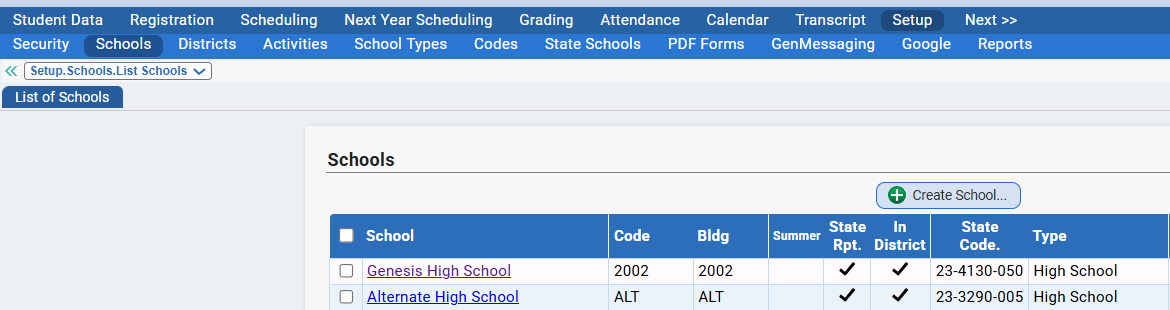
Click "Create School" and you will then see a pop-up that contains some pieces of data/information that you have to enter to get started:
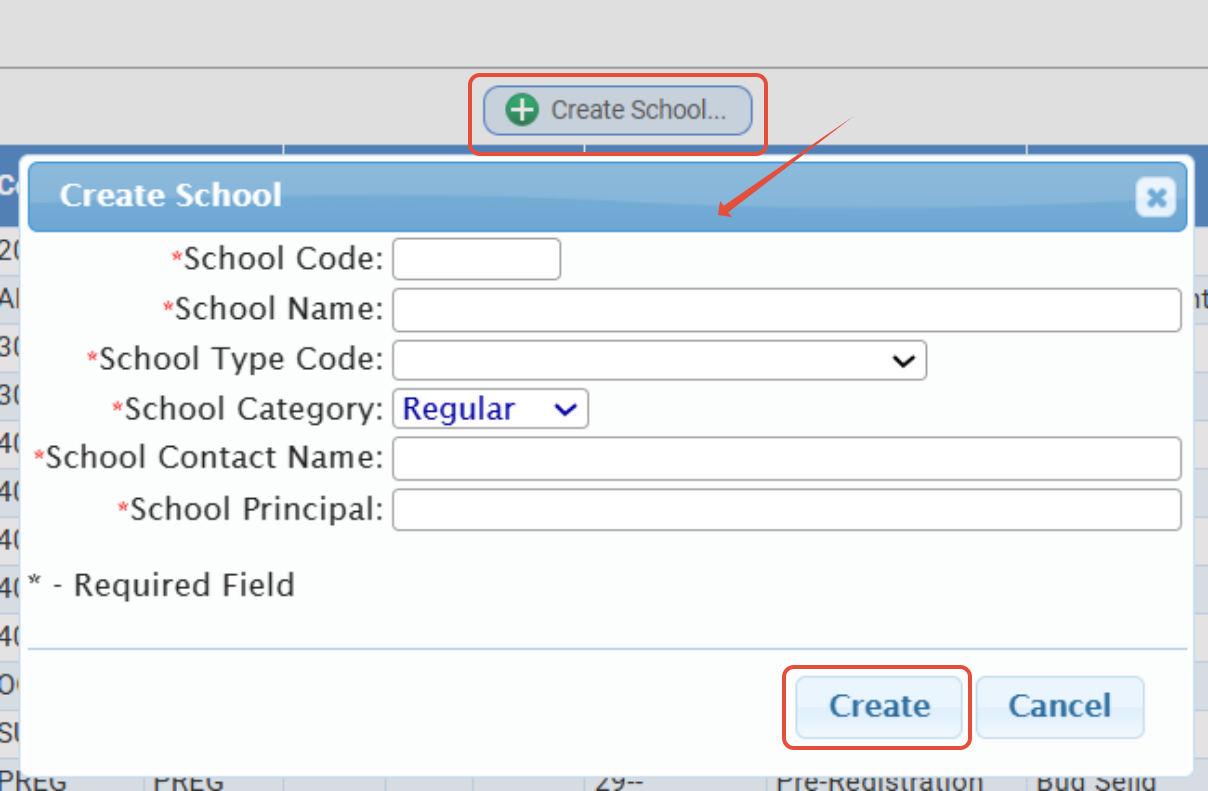
| Field | Notes |
| School Code | This is the internal school code for the school. For example, for Genesis High School, the code may be GHS. |
| School Name | The name of the school. |
| School Type Code | This is where you can select if the school is a High School, Middle School, OOD school, Pre-Reg school etc. |
| School Category | |
| School Contact Name | The contact for the school. |
| School Principal | The principal for the school. |
After you enter this data, click "Create."
You will then be on the Setup>Schools>Modify School tab for the school you just created. On this tab, there are various additional options o enter. Many of the settings will impact how the school is handled on various state and federal reports so be sure to review and enter info as needed.
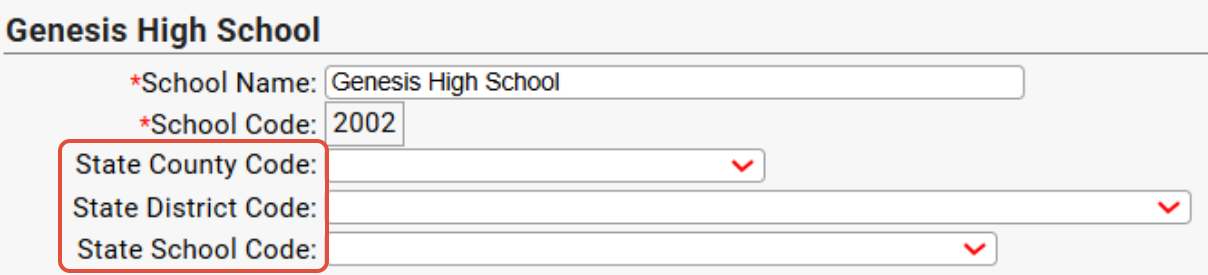
Adding State Codes
Make sure to enter the State County, District, and School Codes in the corresponding dropdowns. If you are unsure what the codes would be, review the documentation found on the NJSLEDS site here: https://nj.gov/education/sleds/keydocs/index.shtml
Options
| Field | Notes/Options |
| School Name | Display name of the school in Genesis |
| School Code | Cannot be changed during the school year. Contact support to update school code |
| State County/District/School Code | Assigned by NJSLEDS - Download Codes |
| Federal School Code | Used in CRDC Reporting |
| CEEB Code | Can be printed as macro on report card, transcript |
| Title I | This new dropdown contains the following options: 01 - Public Targeted Assistance Program 02 - Public Schoolwide Program 04 - Local Neglected Program 05 - Not Applicable (default setting) - Schools that previously had enabled the "Title I School" checkbox will be set to 01 - Public Targeted Assistance Program - Any and all calls in Genesis that previously looked at the school's "Title I School" checkbox to determine if a school was a TITLE I school, will now return TRUE if there is any value other than '05 Not Applicable' set in the Title I dropdown. |
| SFA Site ID | Site id in SNEARS and Primero Edge |
| School Type | Used to categorize schools within certain reports (ex: District Enrollment Report #1095) |
| Description | Used for additional notes |
| Category | Regular, Employee, Copy, or Holding |
| Special Designation | Used in certain integrations (ex: Genesis Schedule Export) |
| Alternate Code | Used for indicating a different school code in certain exports (ex: Horizon Fastlane) |
| School URL | School website |
| Building | Used for indicating the physical building the school is held in. Used when a single building is comprised of multiple schools within Genesis. |
Include students in state reporting (school keeps daily attendance records) | If unchecked, this school will not store daily attendance data for students. |
In District School | If checked, this will indicate that the school is an "in district" school. |
Is an Inact School | Indicates this school houses inactive/withdrawn/graduated students. This should only be checked for your "Inactive School" |
Title 1 School | Students can be reported as 'Title I' for NJSLEDS. See SID Management |
Is a Non Public School | If checked, this will indicate that the school is a Non Public school. |
Is a Pre-Registration School | If checked, this will indicate that the school is a Pre-registration school. This should only be checked for your "Pre Registration" school. |
Is Preschool Referral/Pre-Evaluation School | If students are sitting in a Preschool Referral (Pre-Eval) school, they will have the following fields blanked on on the SID file: Grade Level, PTC, Lunch Status and Special Ed Classification. If checked, students in this school will not be included in the State Submission. |
OOD School Options |
|
Vocational Sending School | Used to indicate the students in this school are sent to a vocational district. |
Collect Received Out Of District Students in NJSLEDS | Normally students who are 'received' based on having a tuition record are excluded from NJSLEDS. This option will force them to be included. See NJSLEDS FAQ |
Exclusions |
|
Collect Students by their Home School For NJASSA and CRDC Collections | When running the ASSA and CRDC reports, Genesis will separate students based on their Home School field on the Demographics page, as opposed to their current enrolled school. |
Is Summer School | If checked, this indicates that the school is a Summer School. Review our summer school documentation here. |
Is ESY School | If checked, this indicates the school is an ESY school. (Note: this is not related to the ESY Attendance feature). |
For Parents Module | If checked, the school will be included in the Parent's Module. |
Allow Rollover to set this School as Student Resident School | We only alter the Resident District tracking record if the “Allow Rollover to set this School as Student Resident School” is set. If it is set, the logic says: if the student's current Resident County and Resident District on the Resident District Tracking record are the same as the student’s new school’s District and County code, we update the next year Resident District Tracking record’s School Code with the new school’s (the school the student is rolling into) state school code. But only if the school has the “Allow Rollover to set this School as Student Resident School” set. Otherwise, we leave the Resident District Tracking record as it is. If needed, there are also options you can check for individual students, as needed, on the Student Data>Modify Student>Demographics>Categories screen:
School on student's Resident District Tracking record will never change during rollover even if entering new school. You can check that off for a specific kid, if you do not want their record to be updated along with the other students as your system rolls over. |
Allow Rollover to set this School as Student Home School | We only will adjust the Home School IF the “Allow Rollover to set this School as Student Home School” is set. If needed, there are also options you can check for individual students, as needed, on the Student Data>Modify Student>Demographics>Categories screen:
Student's Home School will never change during rollover even if entering new school. You can check that off for a specific kid, if you do not want their record to be updated along with the other students as your system rolls over. |
Allow Rollover to set Retained flag for students rolling into this school | Rollover sets the retained flag on students who are rolling over into the same grade as the previous year unless rolling into PreSchool, Kindergarten, or rolling into an INACT or PREREG school. |
In Rollover, always use next year homeroom even if it is blank | By default in rollover, if the student is remaining in the same school and has a blank homeroom in their next year assignment, the students homeroom will remain the same as the current year. This option will allow rollover to blank out the homeroom. |
In Rollover, always use next year counselor even if it is blank | By default in rollover, if the student is remaining in the same school and has a blank counselor in their next year assignment, the students counselor will remain the same as the current year. This option will allow rollover to blank out the counselor. |
| Allow Sports from other schools to be selected in Parent Forms for students in this school | If this is checked, parents will have a school dropdown in there parents forms when selecting a sport. Parents will have the option to change the school for the athletic record. This is useful if the student's school does not offer the sport in question and the student will participate in that sport at another school. |
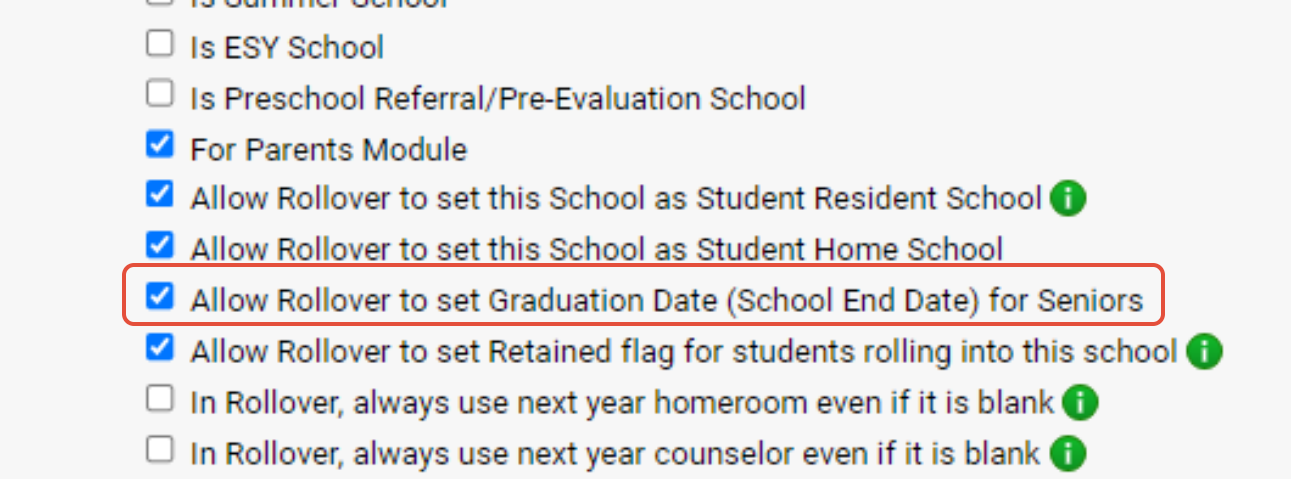
Allow Rollover to set Graduation Date (School End Date) for Seniors | This is set to YES by default as this has always been the behavior during rollover. |
Pre-Registration School | This dropdown should have you Pre-reg school selected in your other schools which have a Pre-reg school. For example, when modifying your High School, you will want to select "Pre-registration" in this spot. The school selected here is the pre registration school that the Registration>Pre Register will default to, when you are under that building. |
Transcript School | This dropdown allows you to select another school's transcript for another school. (By "another school," we mean a school in your Genesis system right now.) If so, when modifying the OOD school, select your high school in this "Transcript School" dropdown.
|
| Use previous school as the transcript school | Usually set within your 'Inactive' school, for districts who have students that can possibly graduate from multiple schools within the district. Instead of showing a transcript from a specific high school, this option allows you to pull a transcript from the inactive student's previous school attended, prior to graduating. |
| Display Sequence | This controls where the school appears in the School dropdown. |
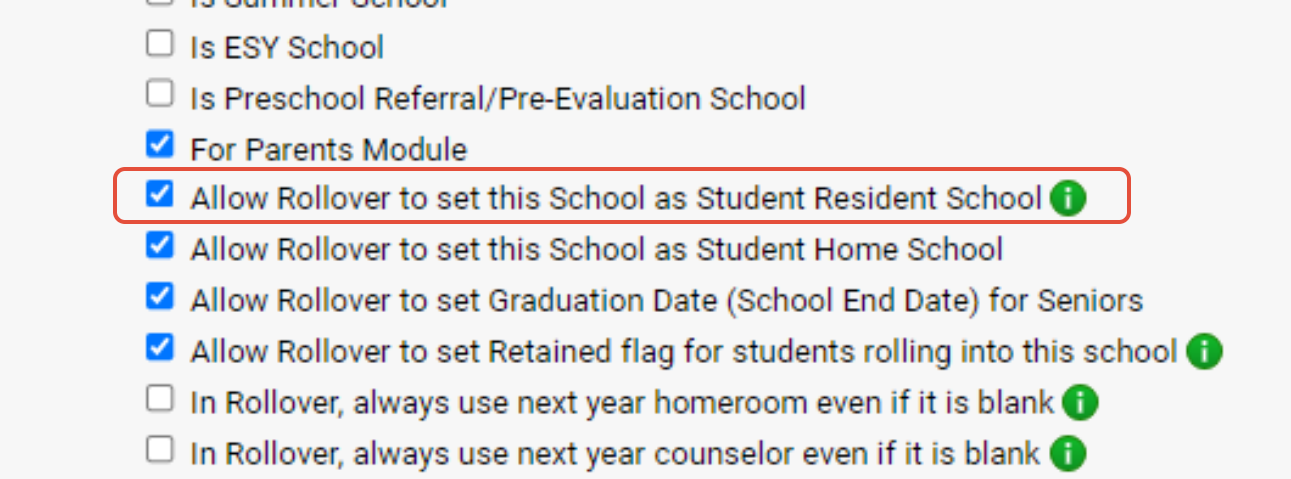
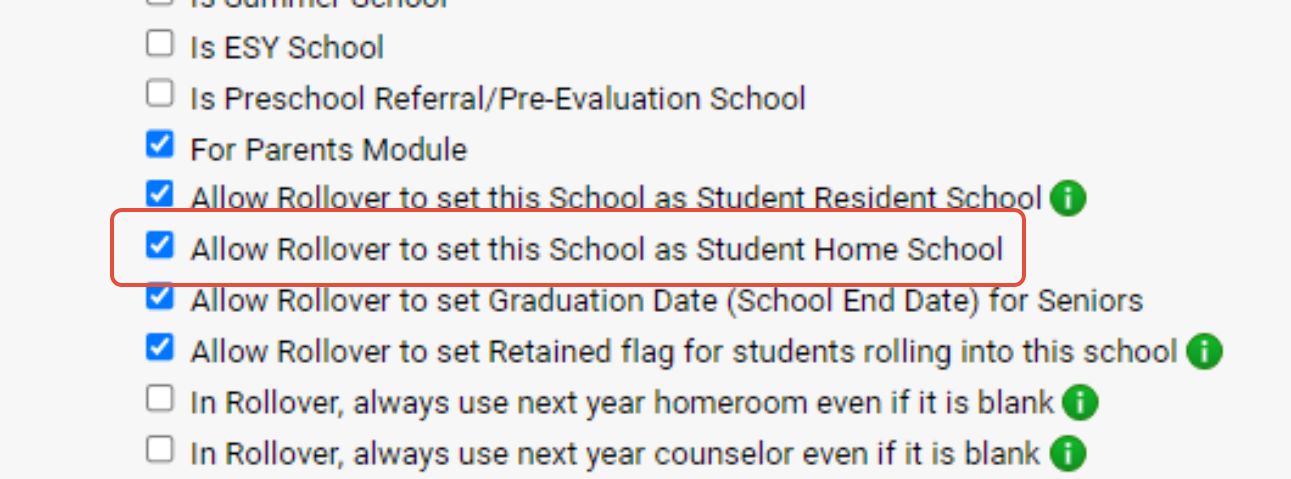 If it is, the logic is: If the Student currently has a Home School set, and the student was not in PreReg, we will set the Student’s Home school to be the students school they are rolling into. Otherwise, we leave it as it is.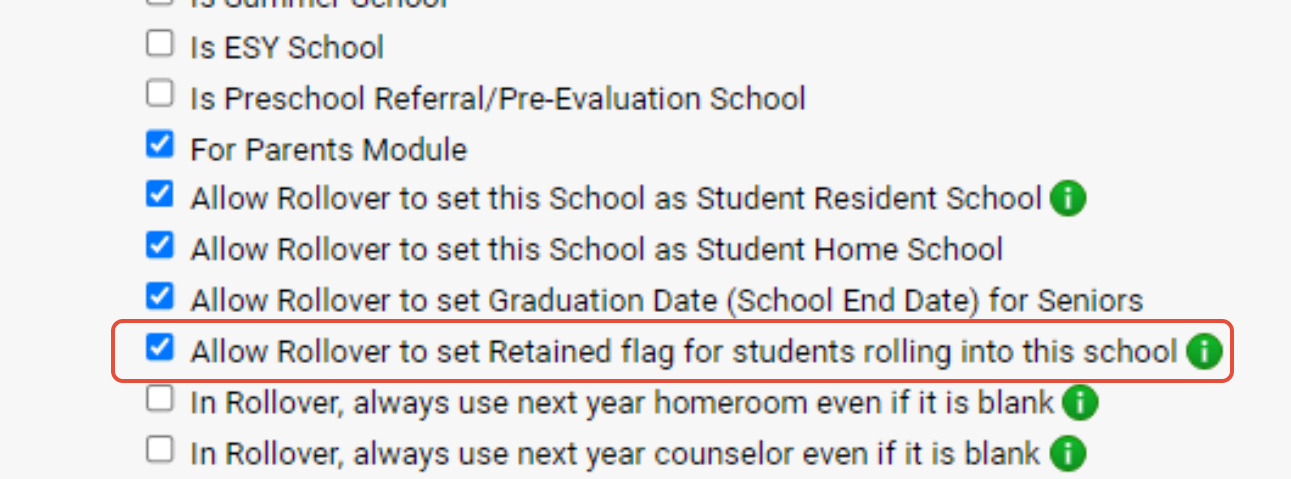
Adding Start and End Dates for the School
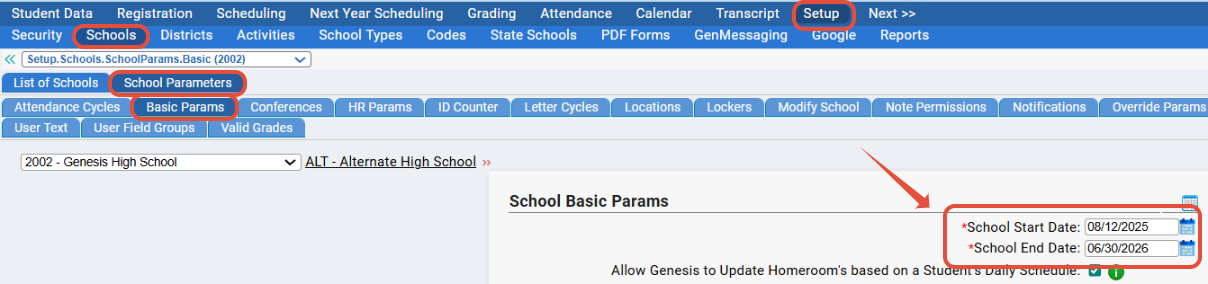
After adding a new school, you'll have to add in the start and end dates.
Navigate to the Setup>Schools>Modify School>Basic Params. Enter the start date in the "School Start Date" field and enter the end date in the "School End Date" field. Click "Modify" at the bottom of the screen to save the changes.
Adding and Updating Cycle Days on the New School's Calendar
A "cycle day" is the code for a school day. For example, the usual '5-day daily' cycle days are M T W R F for "Monday", "Tuesday", "Wednesday", "Thursday" and "Friday".
Every school will need the cycle days applied to their calendar for many features within Genesis to work.
Cycle days are used for the following:
Determining which days a course section meets
Determining the which periods meet on a given day
Determining which course sections can take Class Attendance on a given day.  Only course sections that meet on a day can take Class Attendance on that day.
Allowing teachers to enter lesson plans on that date.
Scheduling Cycle Set Selection
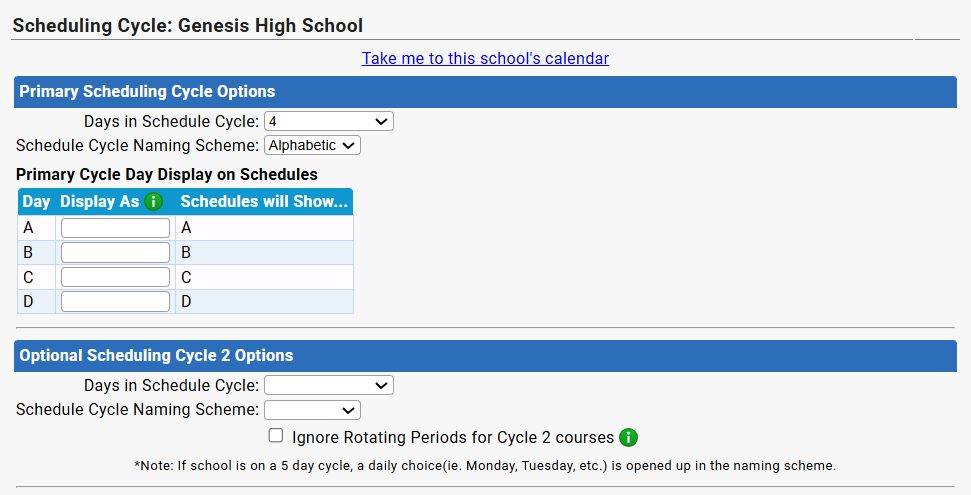
The Schedule Cycle is set on a school-by-school basis. The school's Schedule Cycle is set on the Setup>Schools>School Parameters>Scheduling screen. For example, if you select the '5-day daily' cycle on the Scheduling screen, that is what is then would be applied on the Calendar screen for the school.
Make the selection for the school in the "Days in Schedule Cycle" field and the "Schedule Cycle Naming Scheme" field. Click "Save Changes" at the bottom of the screen to save your updates.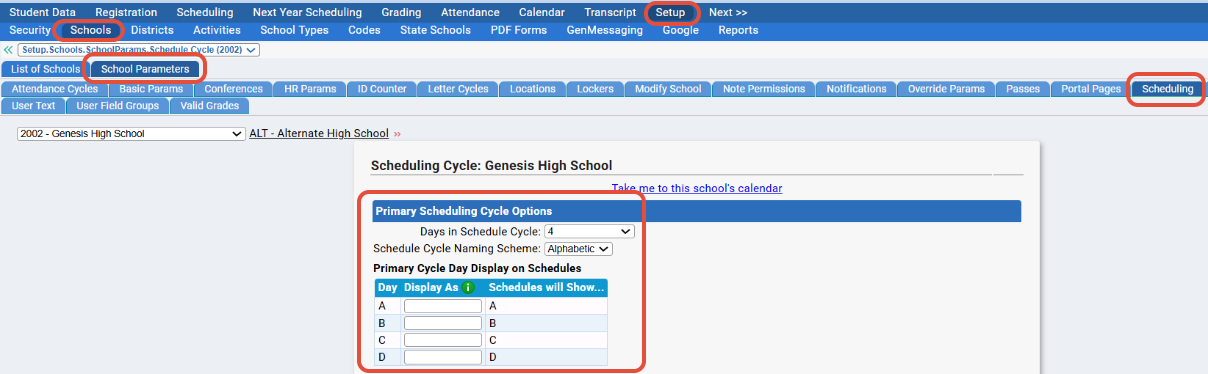
Scheduling Cycle Options:
5 Day Daily: Monday (M), Tuesday (T), Wednesday (W), Thursday (R), and Friday (F)
Alpha:  Cycle Days A to O:  Up to 15 cycle days named, sequentially A, B, C, D, E, F, G, H, I, J, K, L, M,  N, O
Numeric:  Cycle Days 1 to 10:  Up to 10 numerically named days can be used.
Applying Cycle Days to School Calendar
To add cycle days from your scheduling cycle selection to the new school's calendar, navigate to the Calendar>Schools tab. Make sure you've selected the correct school in the "Choose School Calendar" dropdown.
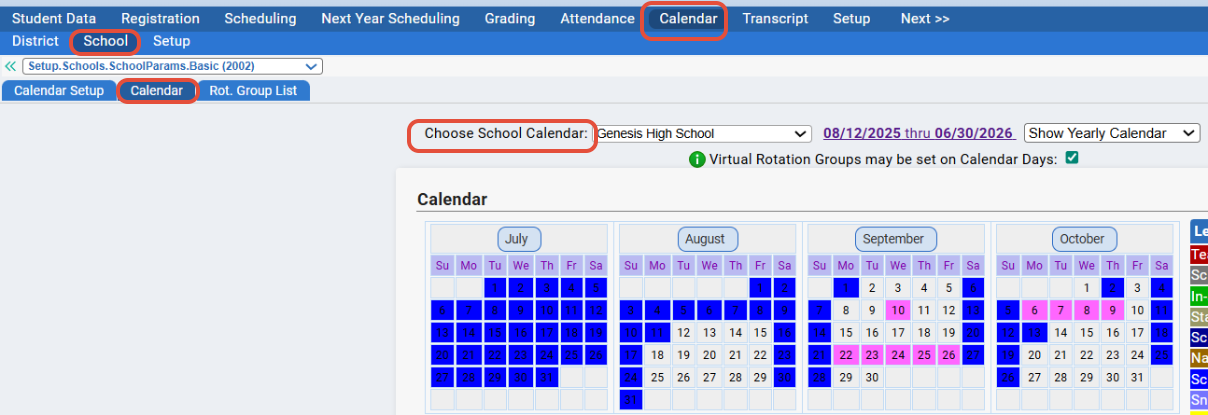
Scroll to the bottom of this tab until you locate the "Tools" section.
To apply the schedule cycle days to the calendar, click "Apply Cycle Days to Calendar."
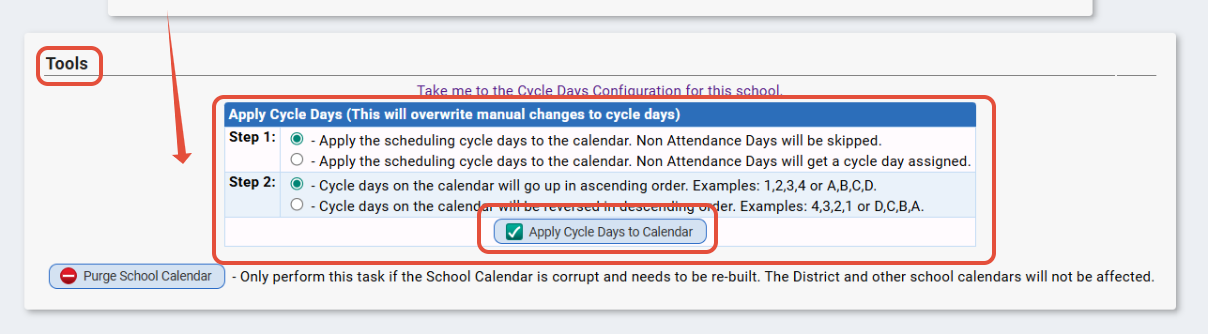
For more info, please review this article on Cycle Days.
Adding Valid Grade Levels to the New School
You will need to specific which grade levels are in the newly added school.
To do this, navigate to the Setup>Schools>Modify School>Valid Grades tab.
The district grade levels will be listed on the left. Check off the relevant grades on the left, and click "Add Grades" to move them to your new school's list of grade levels.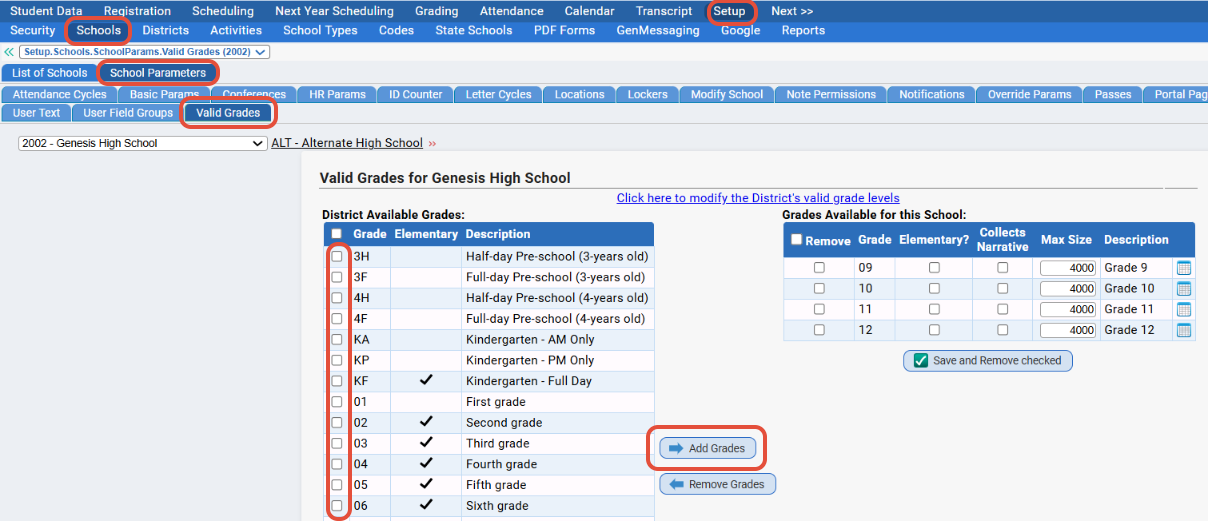
Attendance Cycles
When you create a new school, you will have to create the attendance cycles as well (Marking Periods, Semesters etc.)
The quickest way to accomplish this would be to navigate to Setup>Schools>Modify School>Attendance Cycles, click "Manage Attendance Cycles" and then use the tools on this pop-up to create the cycles.
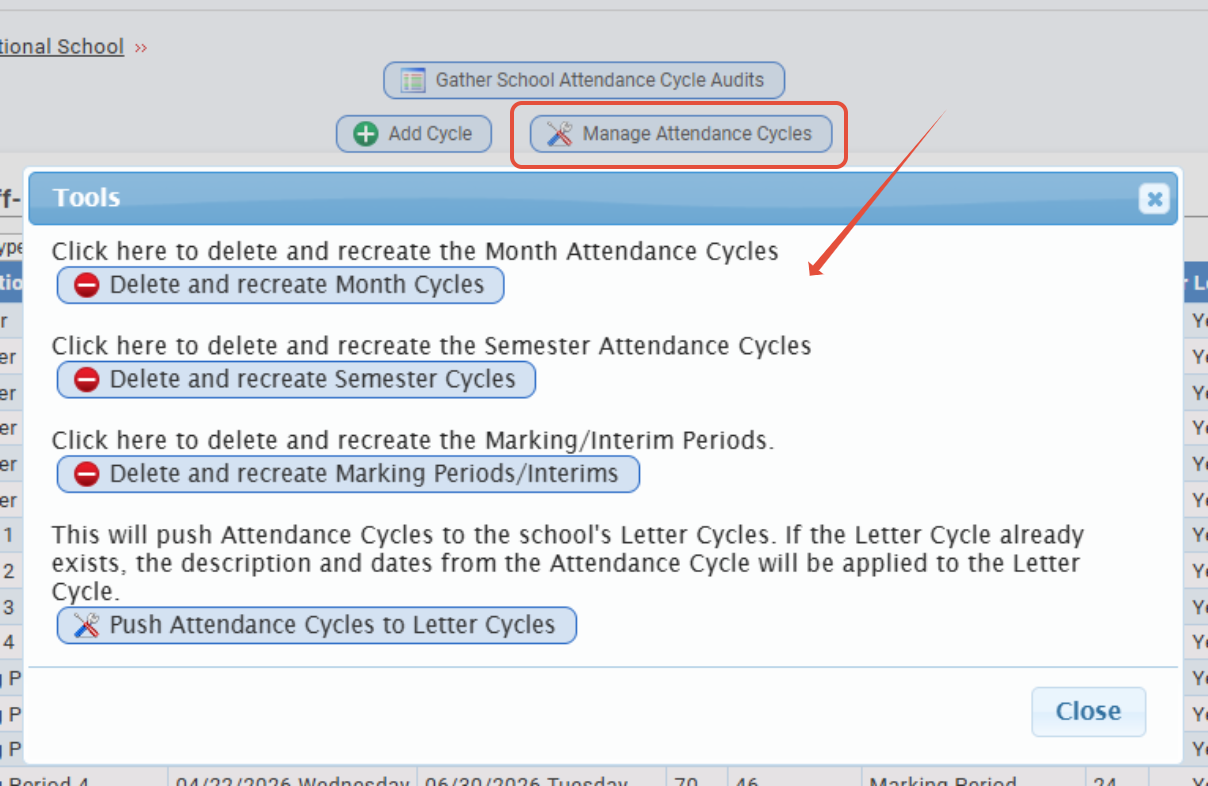
You can also use the last tool "Push Attendance Cycles to Letter Cycles" to populate the Setup>Schools>Modify School>Letter Cycles tab in one go, as well.
Basic Params Tab
While you do not necessarily have to fill out every field on the Setup>Schools>Modify School>Basic Params tab as soon as you create the school, this contains important data for your school. For example, you can set up how daily attendance and class attendance propagates, signatures etc.
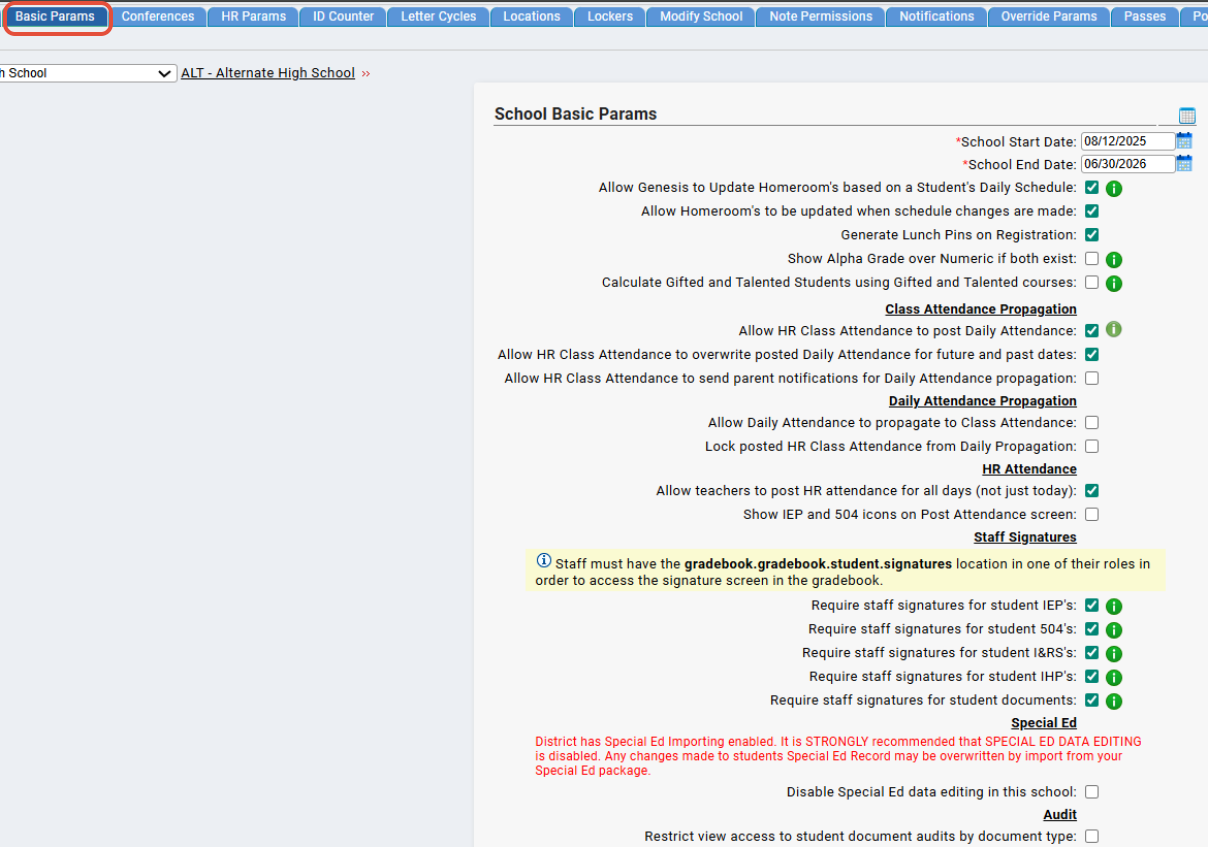
Click here for more info on this tab.
HR Params
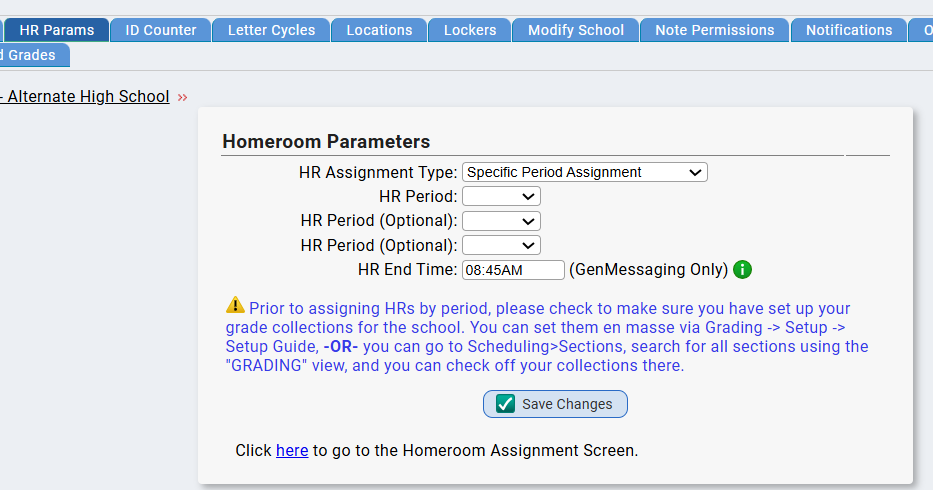
The Setup>Schools>Modify School>HR Params tab is used in tandem with how you assign your homerooms to students in the school. You can set the school's parameters here to: Specific Period Assignment, Student List to Room Assignment, Alpha by Grade Assignment. Please review our documentation on the Student Homeroom Assignment task for more info.
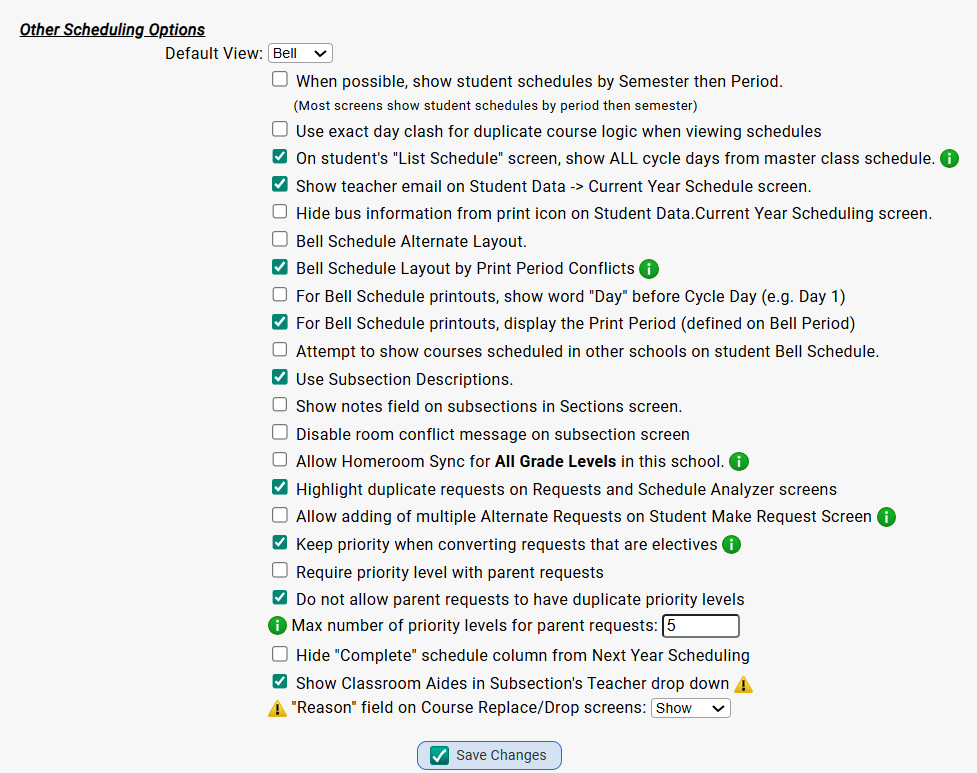
Scheduling
The Setup>Schools>Modify School>Scheduling subtab has some options that you can set up that tie to features such as Cycle Days, the School Calendar etc.
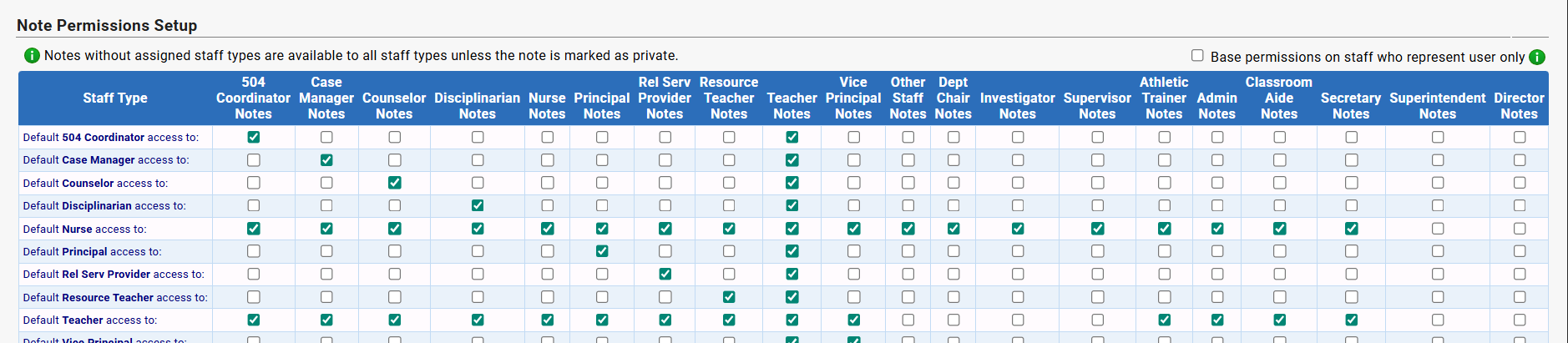
Note Permissions
You can set up the note permissions for the school via Setup>Schools>Modify School>Note Permissions. This allows you to set the security for the notes per the guidelines for your newly created school. We have additional articles about notes here: Student Note Permissions + Student Notes Screen.
Assigning Access to the School
After creating a new school, you should also review and update users' access to via the Setup>Security tabs.
You can grant roles to users that are tied to specific schools, for example. So, if you need to add roles to a new set of teachers, users, etc, in the school, make sure that you add the role to them while also checking off the new school code.
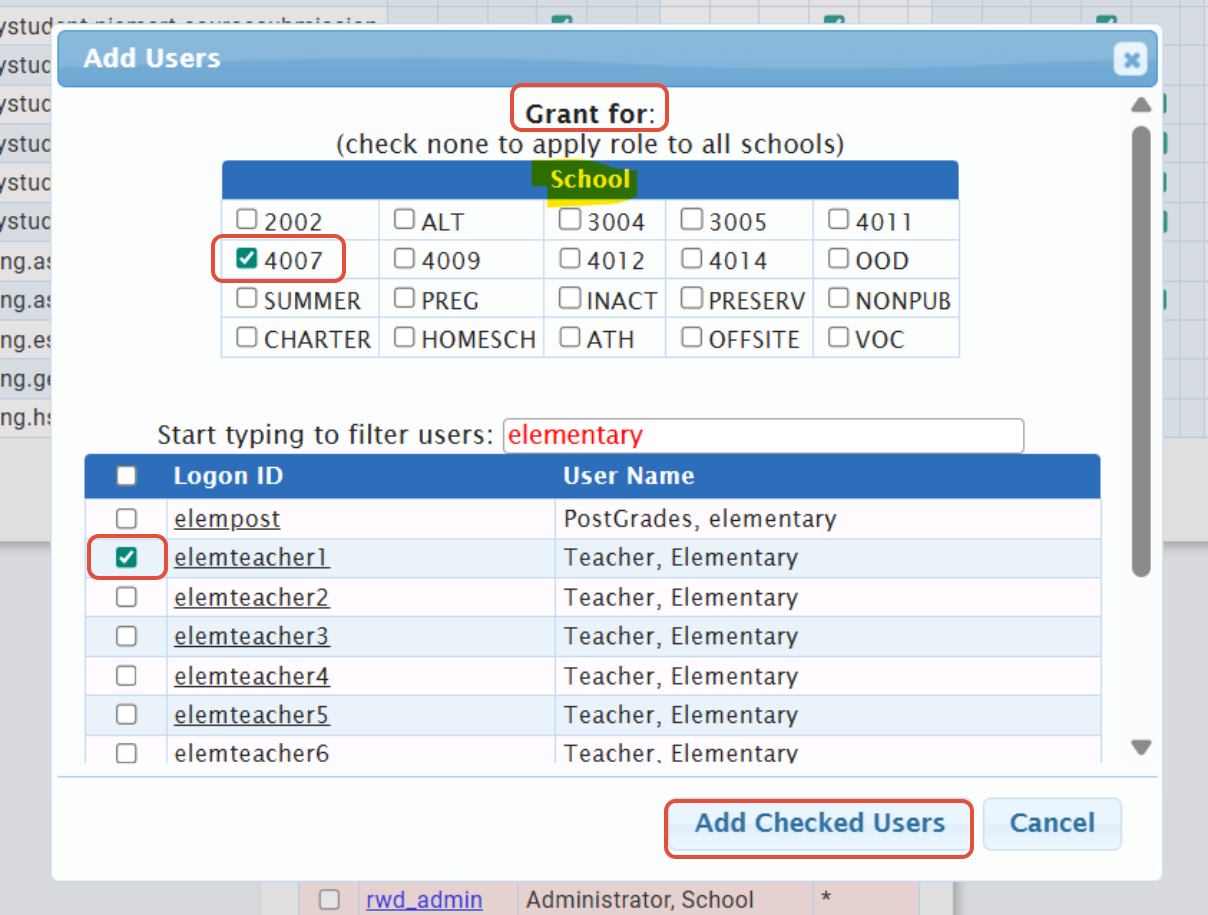
This will ensure that you are granting access to only the appropriate schools.
If you need to set the new school as a 'default' location for users, as well, you can do this via Setup>Security>Users>Modify User in the "School" dropdown on their account.

More info on roles and security can be found here.
User Flag and User Text Visibility Per School
After creating a new school, make sure to select the user flags/texts that will be available to student records for this school via Setup>Schools>User Flags and Setup>Schools>User Text with the "Available to School" checkbox.

FAQ
Q: Can I change a school code to a different code?
A: No, the school code cannot be modified. If you need to make a change like this, a new school would have to be created. Please reach out to the help desk if this is something you are looking to do.
Was this article helpful?
That’s Great!
Thank you for your feedback
Sorry! We couldn't be helpful
Thank you for your feedback
Feedback sent
We appreciate your effort and will try to fix the article